AI Snow Photo Generator

Create the AI snow trend from your own photo: turn a selfie into a three-frame winter portrait, or add falling snow while keeping your original outfit. Choose an effect, adjust the prompt and generate.

JPG, PNG or WebP, up to 20 MB. Drop a photo here or use the + button.

Choose a scene

AI Snow Photo Effects You Can Create

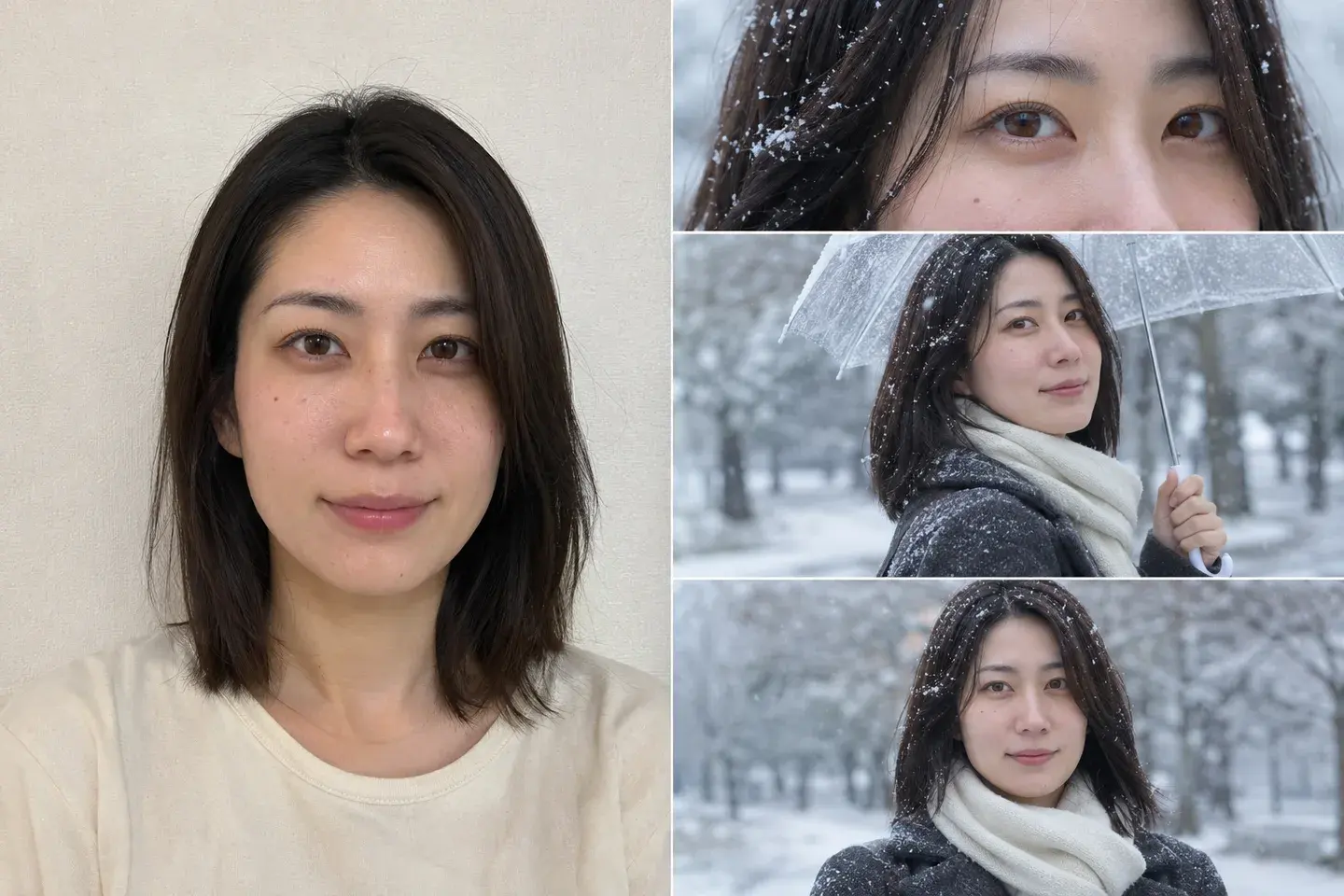
Woman in a cream T-shirt beside a three-panel snowy portrait with a close-up, clear umbrella and charcoal coat with an ivory scarf.Original photoWinter preview

Three-Frame Winter Portrait

Build a winter story from one portrait: a close-up, an umbrella scene and a chest-up photograph, stacked in a single vertical image. This preset adds a charcoal coat and ivory scarf, with soft snowfall connecting the three views. Change the outfit or setting in the prompt to make the look your own.
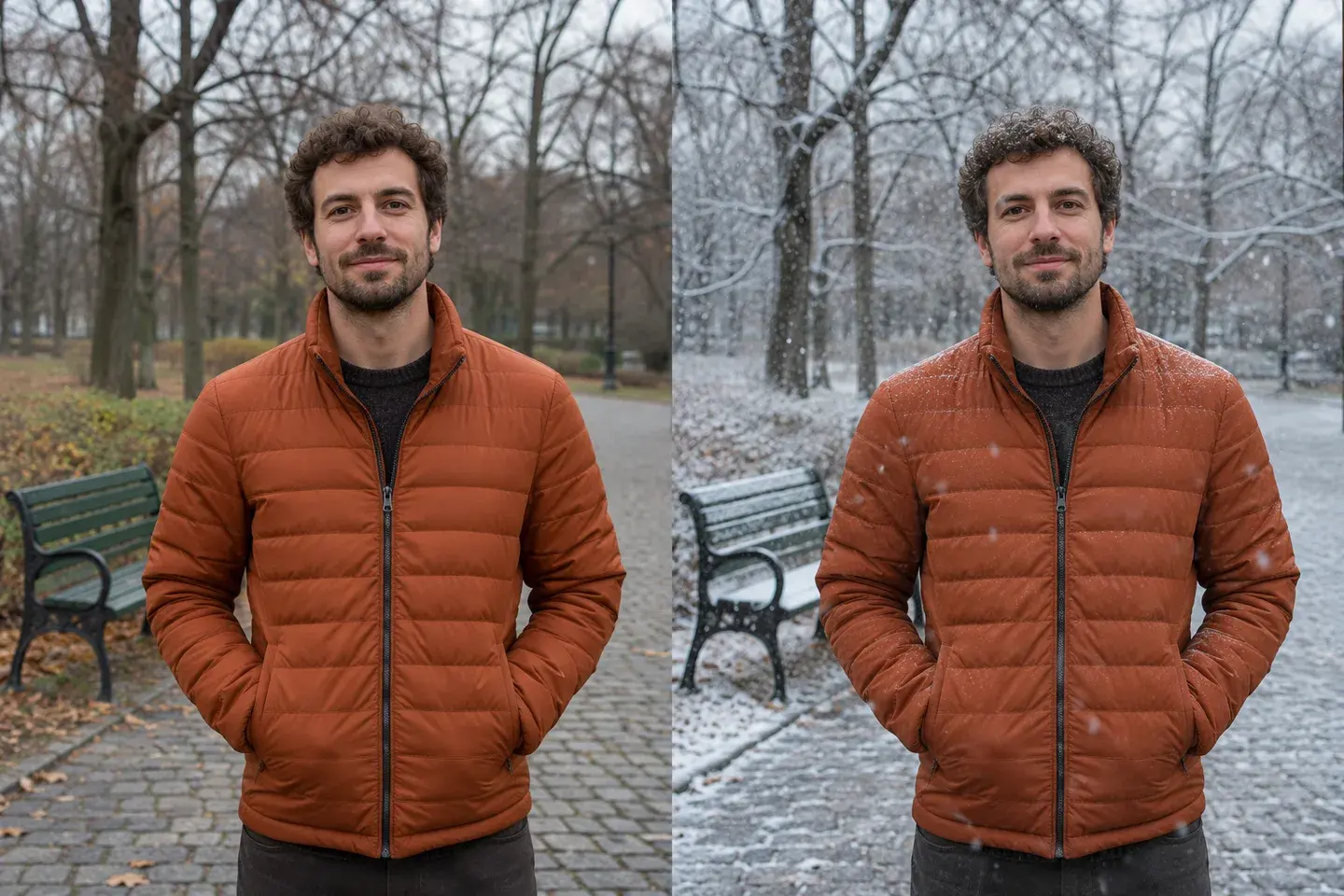
Man wearing a rust-colored puffer jacket in a park, shown before and beside a winter preview with falling snow and snow-covered ground.Original photoWinter preview

Add Falling Snow to Your Original Photo

Give an outdoor photo a winter atmosphere with falling flakes, a light dusting of snow and cooler daylight. The Add falling snow preset asks the AI to keep your original clothes, pose and composition. It is a useful starting point when you like the photo you already have and want to change the season.

Customize Your AI Snow Photos

Snowfall and Winter Light

Describe a few drifting flakes, steady snowfall or a fresh layer of snow on the ground. Pair the weather with soft overcast light, blue-hour tones or warm streetlights to set the mood.

Original Clothes or a Winter Outfit

Keep the jacket and accessories in your reference photo, or request a particular coat, scarf and color palette. Say which details should stay so the edit has a clear direction.

Portrait and Collage Formats

Start with 9:16 for the three-frame collage or 4:5 for a single winter portrait. You can change the aspect ratio before generating to suit a story, profile or photo post.

How to Create AI Snow Trend Photos

  1. Upload Your Photo

    Choose one clear JPG, PNG or WebP photo up to 20 MB. For the three-frame look, use a portrait with an unobstructed face. For a winter edit, upload the outdoor composition you want to keep.

  2. Choose a Snow Effect

    Select Three-frame portrait or Add falling snow. Each option fills in an editable prompt and selects a suitable photo format. Adjust the outfit, snowfall and background before generating.

  3. Generate and Download

    Sign in, review the credit cost on the button and generate your snow photo. Once the image is ready, preview it and download it. Your completed result is also available in My Generations.

AI Snow Photo Prompts

Use these prompts as a starting point for your uploaded photo. Apply one directly to the generator, or copy it and adapt the details to your preferred winter scene.

Three-Frame Snow Portrait Prompt

Read the full prompt

Use the person in my uploaded photo as the identity reference. Create one vertical image divided into exactly three equal horizontal panels stacked from top to bottom. Top: a close-up of the eyes and upper cheeks, with delicate snowflakes in the hair. Middle: a three-quarter portrait holding a clear umbrella under gentle snowfall. Bottom: a chest-up portrait looking toward the camera. Keep the same recognizable face, age, skin tone, hairstyle and eye color in all three panels. Dress the person in the same charcoal wool coat and ivory scarf throughout. Use soft overcast winter daylight, a blurred snowy park and natural skin texture. Keep snow away from the pupils, with realistic hands and a natural umbrella grip. No text, logos or additional panels.

Add Snow Without Changing Your Outfit

Read the full prompt

Edit my uploaded photo into a realistic winter photograph. Preserve the people or pets, recognizable faces, hairstyle or fur markings, original clothing, accessories, pose and composition. Keep the existing background and architecture recognizable. Add gentle falling snow at different distances from the camera, a light dusting on suitable outdoor surfaces and subtle cool winter light. Keep the subject's face clearly visible and the original clothing colors accurate. Snowflakes should vary naturally in size and focus, with restrained accumulation rather than a blizzard. Do not change the outfit, replace the subject, add extra people or add text.

Keep Your Winter Portraits Consistent

Start with a Clear Face

A sharp, evenly lit portrait gives the AI a better reference for facial features, skin tone and hair. Choose a photo without strong beauty filters or objects covering the face, and keep the requested expression close to your reference.

Keep One Look Across Three Frames

Describe one coat, one scarf and one lighting style for the entire collage. If a result changes a detail between panels, make that detail explicit in the prompt, such as “the same charcoal coat and ivory scarf in all three frames,” then generate another version.

For more portrait-editing ideas, explore photo editing without changing your face.

AI Snow Photo Generator FAQs

What is the AI snow trend?

The AI snow photo trend turns an ordinary portrait into a winter photoshoot. A common version combines three stacked views: a close-up, a wider scene with an umbrella and a portrait in falling snow. The three-frame preset creates that style from your uploaded photo.

Is a three-frame photo one image or three downloads?

The three-frame preset requests one image containing all three panels. You download the complete collage. To get separate panels, crop the downloaded image in a photo editor.

Can I add snow to a couple, pet or landscape photo?

Yes. Start with Add falling snow and describe the people, animal or scenery you want to keep. For a couple or pet, ask the AI to preserve both faces or the pet’s distinctive markings. For a landscape, specify the buildings, trees and viewpoint that should remain.

Can I keep my original clothes?

Yes. The Add falling snow preset already asks to keep your original outfit. You can also replace the winter-clothing instructions in the three-frame prompt with a description of your own clothes, including their color, pattern and accessories.

Is this a snow overlay or an AI edit?

This is an AI photo edit. It can create snow on surfaces, change the lighting and generate new winter scenes from your reference. Because it reconstructs image details, it may also change small features; describe the elements you want preserved in the prompt.

Is the AI snow photo generator free?

Generation uses account credits. The button shows the cost for your selected model and resolution before you start. Sign in to check your balance, and visit the pricing page for current credit options.

View current pricing · Privacy policy