AI Product Photo Generator for Ecommerce

Start with your product photo. Create a clean studio background, a natural lifestyle scene or a fresh campaign composition with an editable instruction.

Upload your product photo

JPG, PNG or WebP. Keep the product and its details clearly visible.

Choose a starting instruction

A simple product-first image with a white background and a soft contact shadow.

One product photo, different ways to present it

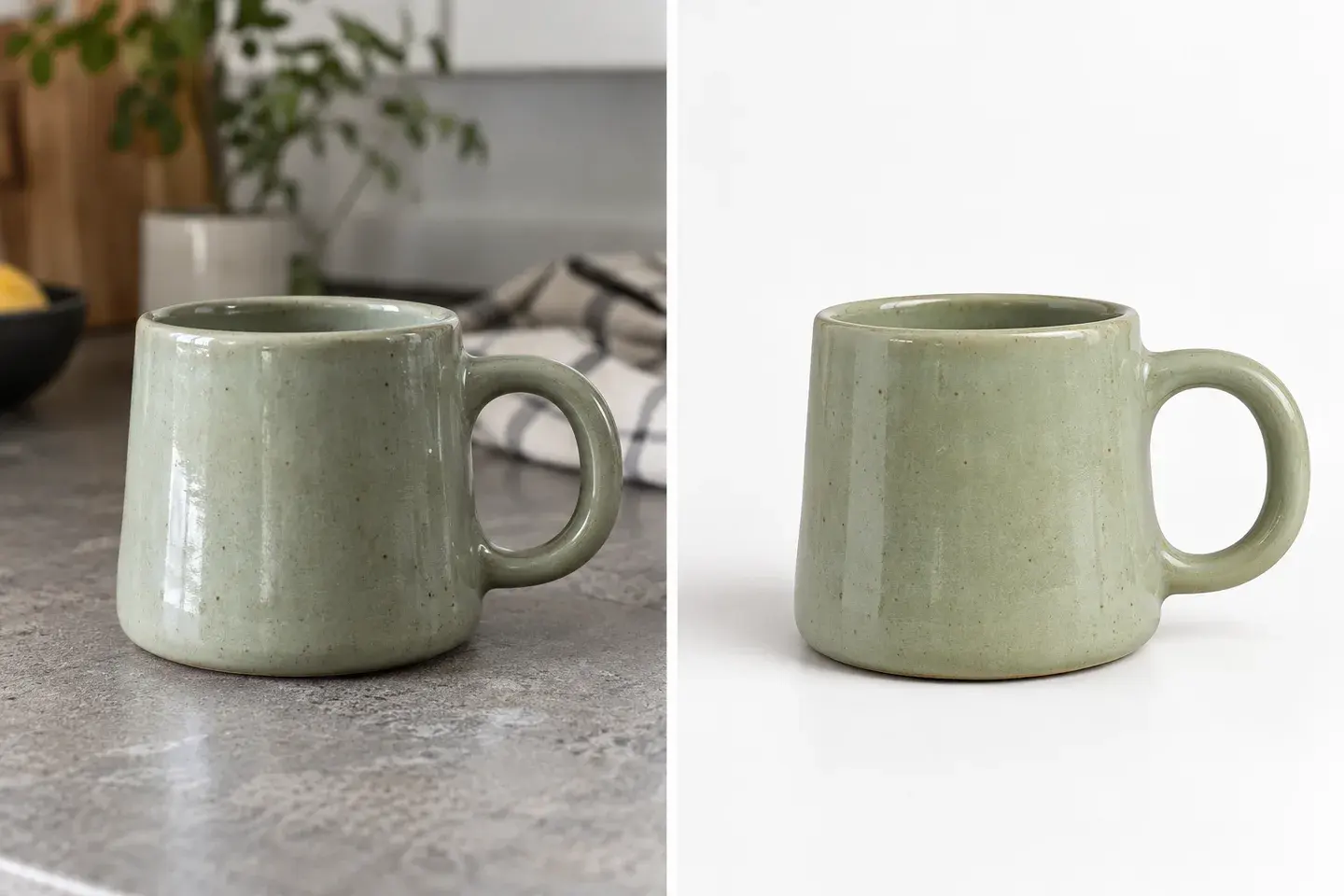
Sage ceramic mug shown on a kitchen table and against a white studio background.

A clean studio image for the product page

Make the product easy to understand at a glance. A plain background gives the outline, color and finish room to stand out. Start with the Studio white instruction, keep the whole item visible and ask for a light contact shadow. Inspect handles, openings and the lower edge after generating. A clear product photo gives the editor a strong reference for the item’s shape, finish and branding.

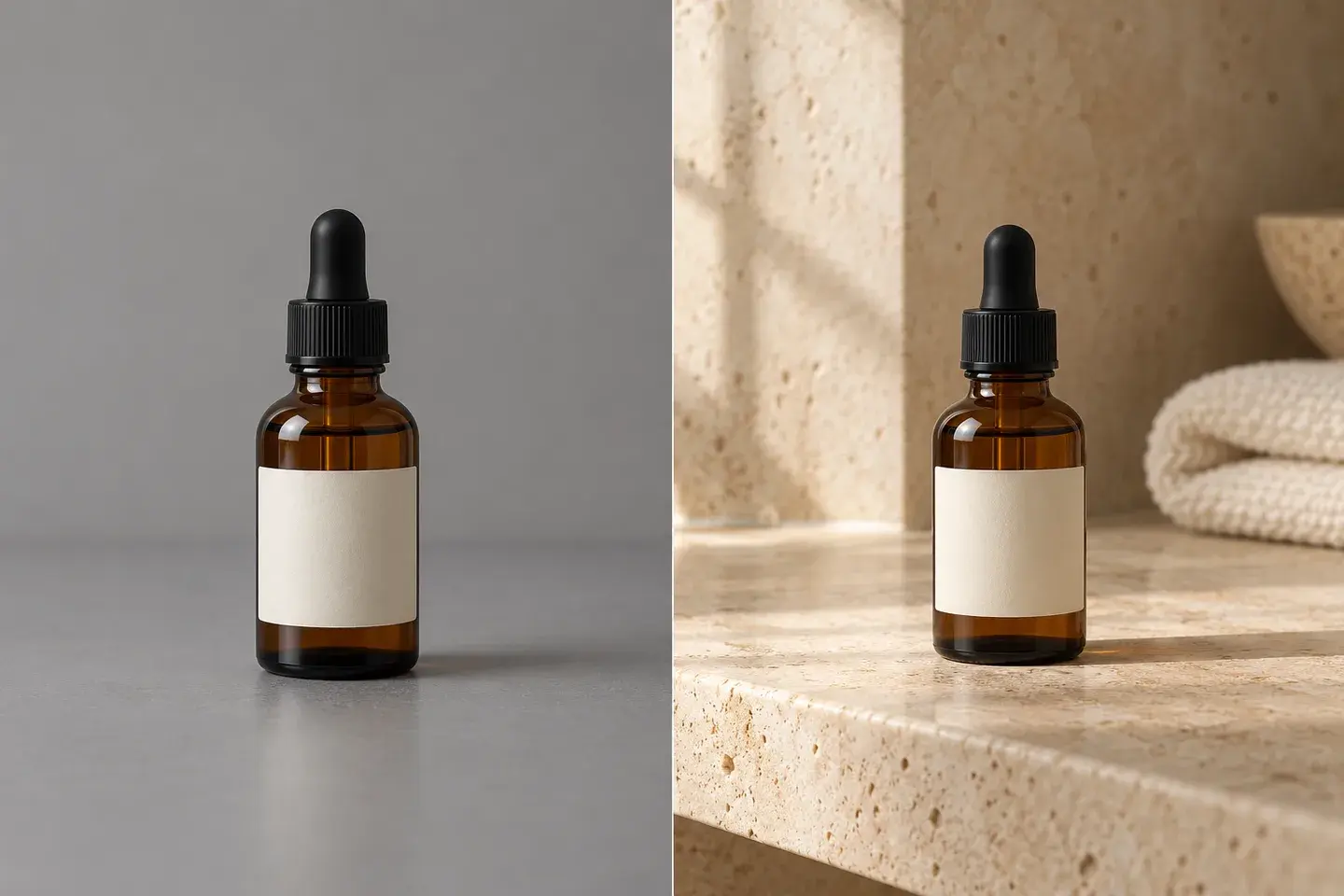
Amber skincare bottle on a plain tabletop and a warm stone bathroom shelf.

A skincare scene with a believable setting

A bathroom shelf or a quiet dressing table can give a bottle a sense of place. Describe the surface, light direction and amount of background detail rather than asking for a vaguely luxurious scene. Keep the label front-facing and avoid props that suggest ingredients or included accessories. Check the cap, bottle transparency and small packaging text against your source before using the image.

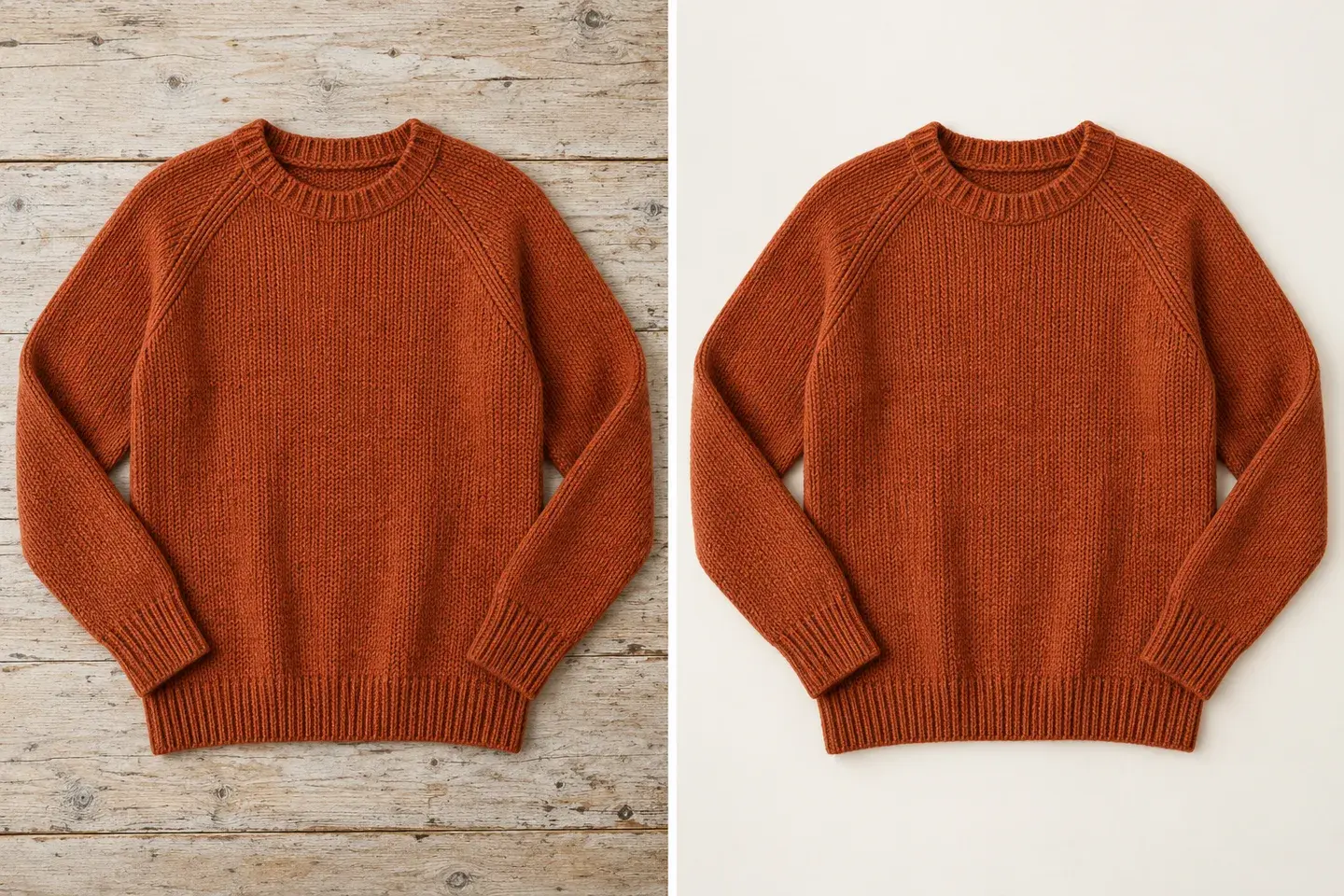
Rust knit sweater laid flat on a wooden table and on a neutral studio surface.

A flat lay that gives fabric room to show

For a garment already photographed flat, request a simpler surface and more even light without changing the cut. Include the cuffs, neckline and full hem in your upload. The knit, stitching and printed design matter as much as the overall silhouette. This is a background and presentation task; if a single crease is the only problem, a focused clothing cleanup is easier to assess.

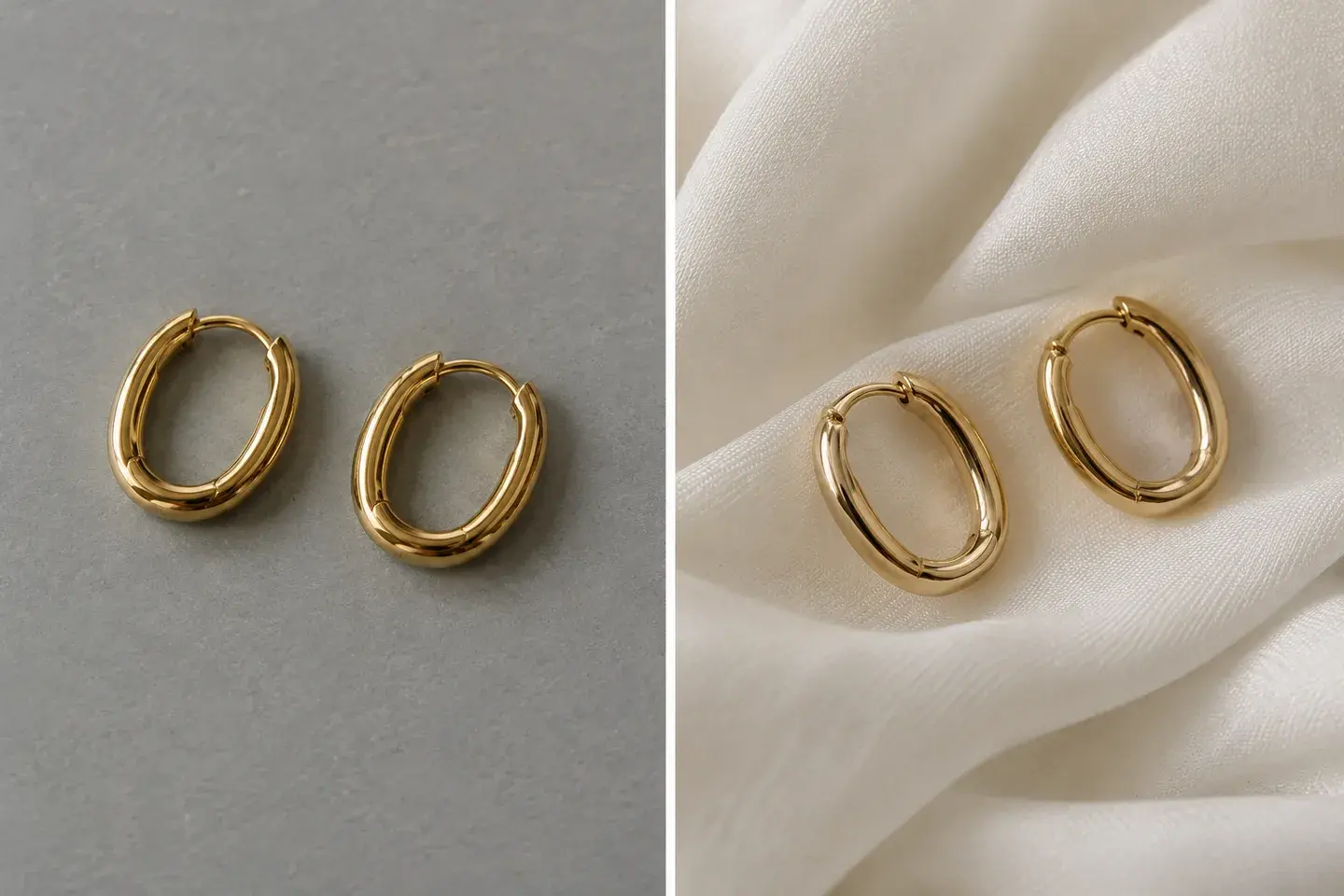
A pair of gold hoop earrings arranged on gray stone and soft ivory fabric.

Jewelry with restrained light and reflections

Give small reflective products a polished setting with soft light and a simple surface. Keep the full piece visible and describe its material, stone color and finish. A gentle reflection or natural contact shadow can make a ring, necklace or watch feel dimensional without crowding the composition. Use a clear source with visible clasps, openings and fine details so the editor has a strong reference for the product you want to present.

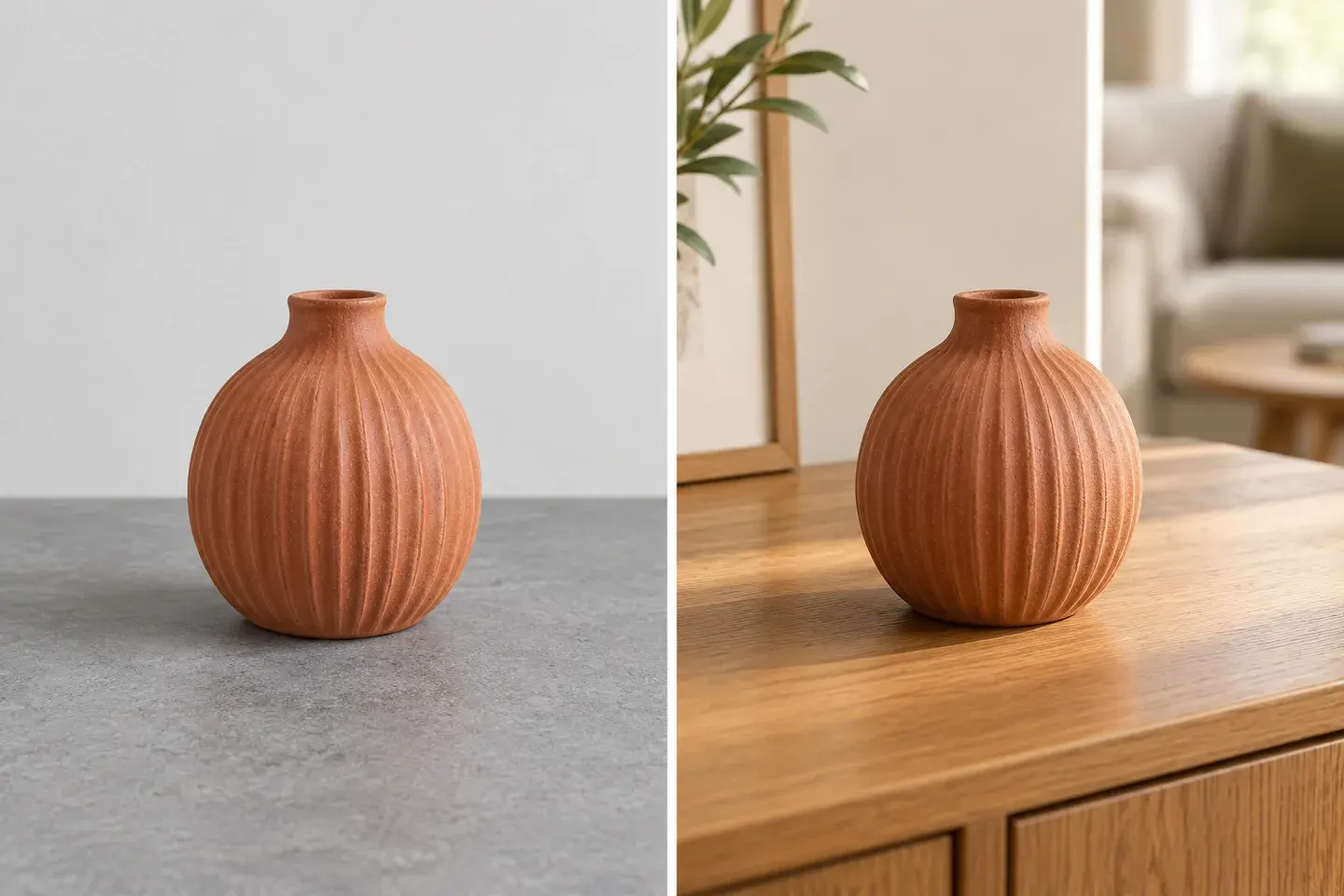
Terracotta vase on a plain table and on an oak sideboard in a living room.

Homeware in a setting that makes sense

Show how a vase or small home accessory might sit in a room without making it compete with the furniture. Choose a surface and a camera angle that are consistent with the source photo. Keep the base grounded and leave enough background to communicate the setting. If size is important to the purchase, provide actual dimensions separately; a generated room is not a measurement reference.

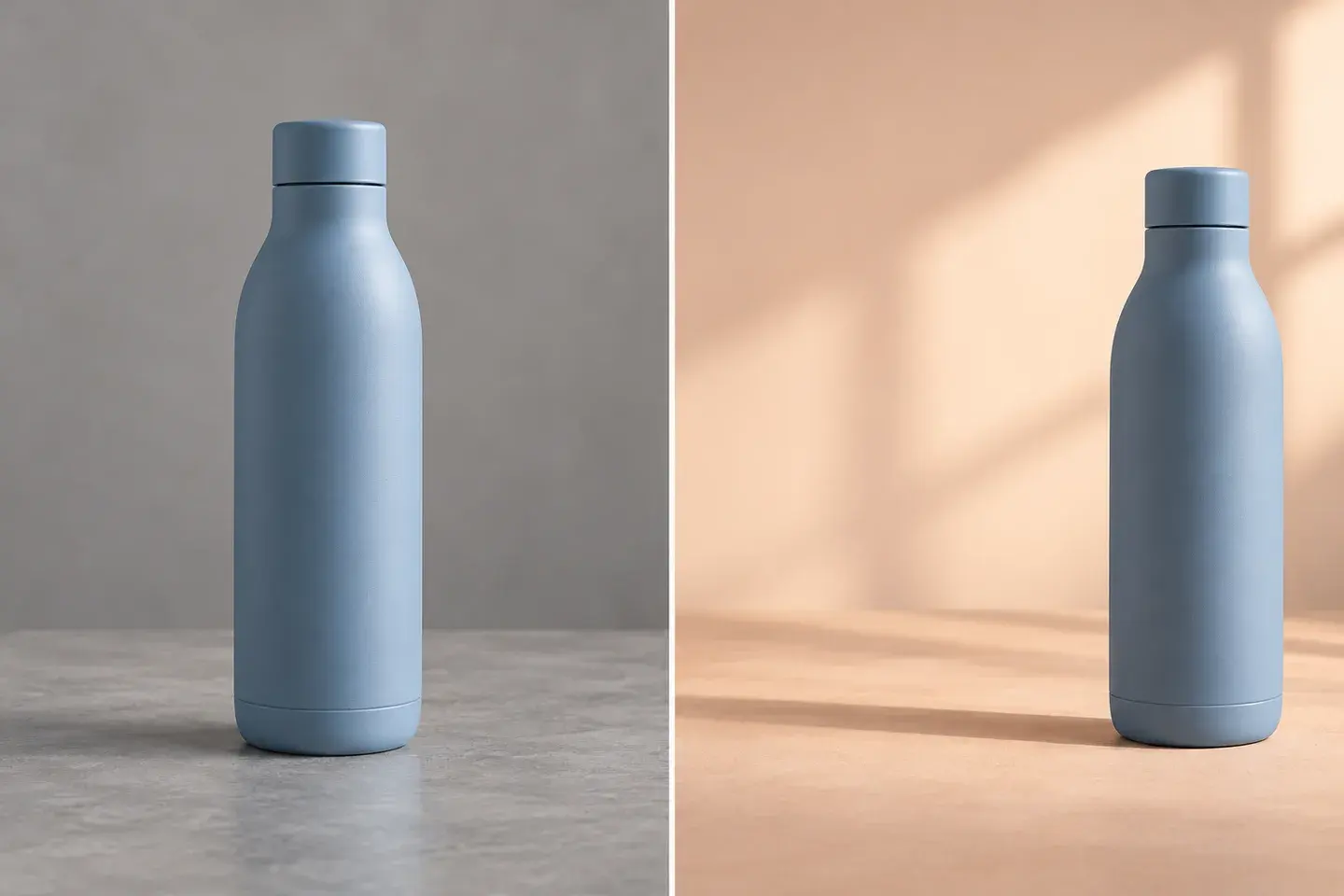
Blue insulated bottle centered on gray and placed beside open space on a peach background.

Campaign images with space for your message

An ad or collection banner often needs a different composition from a product listing. Choose a suitable aspect ratio and say where the product should sit, then ask for clear negative space on the other side. Add the headline and offer in your design tool after downloading. This keeps editable text out of the generated image and lets you reuse the composition across placements.

What does an AI product photo generator do?

An AI product photo generator turns your existing product photo into studio, lifestyle and campaign images. Upload a product, choose a starting style and describe the background, lighting and composition you want. The reference helps retain the item’s shape, color, material and branding while you create a fresh presentation. Build a clean listing image, place a bottle on a bathroom shelf or leave space for an advertising headline—all from the same source photograph.

Write a brief that keeps the product in focus

Name the image's job

Choose a product listing, a lifestyle detail or a campaign image before describing the scene. A listing needs an unobstructed item; an ad may need open space for copy. Asking for both in one instruction often produces an unclear composition.

Describe the surface and background

Use concrete directions such as matte white paper, pale stone or an oak shelf. State whether the background should be plain or softly out of focus. Too many decorative objects can make the scene harder to read.

Set one light direction

Ask for soft window light from one side or even studio light. A natural shadow should connect the item to its surface. Review whether reflections and shadows agree with the setting rather than judging brightness alone.

Specify what must stay

Name the actual color, material, shape and visible branding in your instruction. This gives the request a clear preservation goal. Use the reference to keep the product recognizable as you explore a new presentation.

Keep the whole item visible

Begin with a photo that includes every edge you need. Leave some margin around the product instead of uploading a tight crop. A generated extension can invent a missing handle, sleeve or package edge rather than recover the real one.

Change one choice at a time

If the background is right but the shadow is too strong, revise that part of the brief. Returning to the original photo makes variations easier to compare. A new generation is a new request, so check its displayed credit cost.

How to use the AI product photo generator

  1. Upload a clear product photo

    Choose a JPG, PNG or WebP with the item in focus. Use a simple background when possible, include the full outline and avoid glare across important lettering. Convert HEIC or RAW files first. One clear product is a useful starting point even when the selected model accepts more reference images.

  2. Choose a starting instruction

    Select Studio white, Lifestyle scene or Room for copy, then adapt the text for your item. Specify the background, light and details to keep. Choose an available model, aspect ratio and output size. Review the credit cost before generating; loading or editing a preset alone does not start a task.

  3. Review, download and place

    Inspect the product before judging the scenery. Check color, quantity, label, edges and any reflective parts against the original. Download an accepted result and open it at the size you intend to use. Add your own text or crop in a design tool, then upload the final file to your store.

Choose a product-photo direction

MethodBest fitControlWhat to review
Studio whiteClear catalog and listing imagesPlain white setting and a soft contact shadowProduct outline, label and material
Lifestyle sceneShowing the product in a relevant settingDescribe the surface, props and lightingProduct prominence and a coherent scene
Room for copyCampaign banners and social adsPlace the product to one sideOpen space and readable composition

Use scene generation for a new setting or lighting direction, and background removal when you need a transparent product cutout. A clear source photo and a reusable scene brief help you build a consistent set of shop and campaign images.

Questions before you create product photos

Can I create product photos from a phone picture?

Yes. Upload a clear phone photo with the whole product visible. Even lighting and a simple starting background help show the item’s shape, material and details. Choose a scene preset, then describe the presentation you want.

Can I make both white-background and lifestyle product photos?

Yes. Use Studio white for a clean catalog presentation or Lifestyle scene to place the product in a relevant setting. You can edit the surface, backdrop, props and lighting in the prompt to suit your brand.

Will the product keep its logo, shape and color?

The product photo is the reference for those details, and the presets are written to preserve them. Mention important packaging text, colors and materials in your brief. For a listing, check small lettering at full size as part of your normal final review.

Which products can I use it for?

Try cosmetics, skincare, jewelry, packaged goods, clothing, food and home accessories. The examples offer different directions for reflective materials, fabric and everyday objects. Describe the actual product and the setting that makes sense for it.

Can I create images for Shopify, Etsy or Amazon?

Yes. Create and download product images for your store or marketplace listings. Choose a suitable aspect ratio and background for the placement, then upload the finished file to your shop. Check that marketplace’s current image requirements before publishing.

How do I keep a consistent style across several products?

Reuse a scene brief with the same background, surface, lighting and camera direction, changing only the product description. Generate each product image individually. Saving your preferred wording makes it easier to build a coherent collection.

Can I leave space for ad copy or a banner headline?

Yes. Use Room for copy and specify where the product should sit. For example, place the bottle on the right with a plain area on the left. You can also request a wide or portrait composition using the available aspect-ratio settings.

Can I download a transparent product cutout?

Use the Background Remover linked below for a transparent cutout. Use this generator when you want a complete new scene, including a white studio background, natural shadows or lifestyle surroundings.

Can I choose the output size and see the price first?

Yes. The editor displays the available model, aspect-ratio and output-size settings, along with their credit cost. Choose the settings that fit your listing or campaign before generating. You can download the finished image when it is ready.

View current pricing · Privacy policy

Give your product a clearer place in the frame

Upload one photo, choose a starting scene and describe the details that matter. Review the product first, then keep the presentation that fits your store.

Upload your product photo