AI Photo Editor Without Changing Your Face

Upload your portrait and use AI to change the background, outfit or light while keeping your face recognizable. Choose one edit and describe the result you want.

Upload your photo

JPG, PNG or WebP. Drop your photo here or use the + button.

Choose a starting instruction

Change the setting while preserving face, outfit and expression.

Photo editing without changing face, one detail at a time

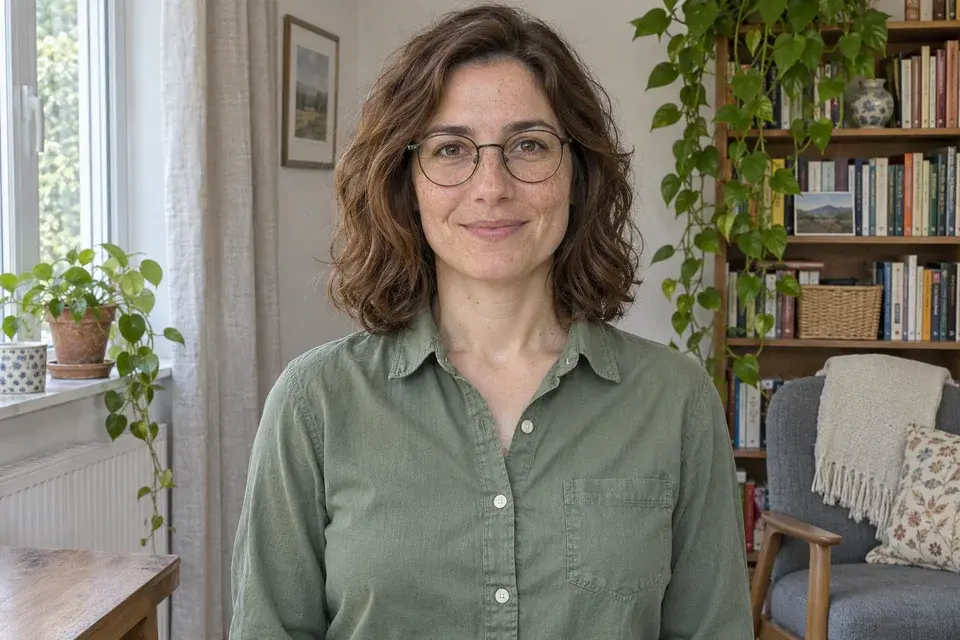
Reference portrait with round glasses, freckles and a sage shirt in a living roomReference portrait
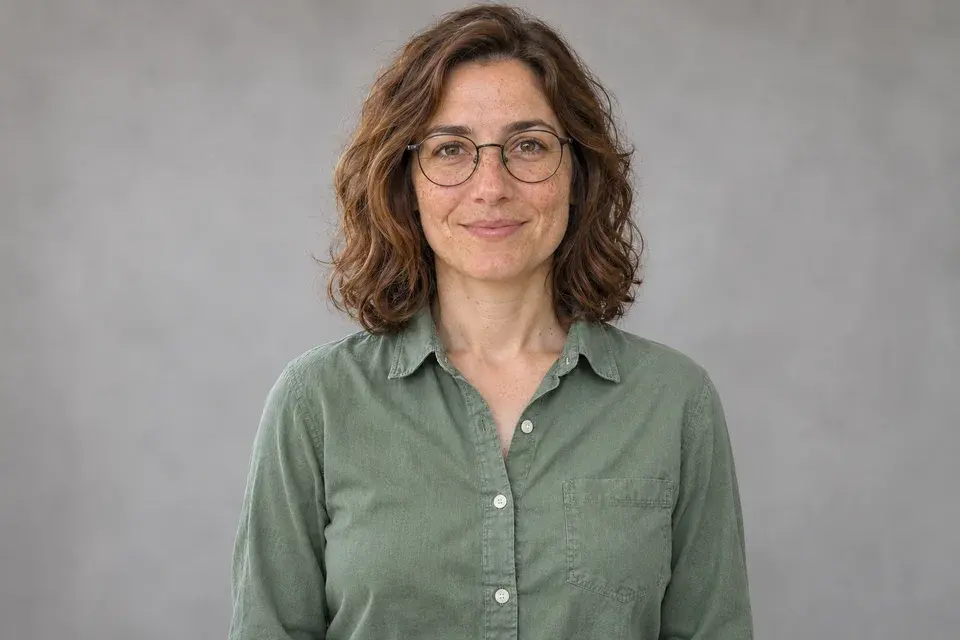
Background-edit preview: the room becomes a neutral studio setting.Edit preview
Background-edit preview: the room becomes a neutral studio setting.

A new background with the same familiar expression

For photo editing without changing face, background replacement is a useful place to start. Keep the smile, hairstyle and outfit you already like, then ask for a quiet studio wall, an office or a garden. The background preset tells the model to preserve the person and match the new environment to the existing portrait lighting.

Describe the setting in a short sentence, such as ‘a softly lit gray studio background with no furniture.’ Keeping the request this focused gives the editor a clear target. If a pair of glasses, freckles or a hairline is especially important, mention it. Compare the finished face and clothing with the reference before judging the new scenery.
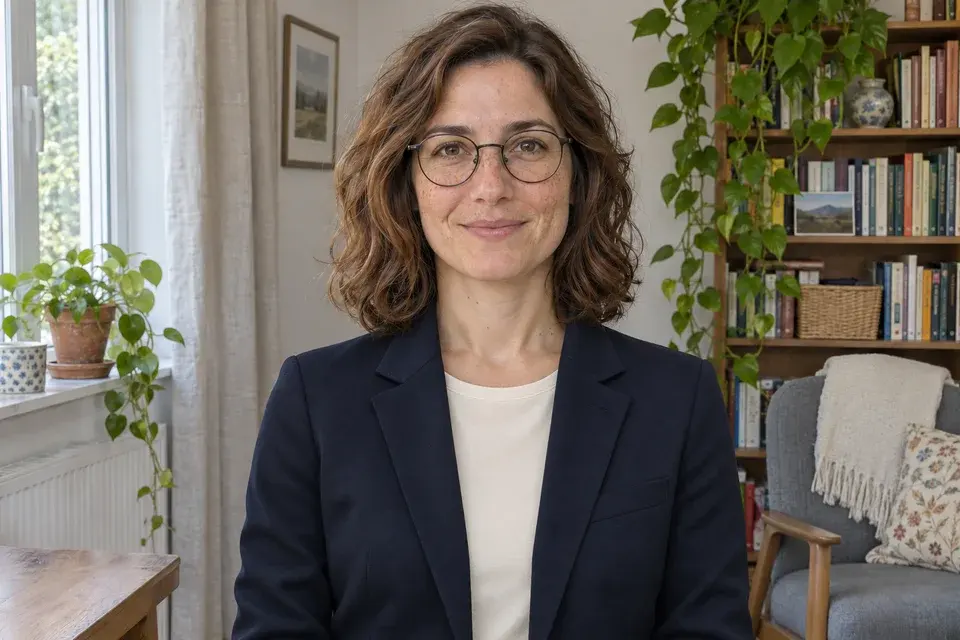
Reference portrait with round glasses, freckles and a sage shirt in a living roomReference portrait
Outfit-edit preview: a navy blazer replaces the shirt while the room remains.Edit preview
Outfit-edit preview: a navy blazer replaces the shirt while the room remains.

Try a different outfit around your original portrait

Photo editing without changing face can also help when your portrait needs a different dress code. Choose Outfit and describe the garment, color and fit: a navy blazer over an ivory shirt, a simple knitted top or a jacket that suits the occasion. The brief keeps the face, pose, room and original light as the reference.

Choose a photo where the shoulders, neckline and the clothing area are visible. Name any jewelry or accessories that should remain. A concrete description of fabric and collar style is more useful than asking for a complete makeover. After generation, inspect the garment edges, hands and neckline along with the eyes, smile and glasses.

Reference portrait with round glasses, freckles and a sage shirt in a living roomReference portrait
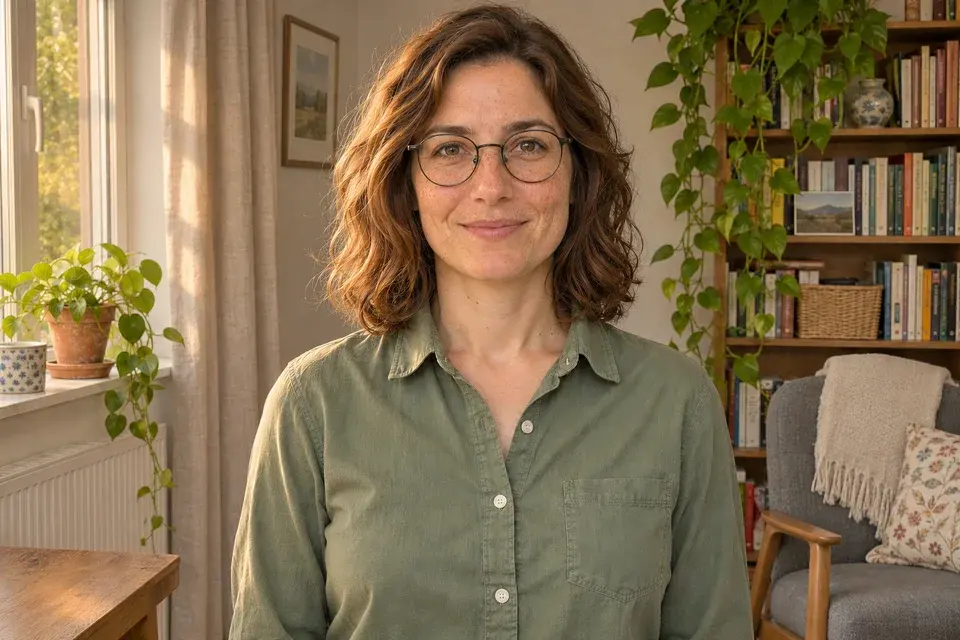
Lighting-edit preview: gentle warm window light keeps the same clothes and room.Edit preview
Lighting-edit preview: gentle warm window light keeps the same clothes and room.

Improve the light while keeping natural skin detail

When the setting and outfit already work, photo editing without changing face can focus on softer light and more balanced exposure. Choose Lighting to request a warmer window glow, gentler shadows or a brighter portrait. The preset retains facial shape and skin texture while changing how the existing scene is illuminated.

Describe the direction and strength of the light rather than asking for a different face. Try ‘soft window light from the left, clear eyes and natural skin texture.’ Keep the warming modest if the source already has a strong color cast. Review freckles, cheek texture and the edges of glasses at a useful size so the improved light still feels natural.

Edit the portrait around your face

Photo editing without changing face starts with a clear reference and a specific request. You may like your expression but need a cleaner background, a different jacket or softer light. This editor builds a brief around that one change and includes instructions to retain facial structure, skin texture, glasses and recognizable details. The paired style previews below use the same portrait to show how a focused edit can transform the setting or styling around the person.

Describe what changes and what stays

Give photo editing without changing face a clear priority

A focused edit begins by deciding what should change and what should stay. Choose Background, Outfit or Lighting, then add the details that matter to that task. The editor includes instructions to retain the reference identity, eye shape, nose, mouth, expression, age and distinguishing features. This gives your request a useful structure before you add personal preferences.

Write ‘change the wall to warm gray; keep my glasses and exact smile’ instead of combining a new room, hairstyle, pose and makeup in one instruction. A narrow request makes the result easier to assess. You can use the original source again for another version, keeping the same face reference while comparing different styling choices.

Keep freckles, glasses and the details you recognize

Photo editing without changing face is about recognizable details as well as overall resemblance. Freckles, moles, a slightly uneven smile, the shape of a glasses frame and the hairline can all contribute to the portrait you want to keep. The preset treats these features as reference details and asks for natural skin rather than a beauty retouch.

Add a short preservation note for anything particularly important: ‘keep my round black frames, freckles across my nose and closed-mouth smile.’ Use a source large enough to show those details clearly. If the original contains strong reflections over the eyes or very small faces, choose a clearer photograph so the editing brief has better information to work with.

Compare the face as carefully as the new setting

After photo editing without changing face, open the result at full size and compare it with the source photograph. Look first at the eyes, nose, mouth and overall face shape, then inspect hair, glasses and distinctive skin details. Finally, review the requested background, clothing or lighting change and decide whether it fits the portrait.

AI editing can redraw small details, especially in a blurred source or a complex transformation. If a feature moves, return to the original and reduce the scope of the next request. Name the feature to retain and ask for one change only. This is a practical way to guide another version while keeping your chosen photograph as the identity reference.

How to start photo editing without changing face

  1. Upload the portrait you like

    Choose one JPG, PNG or WebP photo. Use a clear face, a visible expression and enough of the scene for the planned edit. You can choose the file before signing in. Keep your original saved so you can return to it when exploring another version.

  2. Select one change and describe it

    Choose the Background, Outfit or Lighting preset to fill the prompt box. Edit the setting, garment or light you want, while retaining the details that protect your face. Photo editing without changing face uses that brief with your reference. Choose the model and image size, then sign in and review the credit cost before generating.

  3. Compare and save your version

    Open the result at full size to inspect the face and the requested change against your original. Download follows the site's purchase access. If you want a revision, adjust the instructions and generate from the same uploaded source. Change one preference at a time to make the comparison easier.

Choose the edit that solves your portrait problem

ChooseUse it for
BackgroundKeep the person and outfit; replace a distracting room or create a cleaner setting.
OutfitKeep the face, room and pose; try a different garment, fabric or dress code.
LightingKeep the scene and clothes; improve exposure, light direction or warmth while retaining skin texture.

Photo editing without changing face: common questions

Can I change a photo background while keeping my face?

Yes. Choose Background and describe the new setting. The brief asks the model to retain your face, expression, hair, clothes and light on the person. A simple backdrop is a useful first edit because it keeps the transformation focused and makes the portrait easy to compare.

How do I ask for photo editing without changing face?

Name one change, then identify the details to keep. For example: ‘Replace the background with a neutral office. Keep my exact expression, glasses, freckles, hairstyle and outfit.’ The editor already includes face-preservation instructions, so your notes can focus on the specific result you want.

Can I keep my freckles and glasses?

Yes. Those details are included in the preservation brief, and you can name them explicitly in the prompt box. Upload a photograph where they are visible. Check the glasses shape, reflections and freckles in the result, especially if the original face is small or partly covered.

Will the lighting option smooth my skin?

The lighting preset asks for natural skin texture and no beauty retouching or face reshaping. Describe the light you want rather than requesting smoother skin. A modest change in warmth or shadow brightness can improve the portrait while retaining visible texture and recognizable features.

Does this require drawing a mask?

No. Photo editing without changing face starts with one upload, an edit type and your description. The tool sends that reference and the prepared instructions to the image model. The page does not include manual masking controls; you guide the selected change through the preset and your notes.

What should I do if the face changes more than I wanted?

Start again from the original reference and make a smaller request. Identify the changed feature, such as the smile or glasses, and ask to retain it. Choose a sharper source when available. Avoid adding several transformations at once so the next version has a clear editing target.

Can I change a jacket without replacing the room?

Yes. Choose Outfit and describe the jacket. This preset keeps the original setting, lighting, pose and face in the brief. Include the neckline and shoulders in your upload, and mention any necklace or other accessory that should stay with the new clothes.

View current pricing · Privacy policy

Keep your expression. Update the portrait around it.

Start photo editing without changing face with a photograph you already like, then make the one change it needs.

Edit my portrait with AI