
Add Old iPhone Camera Filter to Photos Online

Upload a photo and use AI to give it a subtle 2010s camera-roll finish. Choose an iPhone era and adjust the color and contrast while keeping the scene recognizable.

Upload your photo

JPG, PNG or WebP. Drop your photo here or use the + button.

Choose a starting instruction

A restrained everyday 2014 camera-roll finish.

An old iPhone camera filter for moments worth keeping

Cafe portrait with clear facial detail and a restrained warm camera-roll finish.

A relaxed cafe portrait with gentle warmth

Use the old iPhone camera filter to give an indoor portrait softer color transitions and a casual early-2010s feeling. A window, a mug and an ordinary table create enough context for the effect. The iPhone 5-inspired preset asks for a modest tonal change while keeping eyes, hair and knitted fabric clear.

Start with a photograph where your face is already visible and reasonably sharp. Start with the subtle preset instructions for a small change, then add a note such as ‘keep the window detail and neutral skin color.’ The aim is a pleasant everyday portrait. If the first result feels too hazy, reduce softness and keep only the warmer color balance and simpler contrast.
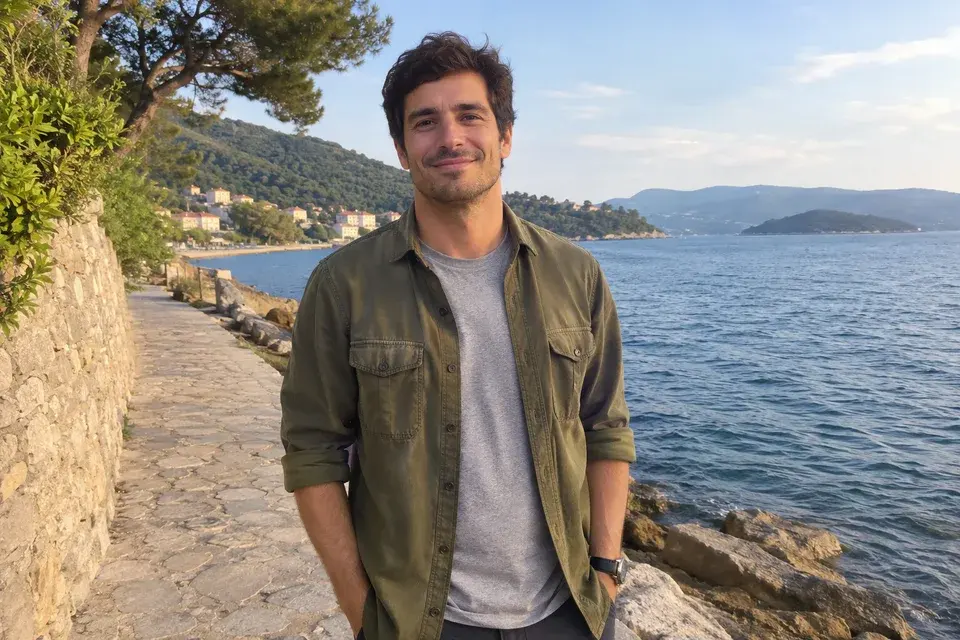

Seaside travel portrait with natural color and simple afternoon contrast.

Keep the place and the person in a travel memory

An old iPhone camera filter can make a modern vacation photo feel closer to an unpolished camera-roll favorite. The iPhone 6-inspired direction uses natural daylight colors, slightly deeper shadows and gentler processing. The person, coastline and original composition remain the subject of the picture, with the treatment supporting the memory.

Use a frame that includes the location instead of a tightly cropped face. Ask to retain building shapes, clothing colors and the horizon if they matter to you. A little brightness in the sky is part of the mood, but the scene should still be readable. Keep the subtle instructions on bright afternoons and increase the treatment only if the source feels overly processed.

Evening patio portrait with warm lights, clear faces and natural shadows.

Preserve the atmosphere of dinner at dusk

The old iPhone camera filter also suits dinner tables, balconies and evenings with friends. The iPhone 6s-inspired preset keeps a cleaner level of detail while allowing the surroundings to stay darker than a heavily brightened modern night photo. Warm lamps can remain warm without turning every face orange.

Choose a source with enough light on both faces. Keep the original arrangement of people, glasses and plates, and describe the atmosphere you want: ‘soft evening light, clear faces, deeper background shadows.’ A subtle result is usually a better starting point than requesting strong noise. Review everyone in the frame before sharing the finished image as a memory post.

What the old iPhone camera filter changes

The charm of an older phone photograph is often its simplicity: familiar color, ordinary light and a scene that feels like something a friend captured. This tool lets you request that mood from an existing image. The default is restrained, with readable faces and clothing, rather than heavy blur or an aged-film overlay. These previews show how a cafe portrait, a travel memory and an evening picture can each carry a slightly different camera-roll feeling.

Describe your camera-roll finish

Choose an old iPhone camera filter by the feeling of the photo

The three era options are creative starting points. iPhone 5-inspired styling leans toward gentle detail and uncomplicated indoor color. The iPhone 6-inspired option suits daylight and travel with a slightly simpler tonal range. The iPhone 6s-inspired option keeps more clarity for faces, clothing and evening snapshots. You can change the notes for any option to fit your source.

These are photographic interpretations of an era, not an Apple feature or an exact hardware emulation. Think about the result you want to see: a warmer cafe portrait, a less processed holiday picture or a clearer evening memory. The old iPhone camera filter turns that choice into a focused editing instruction, without requiring you to know a particular sensor specification.

Keep the effect restrained and the photograph useful

A good old iPhone camera filter should leave you with a picture you want to share. All three presets start subtly because clean eyes, natural skin and readable clothes matter more than making every pixel look old. Edit the prompt to request more color or contrast when needed, while retaining the instructions that protect useful detail.

Use extra notes to name a specific adjustment: ‘less modern HDR, keep the sky readable,’ ‘gentler sharpening, retain hair texture,’ or ‘slightly warmer indoor color, neutral skin.’ Avoid combining heavy noise, deep blur and intense color shifts unless you deliberately want a rougher result. Keeping the change focused makes it easier to compare versions and decide what actually improves your photo.

An old iPhone camera filter that starts with your original image

Your upload supplies the person, expression, outfit and environment. The editing brief asks to preserve those elements and change the photographic treatment. A recent phone image, a downloaded personal photograph or a camera file can be a useful reference as long as it is in a supported format. There is no need to own an older device.

Choose the best available original rather than a screenshot with captions or a photo that has already passed through several filters. If you want to restyle a group, keep every face visible. When comparing the generated image, inspect small details such as glasses, hairlines, clothing patterns and signs. Return to the original reference for a new variation so the next attempt starts with the same information.

How to use the old iPhone camera filter

  1. Choose an everyday photograph

    Upload one JPG, PNG or WebP photo. Cafe portraits, travel pictures and evenings with friends all work as starting points. The source preview lets you confirm your selection. Sign in when you are ready to generate; choosing a photograph does not start an edit.

  2. Select an era and a light touch

    Pick the iPhone 5, 6 or 6s preset to fill the prompt box. The old iPhone camera filter starts with a subtle treatment. Edit the instructions for color, contrast or details you want to preserve, choose the model and image size, then review the credit cost when signed in and press Generate.

  3. Compare the camera-roll feel

    Open the completed image and compare it with your original photograph. Look for a natural expression, readable clothing and an appealing overall tone. Download uses the site's purchase access. For another variation, adjust just one instruction, such as reducing warmth, and create a new version from your uploaded photo.

Old iPhone camera filter or a different retro look?

ChooseUse it for
Older phone stylingA subtle everyday look with straightforward exposure, natural color and gently softened processing.
CCD pocket-camera stylingA stronger direct-flash look, cooler shadows and more visible digital texture for parties or Y2K outfits.
Film stylingA creative film palette and grain treatment. Choose this when you want the character of film rather than a phone memory.

Old iPhone camera filter questions

Can I apply an old iPhone camera filter to an Android photo?

Yes. The upload is a reference photograph, so the original device does not need to be an iPhone. Use a supported JPG, PNG or WebP file and choose the era that matches the feeling you want. The same workflow also accepts personal photos from a digital camera.

How do I get the look without making the image blurry?

Keep the subtle treatment described in the preset and ask for a tonal adjustment with clear eyes, hair and fabric. Reduce modern-looking sharpness gently instead of requesting low resolution. A slightly warmer palette and deeper shadows can create the mood while leaving the photograph pleasant and usable.

Will it add scratches, dates or light leaks?

The presets focus on smartphone color, exposure and detail. They do not request scratches, artificial paper aging, date stamps or light leaks. If you want a particular extra detail, describe it in the prompt, but begin with the simpler version so you can judge the camera-roll treatment itself.

Which era should I choose for a selfie?

Try iPhone 5-inspired styling for a slightly softer indoor feel or iPhone 6s-inspired styling for a clearer portrait. Keep the face large enough to inspect. Tell the editor to retain your glasses, freckles and expression if those details are important to the image.

Can I keep the background and outfit?

Yes. The presets ask to retain the original people, clothing, objects and framing. Add specific notes for small patterns or landmarks. Compare those areas in the result, and use a lighter treatment if your main goal is a small color change on an otherwise finished photograph.

Does it change the camera information in my photo?

This tool creates a styled image; it is not intended to make a file prove that it was captured by a particular phone. Choose it for the visual result. Keep your original separately if its capture information is important for your personal archive.

View current pricing · Privacy policy

Give a favorite photo a gentle throwback finish

Choose a clear original and start with a subtle old iPhone camera filter. Keep the moment familiar while changing the way it feels.

Apply the old iPhone filter