Sheru Bhai Photo AI — Create Your Photo with Sheru Bhai

Upload your photo and pose beside Sheru Bhai, the white lion in a suit, sunglasses and gold chain. Choose a palace or hotel scene and make the look your own.

JPG, PNG or WebP, up to 20 MB. Drop a photo here or use the + button.

Choose a scene

What Is the Sheru Bhai AI Photo Trend?

Sheru Bhai is a fictional, humanlike lion character used in social-media photos and videos. His signature look combines a lion’s mane with a white suit, dark sunglasses and gold jewelry. The photo trend places you beside him in a realistic scene. This tool uses your uploaded portrait to create that companion photo, with ready-made scenes and a prompt you can edit.

Sheru Bhai Photo Ideas

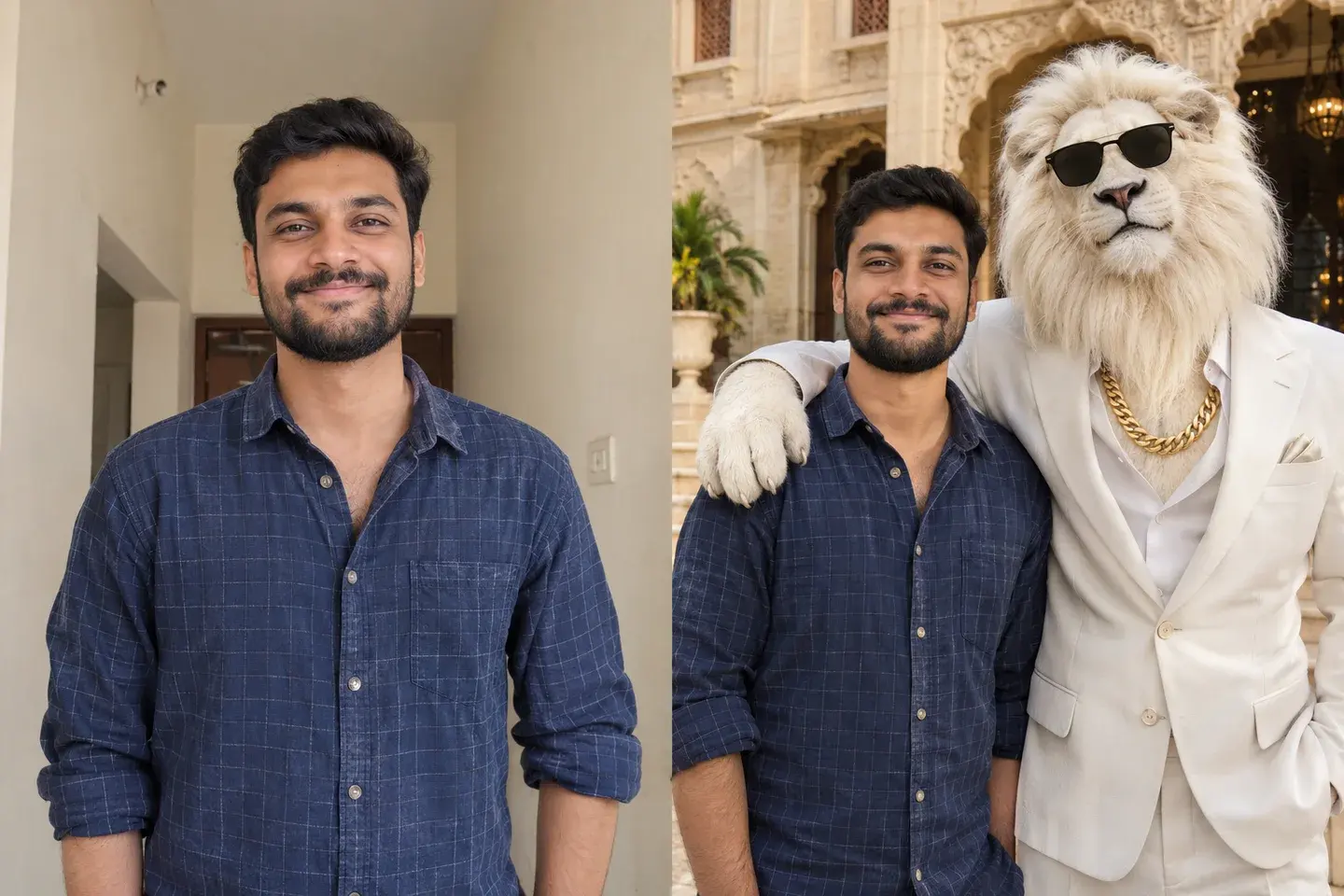
A man in a blue checked shirt, shown in an ordinary portrait and beside a white lion in a white suit at a palace entranceOriginal portraitScene preview

Palace Portrait with Your Original Outfit

Keep your everyday look and add a larger-than-life companion. This palace scene pairs your original clothes with Sheru Bhai’s white suit, sunglasses and gold chain, framed by warm stone architecture. Use it for a friendship-style social post or a distinctive profile photo.
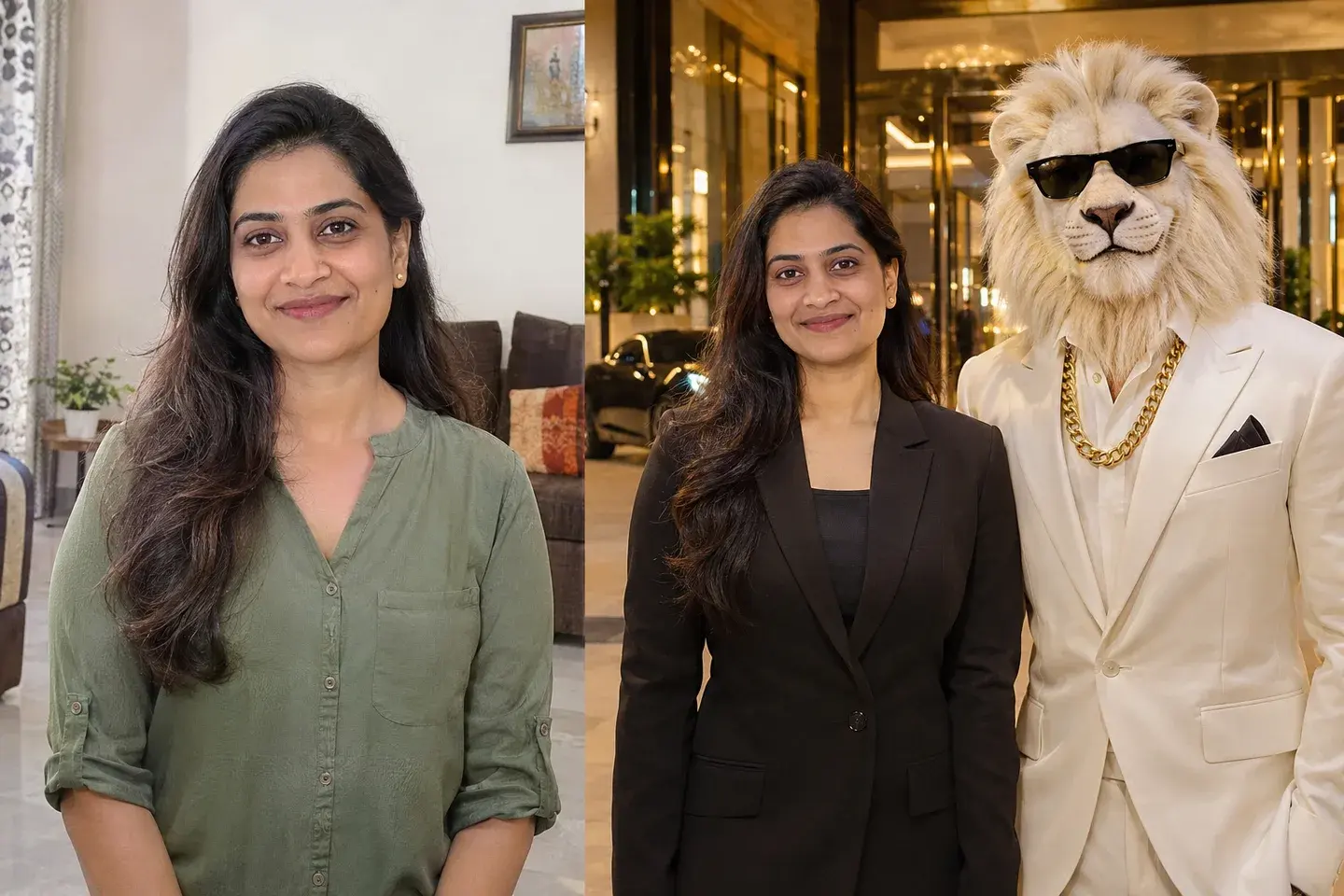
A woman in a green blouse, shown in an ordinary portrait and wearing a black formal outfit beside Sheru Bhai outside a warmly lit hotelOriginal portraitScene preview

Nighttime Hotel Portrait in Formal Wear

Create an evening portrait with a black formal outfit, glowing hotel lights and Sheru Bhai beside you. The contrasting suits and softly lit entrance give the photo an event-arrival look, ready for a vertical post or story cover.

Customize Your Sheru Bhai Photo

Keep Your Face and Choose Your Outfit

Use your photo as the identity reference while changing the scene around you. Keep your current shirt and accessories with the palace preset, or choose the hotel preset for formal wear. Name any details you want retained, such as glasses, a beard or a printed fabric.

Adjust the Lion’s Look and Pose

Start with the recognizable white mane, white suit, black sunglasses and gold chain. Ask for a relaxed side-by-side pose, a friendly arm around your shoulder or a closer selfie composition. You can also adjust the suit color, accessories and expression in the prompt.

Choose the Background and Photo Format

Replace the palace or hotel with a garden, city street or your own setting. Select 4:5 for a portrait post, 1:1 for a square composition or 9:16 for a story. Keep both faces near the center if you plan to crop the result into a profile picture.

How to Create Your Sheru Bhai AI Photo

  1. Upload a Clear Photo

    Choose a well-lit JPG, PNG or WebP with your face clearly visible. A waist-up portrait suits a close companion shot; a full-body photo gives the AI more information for a standing pose.

  2. Choose a Scene and Adjust the Prompt

    Select Palace portrait or Hotel at night below the editor. Edit the ready-filled prompt to describe your preferred outfit, pose and setting. Choose a model, photo format and resolution from the bottom toolbar. You can also apply either prompt from the examples below.

  3. Generate and Download Your Photo

    Sign in, check the credit cost on the Generate button, and create your photo. Review the face, clothing and lion’s pose in the result, then download it. To make another version, adjust the prompt and generate again from your uploaded photo.

Sheru Bhai AI Photo Editing Prompts

Copy a prompt or apply it directly to the editor above. Replace the setting and clothing details to suit your photo.

Prompt for Keeping Your Original Clothes

Edit my uploaded photo into a realistic portrait with Sheru Bhai. Preserve my recognizable face, skin tone, hairstyle, expression and natural body proportions. Keep my original clothes, including their colors, patterns and accessories. Beside me, add a tall upright white lion with a thick white mane, a tailored white suit, black sunglasses and a gold chain. Give him a friendly, confident pose with one arm resting gently around my shoulder without covering my face. Set us at a cream-stone palace entrance in soft daylight. Match perspective, light and shadows across both subjects. Keep the framing appropriate to the uploaded photo. Realistic skin, fur and fabric; natural anatomy; no text or watermark.

Prompt for a Formal Hotel Portrait

Use my uploaded photo as the reference for my face and identity. Preserve my recognizable facial features, skin tone, hairstyle and natural body proportions. Dress me in a tailored black formal suit over a black top. Place me beside Sheru Bhai, a tall upright white lion with a thick white mane, white formal suit, black sunglasses and a gold chain. Show us facing the camera with relaxed expressions and natural arms at our sides outside an elegant hotel at night. Include glass doors, warm architectural lights and a softly blurred dark car in the background. Keep both faces clearly lit, with realistic skin texture, detailed fur and believable shadows. Keep the framing appropriate to the uploaded photo. No text or watermark.

Sheru Bhai Photo AI FAQs

Can I use a selfie for a Sheru Bhai photo?

Yes. A sharp selfie works well for a close or waist-up composition. Keep your face unobstructed and ask for framing that matches the source. For a full-body scene, upload a standing photo so your clothing and proportions are visible.

How can I improve a face or clothing detail that changed?

Start again from your original photo and name the detail to preserve, such as your glasses, hairstyle or shirt pattern. Keep the requested pose close to the original and reduce unrelated changes. For intricate fabrics or partly hidden features, the AI will try to preserve or reconstruct the details from the available reference.

Can I make a couple or group photo with Sheru Bhai?

Yes. Upload one photo that already contains everyone you want in the scene, then ask to keep each person and add Sheru Bhai beside the group. Use a clear image with visible faces and enough space between people. This page accepts one reference photo at a time.

Is Sheru Bhai Photo AI free to use?

Generating a photo uses credits and requires signing in. The Generate button shows the current cost before you start. You can review credit packages on the pricing page; copying the prompts does not start a generation.

Does this page make a Sheru Bhai photo or a talking video?

This page creates still photos. For an animated version, download your finished portrait and use it as a reference in the video editor. Video generation is a separate step with its own settings and credit cost.

View current pricing · Privacy policy