AI Diwali Photo Generator from Your Own Photos

Turn your photo into a personal Diwali portrait with AI. Add a courtyard, terrace or family setting with warm diyas, and keep your clothes or try festive styling.

Upload your photo

JPG, PNG or WebP. Drop your photo here or use the + button.

Choose a starting instruction

Warm courtyard lights while keeping your current outfit.

Three ways to celebrate with the Diwali photo editor

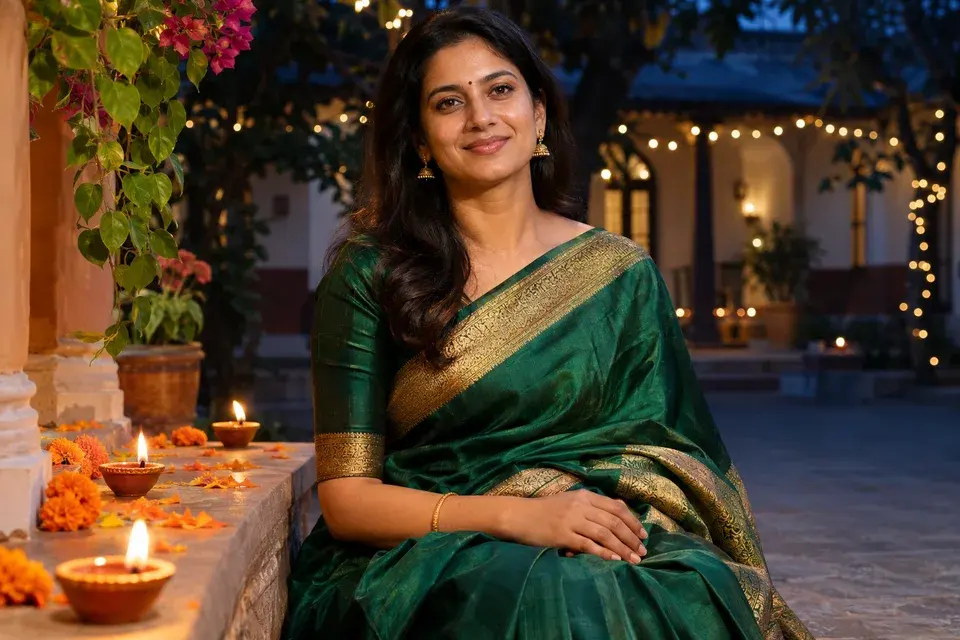
Emerald silk, warm clay lamps and soft evening light in a courtyard portrait.

A saree portrait beside courtyard diyas

Use the Diwali photo editor for a solo portrait with a graceful saree, detailed fabric and a softly lit courtyard. Small diya flames and marigold accents establish the occasion while a clear face and natural expression keep it personal. Choose festive styling if you want a new outfit, or keep your own saree and change the setting around it.

Upload a waist-up or seated photograph with your face well lit and your shoulders visible. Name the saree color, border and jewelry you want in the prompt. A simple hand position gives the scene a relaxed feeling. If you prefer to hold a lamp, describe one small diya and keep the pose close to your source rather than adding several complicated props.
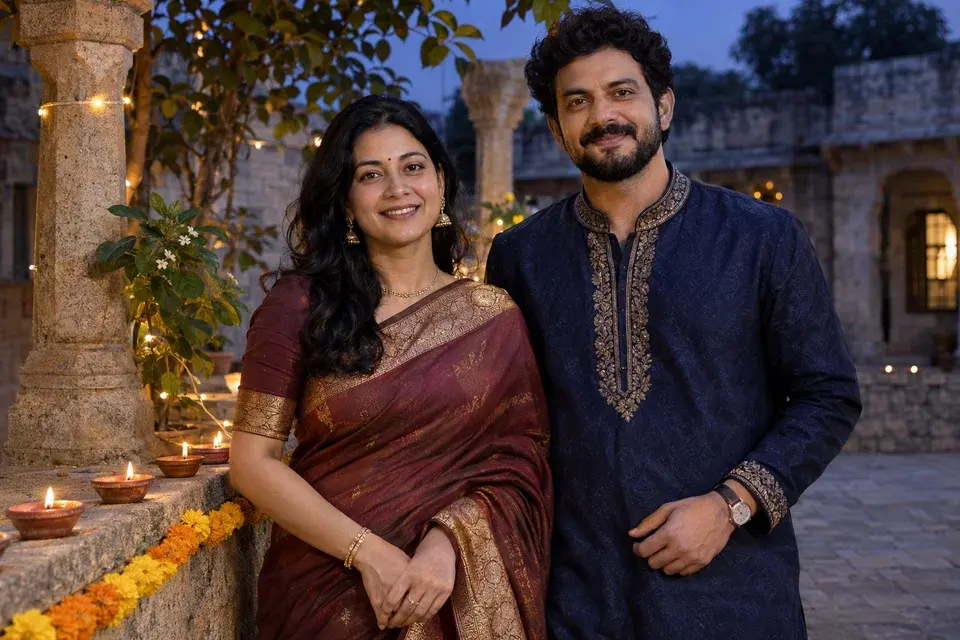
Two people under warm courtyard lights with coordinated festive colors.

A couple portrait with a shared festive setting

The Diwali photo editor can turn a photograph of you together into a couple portrait with warm lamps and a coordinated background. Start with one image that clearly shows both people. The scene brief asks to preserve each person's appearance, expression and position, so the surroundings carry the celebration.

Keep your existing outfits for a personal version of the original moment, or describe coordinated clothing in the prompt box. A terrace or courtyard gives room for small lights without hiding either face. Choose an image where both people are at a similar distance from the camera. For couples who already have a favorite picture, changing only the setting is a simple place to begin.

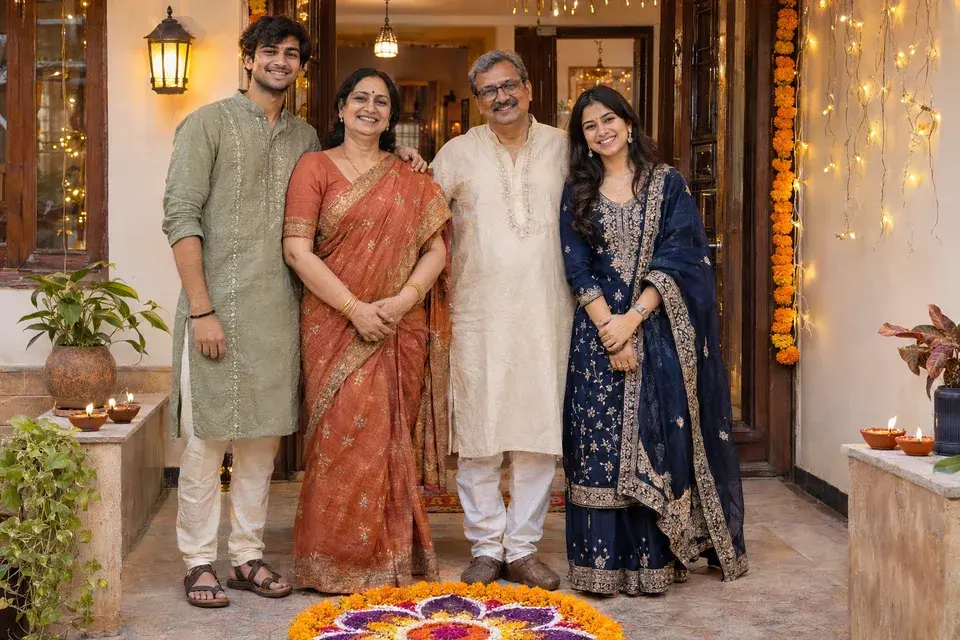
A family at a decorated home entrance with rangoli and warm porch lights.

A family greeting that looks like your celebration

Make a personal greeting with the Diwali photo editor using a family photograph. The family setting adds a welcoming entrance, rangoli colors and gentle festive lights while keeping the group arrangement recognizable. It is a useful direction for relatives sharing wishes across cities or families updating a seasonal photo collection.

Upload one photograph containing everyone you want in the final picture. Keep all faces clear and avoid overlapping heads. Keep the outfit-preservation instructions in the preset when the clothing already matters to the memory. Add details about the doorway, flower colors or lamp arrangement, then inspect every face after generation. For a greeting card, leave some room around the group so you can add your own message later.

Create a personal Diwali portrait

A festive photograph feels personal when the people remain the focus. This tool starts with your own solo, couple or family image, then adds the scene and styling you choose. Clay diyas, marigold flowers and warm lights can create the atmosphere without crowding the faces. Use the previews below to choose a direction, then describe the colors and details that belong in your celebration. The default Courtyard preset keeps the clothes already visible in your photograph.

Shape your festive setting

Make the Diwali photo editor fit your outfit and setting

Choose a Courtyard, Terrace or Family home preset to keep your existing clothes in a new festive setting. Choose Festive styling when you want a different outfit. The Diwali photo editor fills the prompt box with your selected brief, which you can edit to change the scene, clothing or decorative details around the people in your reference.

Use the notes to specify a red silk saree, an ivory kurta, understated jewelry or your family's existing clothes. Name colors and materials instead of relying on a broad phrase like ‘make it festive.’ The same approach works for the surroundings: small clay lamps, a marigold garland and a quiet evening background describe a clear scene without filling every corner with decorations.

Keep recognizable faces at the center of the photo

Every preset asks the model to preserve the identity, facial features, skin tone, hairstyle and natural expression of the people in the uploaded image. A good reference gives that instruction useful detail. Select an original photograph with visible eyes, clear faces and enough room around the head; a heavy beauty filter or a tiny face in the distance supplies less information.

For a couple or family, the Diwali photo editor works from one shared photo. Use a source that already includes everyone rather than expecting the tool to invent an absent relative. Keep the pose close to the reference and put the main creative changes into the clothes and environment. After generation, compare every person against the original, including glasses, facial hair and distinguishing features.

Shape the light, color and space for sharing

Warm lamps look most convincing when faces and fabrics still have detail. Ask for soft light on the people, small visible flames and deeper evening surroundings. If your saree is richly colored, name that color and request a visible woven border. If the group is large, choose an open home setting with fewer decorations close to their faces.

The Diwali photo editor offers portrait, square and landscape framing. Use a portrait for a story, a square for a profile or feed image, and landscape for a wider family scene. These are still pictures, ready to use as personal portraits or greeting-card artwork. Add names or a greeting in your preferred text editor after downloading when you want precise typography and placement.

How to use the Diwali photo editor

  1. Upload a clear personal photo

    Choose one JPG, PNG or WebP image. For a solo portrait, a clear face and visible shoulders are helpful. For a couple or family, upload one photo that includes everyone. You can prepare your selection before signing in, then sign in to generate.

  2. Choose the scene and clothing

    Select a Courtyard, Terrace or Family home preset to keep your outfit, or use Festive styling for new clothing. Edit colors and decorative details in the prompt box, then choose the model and image size. The Diwali photo editor prepares the initial brief. Review the credit cost when signed in before generating.

  3. Review your portrait and save it

    Open your completed portrait and compare it with your original photograph. Check each face, the clothing and any visible hands. Download is available through the site's purchase access. To refine the scene, return to your source and change one detail, such as the saree color or amount of background lighting.

Which festive photo approach fits your task?

ChooseUse it for
Restyle an existing portraitChoose the Diwali photo editor when your face and current pose should anchor a new festive setting.
Keep the outfit and add atmosphereUse your favorite couple or family photograph, retain its clothes and ask for lamps, flowers and a matching background.
Create an imagined sceneUse the general AI image generator when you need festive artwork without a specific person from a reference photo.

Diwali photo editor questions

Can I keep the saree or kurta I am already wearing?

Yes. The default Courtyard preset keeps your outfit. The brief asks to retain clothing colors, patterns, materials and accessories. Use the notes for a detail that matters, such as a gold border or embroidered neckline, and let the background and lights provide the festive change.

Can the Diwali photo editor make a couple or family portrait?

Yes. Upload one clear photograph containing all the people you want in the result. Choose a courtyard, terrace or family setting and describe the desired atmosphere. A shared photograph gives the model the original arrangement of the group, so it is a useful starting point for preserving your positions.

What should I upload if I only have a selfie?

Use a clear selfie for a close portrait and keep the requested framing near the source. A picture that includes your shoulders and upper body provides more guidance for a saree or kurta. If you want a full-length outfit, an existing full-body photograph gives the model more useful detail.

Can I choose colors and decorations?

Yes. Describe the outfit color, marigold garlands, rangoli palette, clay lamps or fairy lights in the prompt. Keep the list focused on a few elements you care about. A simple scene with clear faces often communicates the celebration more effectively than many competing decorations.

Does this create a video or a still image?

The Diwali photo editor creates one still image per generation. Use it for portraits, greetings and image posts. If you want to animate an accepted image afterward, the separate video editor offers that next step with its own settings and generation cost.

Can I add Happy Diwali and a family name?

You can request lettering in the prompt, then inspect spelling and placement in the result. For precise greeting text, download the portrait and add it in a text-editing app. Leave space near the top or beside the group if you plan to place a message there.

How can I make the result look more natural?

Start with a sharp reference, keep the pose close to the source and ask for soft light on the face with realistic fabric texture. If the first version feels too dramatic, reduce decorations and request a quieter home or courtyard setting. Keep expressions natural and the flames small.

View current pricing · Privacy policy

Create a Diwali portrait that feels personal

Bring your own photo, choose the setting and make the details yours with the Diwali photo editor.

Create my AI Diwali portrait