AI Food Photo Editor for the Dishes You Serve

Upload a dish photo and give it appetizing light, a fresh background and a look made for your next menu or post.

Upload your dish photo

Upload the dish first. Add an optional style reference with the + button.

Choose a starting instruction

Bright, clear food photography for a menu.

Find your look with the AI food photo editor

The AI food photo editor starts with a photo of your food and helps you shape its presentation. Turn a casual phone shot into a cleaner menu image, create a warm cafe mood for social media or explore a darker restaurant style for your website. Choose the intended use, describe the changes and keep the details that make the dish yours. These photography examples offer distinct directions for lighting, backgrounds and composition.

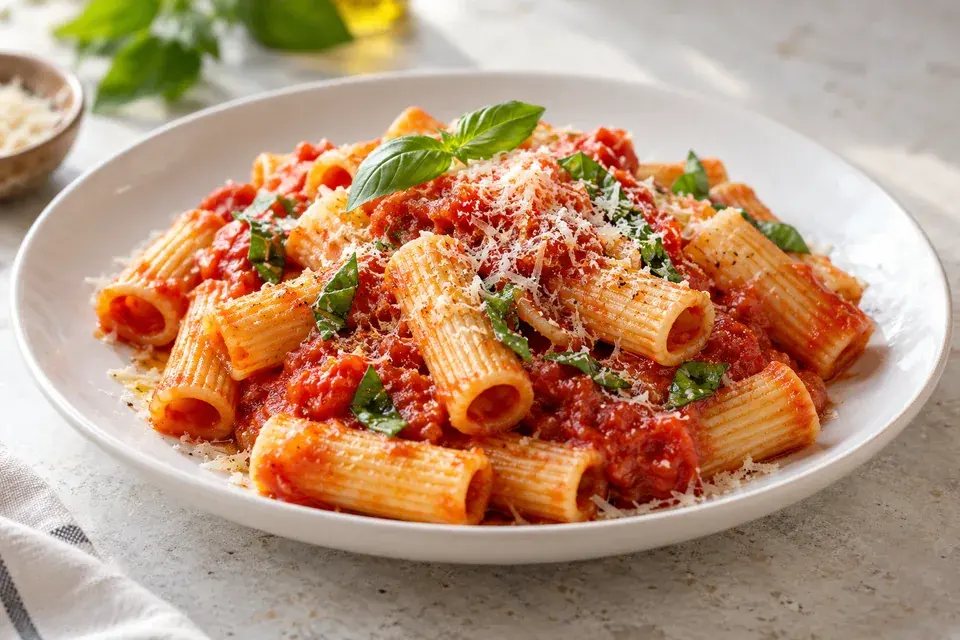
Bright pasta photograph with a clean stone background

Make the food the focus of your menu

A menu photo should help someone understand the dish at a glance. Use the AI food photo editor to soften distracting shadows, bring out the food’s natural color and give the plate a clean setting. A simple surface and gentle side light can make textures easier to see, whether you are photographing pasta, a salad or a carefully plated main course.

Choose Menu, upload the dish and describe the background you want. Ask to keep the original ingredients, portion and plating while improving the light. For a coherent menu, save the description and reuse the same visual direction as you work through other dishes one photo at a time.
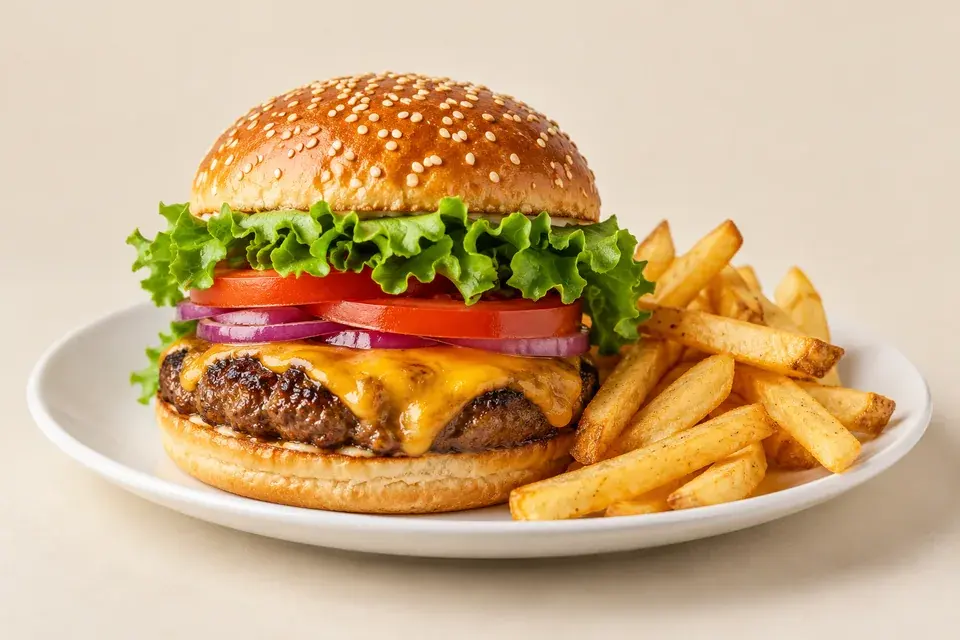
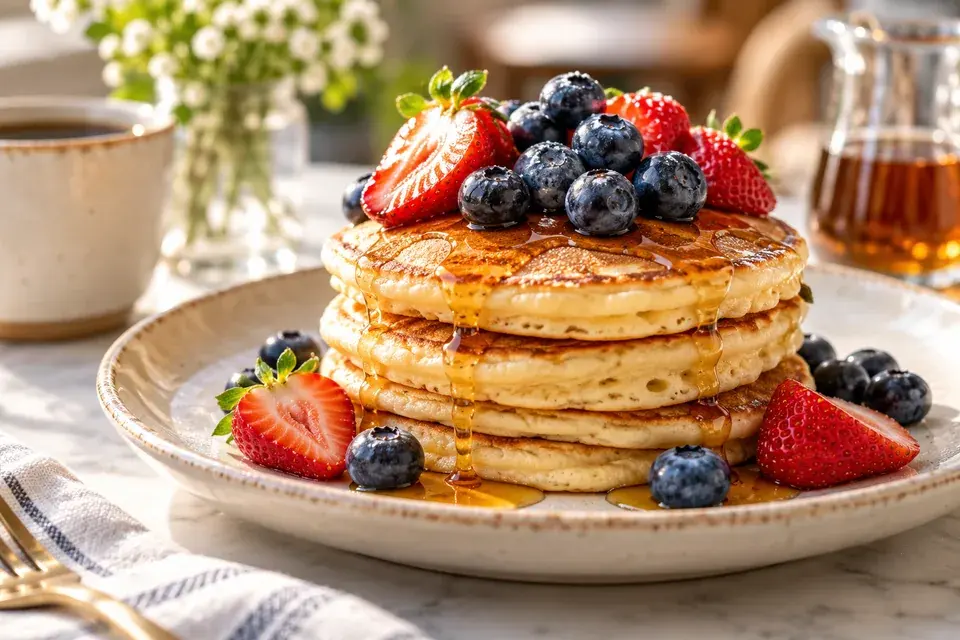
Centered burger and fries with generous framing

Create a clear view for delivery listings

Give a delivery customer a useful look at the meal by keeping the whole dish visible and the surroundings simple. The AI food photo editor can help you create a centered composition with room around the plate, making it easier to adapt the image to a listing layout. Clear lighting supports the food’s shape and texture without filling the scene with unnecessary props.

Select Delivery and use a source photo that shows the complete serving. In the brief, mention the food details that should remain and ask for a clean background. Choose an image shape suited to your intended placement, then check the listing’s current crop and upload requirements when publishing the downloaded photo.

Pancakes, berries and a relaxed morning cafe setting

Build a warmer story around a dish

A social image can communicate more than the ingredients: it can suggest a slow breakfast, a lunch break or an evening treat. Use the AI food photo editor to explore a warm tabletop, soft morning light or a brighter seasonal background. The dish stays the starting point while the setting helps create a mood that fits your next post.

Choose Social and describe the atmosphere in concrete terms. “Warm cafe table, natural window light, keep the berry toppings” gives a useful direction. Select a portrait shape for a taller composition or square for a compact image. Ask for breathing room around the plate if you plan to add a caption in your design app.

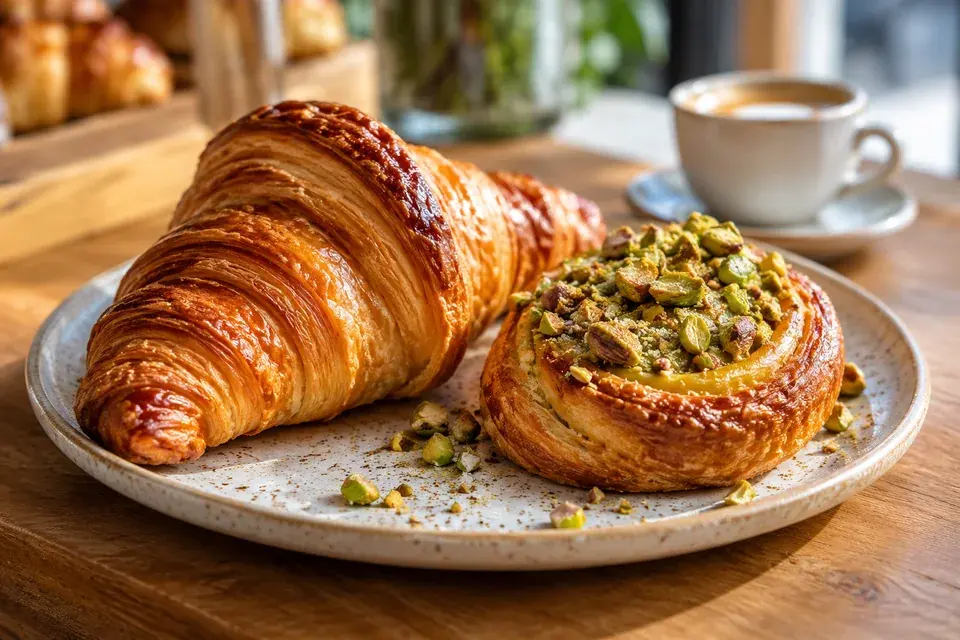
Flaky pastries with a softly blurred cafe background

Show the texture that makes pastries tempting

Flaky layers, a crisp edge and a carefully finished topping are often what make a bakery photo appealing. The AI food photo editor helps you direct attention to those details through lighting and a simpler setting. A warm counter or softly blurred cafe background can give the image a sense of place while keeping the pastry easy to recognize.

Begin with a sharp photo taken close enough to show the surface texture. Ask to preserve the filling, topping and shape, then describe the light and background you want. For a cafe collection, repeat the same surface color and lighting direction across your pastry and drink images to establish a familiar visual style.

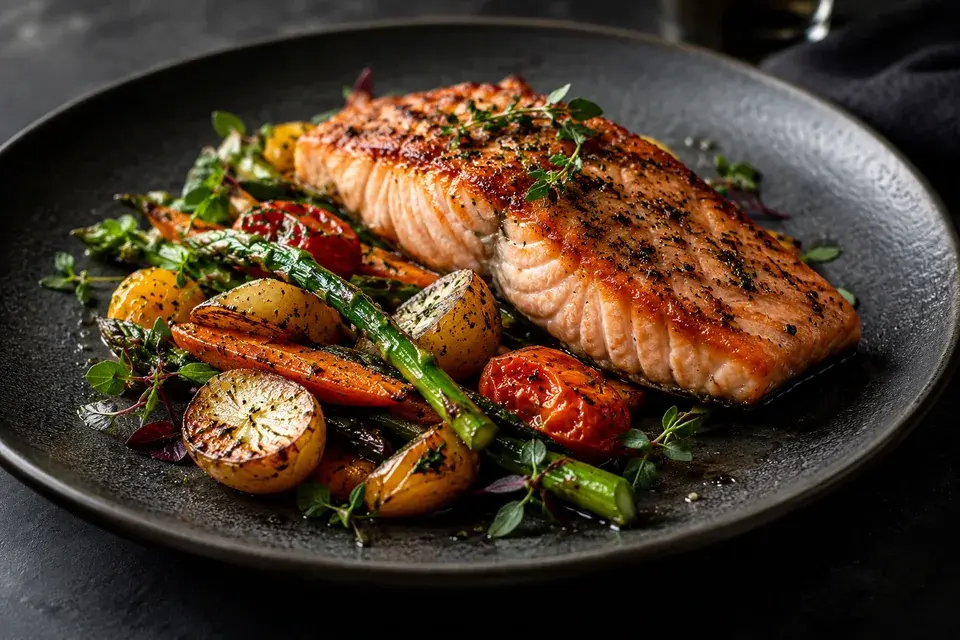
Grilled salmon against a dark restaurant tabletop

Give restaurant photography a richer mood

A dark tabletop and directional light can create an intimate restaurant atmosphere. Use the AI food photo editor to explore a more dramatic presentation while keeping the food clearly visible. This direction can suit a website feature, a seasonal announcement or a restaurant story where the surroundings are part of the experience.

Choose Website and describe the balance you want: a charcoal surface, soft light from one side and natural highlights on the dish. Ask for enough detail in the shadows to keep the food readable. A wider image shape gives you more space to place the photo within a web layout or pair it with a separate headline.

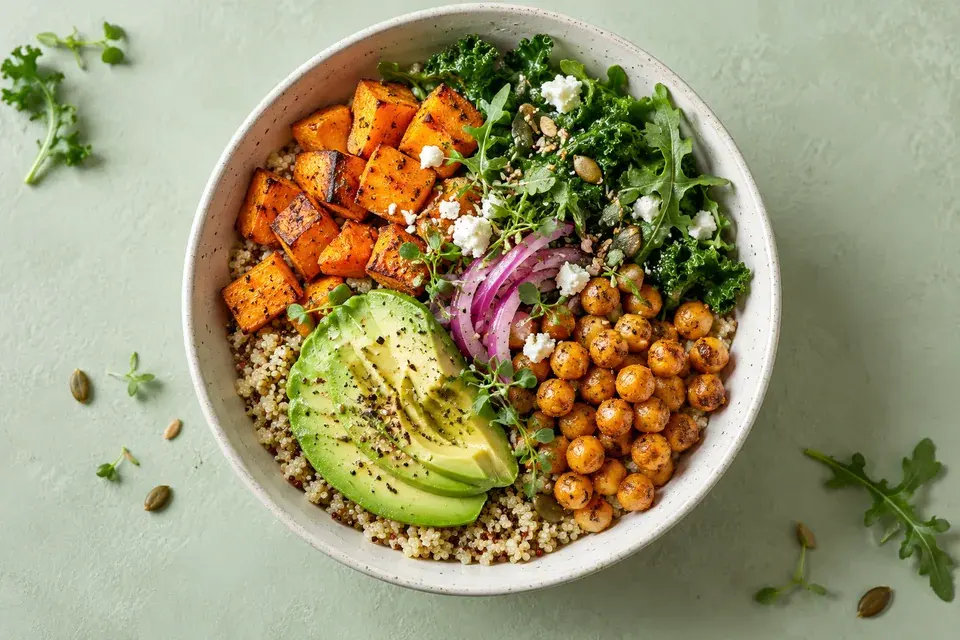
Fresh grain bowl on a pale sage surface

Make new photos feel part of the same collection

Build a recognizable look by carrying the same surface, light and color mood from one dish to the next. The AI food photo editor accepts a separate style reference, so an existing brand image can guide a new photo. This is useful when a cafe adds a seasonal bowl or a restaurant wants new dishes to sit comfortably beside established images.

Upload the actual dish first and add your inspiration image with the + button. Explain which qualities you want to borrow, such as the sage background or soft side lighting. Keep the food in the first photo as the subject, then download each result and review the collection together as you build it.

How to use the AI food photo editor

  1. 1. Upload the dish you want to show

    Choose a JPG, PNG or WebP photo with the food in focus and the full plate visible where possible. A clear phone photo is a useful starting point. Add an optional style reference if you have a particular background or lighting direction in mind.

  2. 2. Match the photo to its next use

    Choose a Menu, Delivery, Social or Website prompt preset, then customize its instructions with the light, surface and atmosphere you want. Include the ingredients and plating to retain. The AI food photo editor uses the final prompt shown in the editor to create your image.

  3. 3. Download and review the finished image

    Create the photo, then use Download in the result panel. Review the dish details and framing before adding it to your menu or post. To explore another version, save the first image and change one part of the brief, such as the background color or lighting mood.

Write a brief that keeps the dish recognizable

Separate the food from the photographic treatment. Start with “Keep the original ingredients, serving size and arrangement,” then explain the changes to light and surroundings. For example: “Use soft light from the left and a pale stone tabletop, with the whole bowl visible.” This gives the AI food photo editor a clear subject and a clear editing direction. A sharp source photo helps communicate small details such as garnishes, sauce placement and the edge of the plate. For a more involved change, focus on the most important adjustment first.

Questions about the AI food photo editor

Can I use a photo taken on my phone?

Yes. Upload the photo directly from your device in a supported format. Choose an image with clear food detail and manageable shadows. A simple, well-framed source gives the editor more useful information about the dish than a distant image with objects blocking the plate.

Can I change the background and keep the food?

Yes. Describe the background you want and identify the food details to retain. The AI food photo editor works from your uploaded dish, so you can ask for a new surface or restaurant setting while keeping the ingredients and plating as the focus. Review those details in the result.

Which image shape should I choose?

Choose the shape for the space where the photo will appear. Square can work well in a compact menu layout, portrait gives a taller social composition, and landscape offers room for a website feature. Keep a little space around the plate to give yourself flexibility when placing the final image.

How do I use a style reference?

Upload your dish first, then use the + button to add the inspiration image. In the prompt, identify the first image as the dish and the second as the style reference. The AI food photo editor uses that second image to guide the look. Describe the lighting, surface or palette you want to carry over from it.

Can I reuse a finished image for another edit?

Yes. Download the result, upload it as your new dish photo and write the next change. This is useful when the lighting already feels right and you want to explore a different background or composition. Save each version you want to keep before continuing.

How much does an edit cost?

Sign in to see the credit cost on the generate button. Choose your model, image shape and output setting, then generate and download the result from the preview. Available credit packs are shown in the pricing options, and your completed images are accessible in My generations.

Try the AI food photo editor with your next dish

Open the AI food photo editor with a photo you already have. Choose a use, describe the look and create your next image.

Upload my dish photo