Focused edits for property photographs.

AI Real Estate Photo Editing

Make focused changes to a property photograph with AI real estate photo editing. Upload an interior or exterior, describe a lighting adjustment or cleanup, and compare the generated result with your original. Use dedicated tools below for furniture, skies and twilight concepts.

Upload your property or room photo

JPG, PNG or WebP. Use a clear photo with visible architectural details.

Open, create, download.

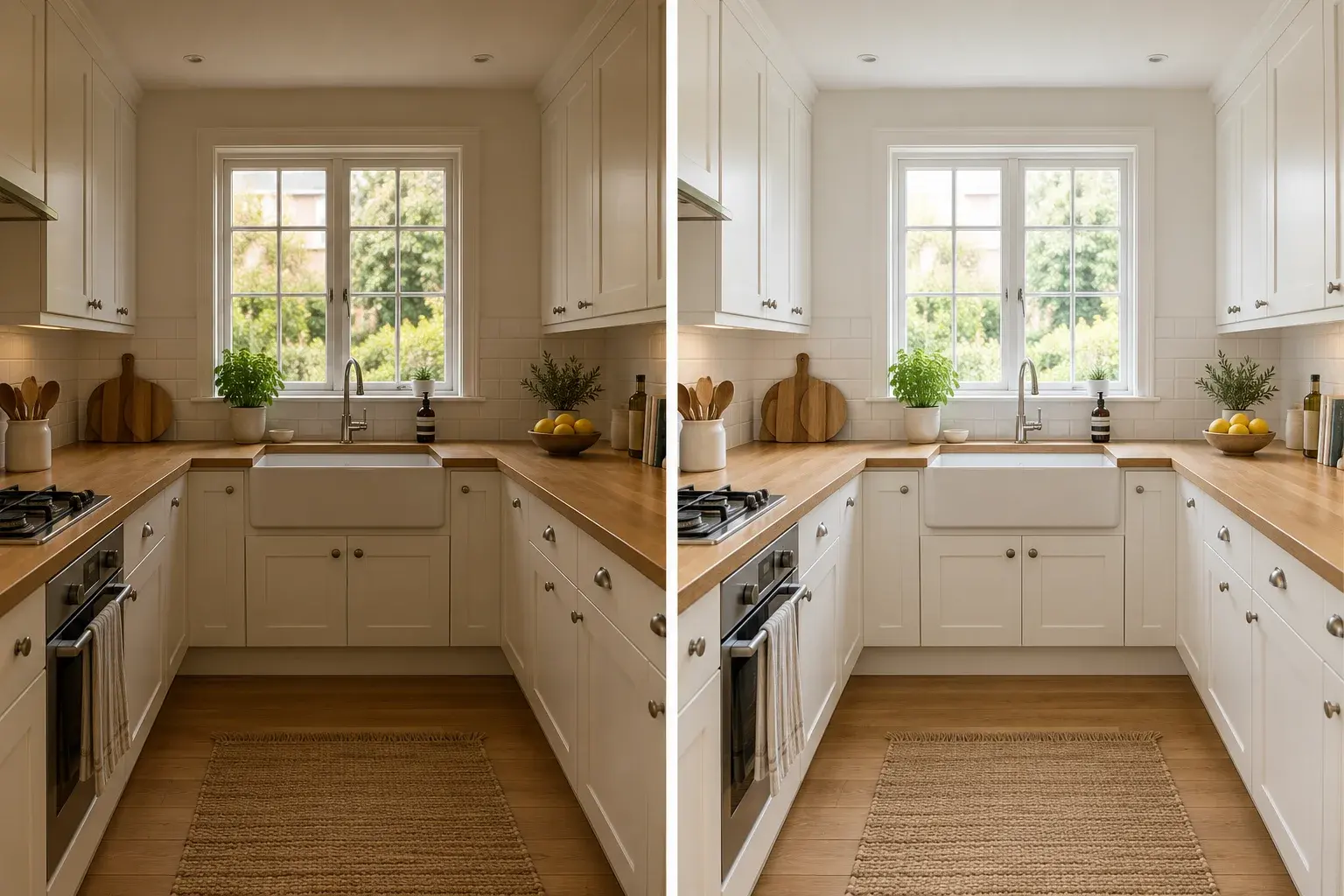
Illustrative kitchen photograph with a yellow cast beside a more neutral brighter version
AI-generated concept illustration. This comparison explains the editing goal; it is not a verified output from this tool.

AI real estate photo editing for one clear change

An uneven color cast, distracting loose object or flat-looking room can make a photograph harder to read. AI real estate photo editing lets you describe a specific change in ordinary language while asking to retain the property itself. Start with one image and a narrow instruction, such as reducing an orange light cast while keeping the cabinetry unchanged. This is a generative editing workflow. It does not combine exposure brackets, process RAW files as a photographic developer or automatically finish an entire property shoot.
Preserve the details that identify the property

Room corners, window openings, built-in cabinets and permanent fixtures carry information that viewers need. AI real estate photo editing can alter fine details even when the prompt asks to preserve them. Compare these areas with the source before approving an image. Avoid requests to conceal damage or create an inaccurate impression of the space. If an edit needs precise pixel-level control or recoverable photographic exposure data, use a dedicated photo-editing workflow instead of assuming a generated replacement is exact.

AI Real Estate Photo Editing prompt ideas

Copy a prompt or load it into the editor, then adjust it for your photo. Loading a preset keeps your uploaded images and does not start generation.

Neutral interior light

Reduce a strong color cast while retaining the photographed room.

Prompt

Edit the uploaded interior photograph with a subtle neutral lighting treatment. Reduce the strong yellow or orange cast and gently lift dark areas while keeping natural contrast. Preserve the room geometry, windows, doors, cabinets, flooring, furniture and camera viewpoint. Keep material textures and existing objects recognizable. Do not remodel, add decorations or remove visible defects. Avoid an overprocessed or artificially glowing appearance.

Focused exterior cleanup

Remove loose distractions without changing the building.

Prompt

Clean up small loose distractions in this exterior property photograph, such as litter or a loose cardboard box on the path. Preserve the building, roof, windows, doors, driveway, fence, plants and permanent fixtures. Keep visible wear and the actual property condition. Match the original lighting and viewpoint. Do not add landscaping, repair structural defects, change finishes or create a different sky.

Gentle brightness adjustment

Request a readable room with a restrained photographic finish.

Prompt

Make this property interior photograph slightly brighter and more neutral while retaining its original appearance. Preserve walls, openings, furniture positions, floor patterns and fixed fixtures. Keep the view through the windows as close to the source as possible without inventing scenery. Maintain natural shadows and texture. Do not add objects, change proportions, remove damage or give the room a different design.

Read the virtual staging prompt guide for furnishing briefs, reference instructions and troubleshooting.

How to use AI real estate photo editing

  1. Step 1

    Start with a finished photograph

    Upload a JPG, PNG or WebP image. Choose a source with readable highlights and shadows; AI real estate photo editing here starts from a single rendered photo rather than exposure brackets.

  2. Step 2

    Request a focused adjustment

    Choose a lighting or cleanup prompt, then specify what should stay. For furniture or sky changes, follow the related tool links for a more targeted brief.

  3. Step 3

    Review before using the image

    Compare the property features and fine textures with the original at a useful viewing size. Save a version only after checking for invented details or unintended changes.

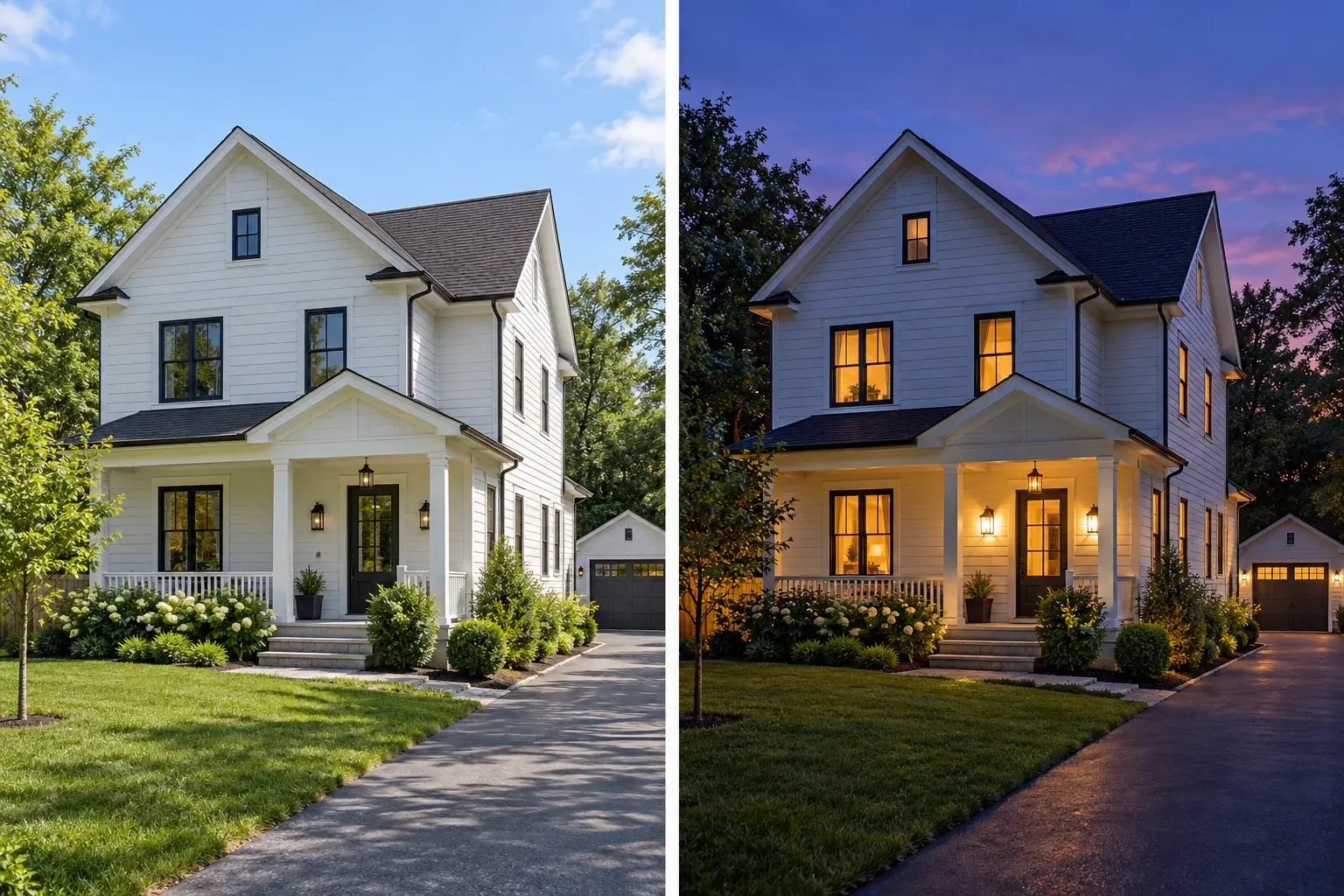
Illustrative property exterior under daytime and evening lighting
Illustrative design comparison, generated with AI. Use it to understand the workflow rather than predict an exact result.

Choose a task-specific tool when the brief is larger

A broad request to improve everything leaves many decisions to the model. AI real estate photo editing is easier to review when lighting, clutter and furnishing are separate decisions. Use furniture removal to clear movable items, virtual staging to add a proposed arrangement, and the twilight tool to explore an evening exterior. The exterior illustration shows that change in atmosphere. Each tool has a distinct prompt and review checklist, while generation still uses the shared editor and displayed credit cost.

Set the scope of AI real estate photo editing

Decide whether you need a creative visualization or a faithful photographic correction before starting. A generated edit can be helpful for exploring a lighting treatment or removing a loose distraction, but it may redraw parts of the scene. AI real estate photo editing on this page does not offer measured perspective correction, RAW processing, bracket detection or batch HDR delivery. Keep professional source files and use a specialist workflow when those capabilities are required for your assignment.

AI Real Estate Photo Editing: practical questions

Does AI real estate photo editing merge HDR brackets?

No. This page edits uploaded rendered images using a prompt. It does not align bracketed exposures or merge them into an HDR photograph. Uploading several exposure versions does not turn the generator into a dedicated exposure-merging tool.

Can I upload an entire property shoot for batch editing?

This editor creates one output per generation. Multiple uploaded images act as references, not as a queue of independent photos to process. For separate property views, edit and inspect each image individually or use a dedicated batch-processing application.

Will AI real estate photo editing recover a blown-out window?

It may generate plausible detail, but that is not recovery of the original outdoor view. Use another correctly exposed source or a photographic HDR workflow when the actual scene outside the window matters. Do not present invented scenery as captured detail.

Can it straighten walls or correct a wide-angle lens?

You can describe a correction, but precise geometric correction is not a dedicated control here. Generating a changed viewpoint may also alter room features. For accurate verticals and lens profiles, use a photographic editor with explicit perspective tools.

Which tool should I use to clear or furnish a room?

Choose furniture removal for clearing movable objects and virtual staging for adding a proposed furnishing arrangement. Those pages provide more specific starting prompts than a broad improvement request. Check the intermediate image if you combine the two workflows.

How much does a property photo edit cost?

The editor shows the credit cost for the selected model and settings before generation. Each new attempt uses credits. Check the displayed amount before starting and visit the pricing page if you need a larger balance.

Each generation uses the credits shown in the editor. View credit packages when you need more.

Start a focused AI real estate photo editing task

Start with your own photograph, choose a focused brief and review the result against the original.

Start editing