
Useful virtual staging prompts tell an image editor what to furnish, what to preserve and how the new furniture should fit the photograph. This guide gives you copyable briefs for living rooms, bedrooms, compact spaces and home offices, plus a practical way to correct unwanted changes.
Try the AI virtual staging tool with your room photo → The editor opens with the neutral living-room brief below. Upload your photograph, adjust the prompt and review the displayed credit cost before generating. Opening the page or loading a prompt does not spend credits.
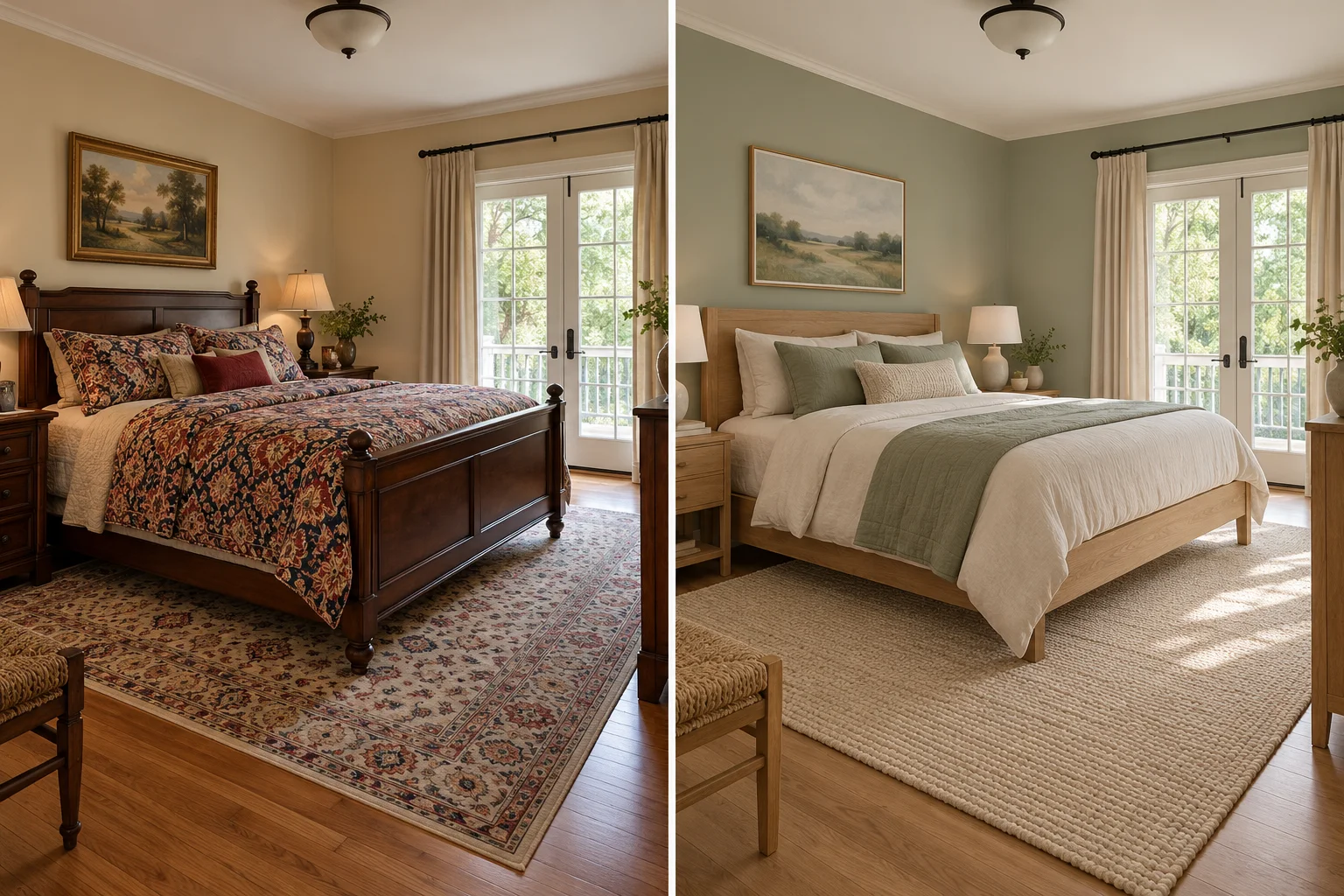
These virtual staging prompts are starting points, not guaranteed room-preservation settings. The illustrations explain the intended design direction; they are AI-generated concepts rather than verified outputs from our editor. Always compare a result with your original photograph.
Build virtual staging prompts around five decisions
Begin with the room and its purpose, then name the essential furniture, style, fixed features and lighting. Good virtual staging prompts connect those decisions in a short, specific brief. A request for a luxurious interior leaves much more open to interpretation than a request for a compact sofa and oak table inside the photographed room.
- Room: Identify the uploaded photograph as the room to edit, including its existing camera viewpoint.
- Furniture: Name the few pieces that make the space useful before adding accessories.
- Style: Choose a small material and color palette, such as cream upholstery, oak and muted green.
- Preservation: List walls, windows, doors, flooring and built-in fixtures that should stay.
- Light and scale: Request existing daylight, contact shadows, plausible proportions and clear walking routes.
Write virtual staging prompts for the photograph you actually have. If a radiator sits below the window, say that it must remain unobstructed. If the doorway is narrow, avoid asking for a large sectional that visually blocks access. The model cannot measure usable floor area from your instructions.
Living-room virtual staging prompts: start with fewer pieces
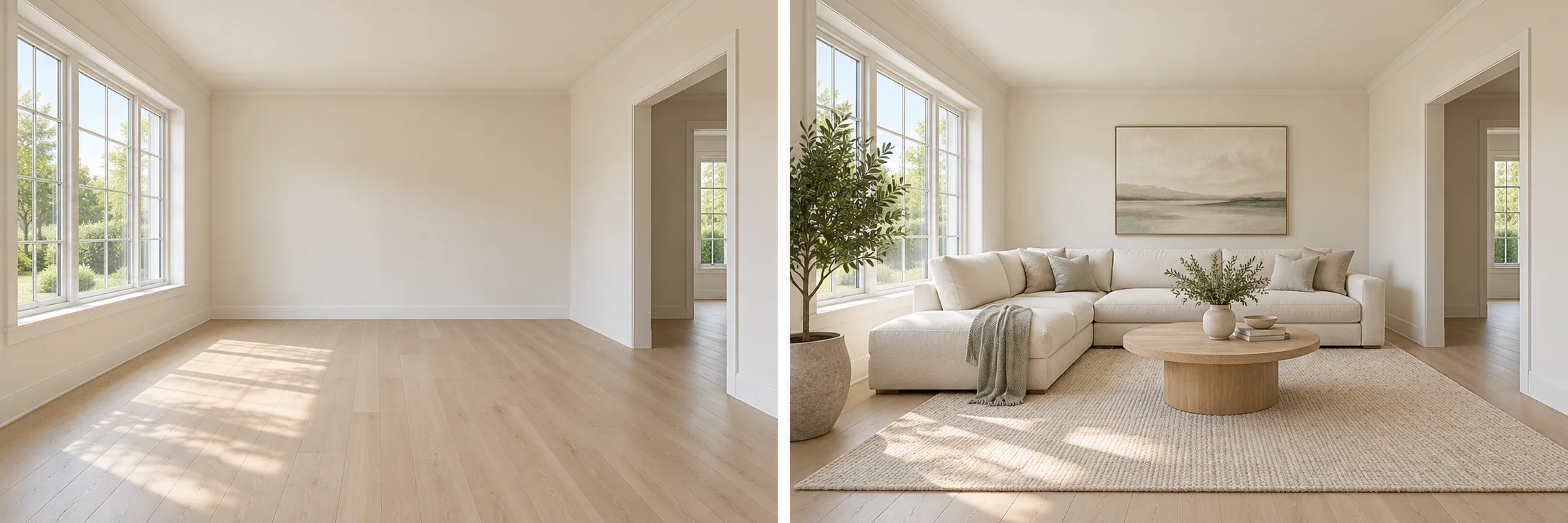
A neutral living room is a useful first experiment because you can judge the sofa, table and circulation route easily. This version of our virtual staging prompts keeps the palette quiet and explicitly preserves architecture. Replace the sofa material or table shape if you have a different direction in mind.
Use the uploaded empty living room photo as the base. Add a compact ivory sofa, an oak coffee table, a pale woven rug and one floor lamp. Keep the walls, ceiling, floor material, windows, doors and camera viewpoint unchanged. Arrange furniture at believable scale, with open walking routes and no blocked radiators. Match the existing daylight and add natural contact shadows. Do not add text or people.
Use this prompt with your room photo →
After generation, compare the sofa height with the windowsill and inspect the table legs where they meet the rug. If the room feels crowded, remove an accessory from the brief before requesting a wider room. Changing the room dimensions would defeat the purpose of furnishing the existing photograph.
Bedroom virtual staging prompts: make the bed believable
Bedroom virtual staging prompts should establish the bed position and access around it before describing decorative pillows. Choose furniture that could plausibly fit between the visible openings. The following prompt requests a restrained room; it does not establish that a particular mattress size will fit your actual floor plan.
Furnish the uploaded empty bedroom with a simple oak double bed, cream bedding, two small bedside tables and restrained reading lamps. Keep the room dimensions, window positions, doors, flooring and camera angle unchanged. Leave clear access around the bed and to every doorway. Match the light direction in the original photograph. Avoid wall alterations, extra windows, oversized furniture and decorative lettering.
Use this prompt with your room photo →
Check both bedside tables, the bed corners and any mirror reflection. If one side has little clearance, request a single bedside table instead of forcing a symmetrical arrangement. Keep the source photo unchanged for the next attempt so the model receives the original architectural information again.
Home-office virtual staging prompts for a spare room
Home-office virtual staging prompts work best when they explain a modest use of the space. A desk, task chair and small bookcase are enough to communicate a workspace. Large libraries, extra seating and elaborate built-ins can obscure the room you are trying to evaluate.
Stage this empty spare room as a modest home office. Add a simple desk, a task chair, a small freestanding bookcase and one plant. Preserve the original floor, walls, ceiling, window and door openings. Place the desk where daylight is useful without blocking access. Keep the photograph viewpoint and realistic furniture proportions. Use soft natural shadows and leave enough empty floor to understand the room.
Use this prompt with your room photo →
Keep the window and door accessible and check that the chair has room to move. If the editor adds wall-mounted storage where you wanted a freestanding bookcase, state that distinction explicitly. A generated workspace is a design suggestion, so check measurements and practical requirements separately before buying furniture.
Adapt virtual staging prompts for small rooms
For a compact sitting area, reduce the furniture count and ask for visible floor. Avoid combining small-room instructions with oversized luxury furnishings. This variation of the virtual staging prompts focuses on one seat group and an open route rather than trying to fill every corner.
Furnish the uploaded small living room with one compact two-seat sofa, a narrow oval coffee table and a small floor lamp. Use cream fabric and light oak. Keep the original walls, windows, doorways, flooring and viewpoint unchanged. Leave a clear route from the door into the room and keep radiators unobstructed. Retain visible floor around the furniture. Match existing daylight and realistic contact shadows. Do not add a dining area, extra windows or built-in cabinets.
Use this prompt with your room photo →
If the result still appears oversized, name the problematic piece and ask for a smaller version. Do not request a wider camera angle as a substitute for better proportions. A changed viewpoint can invent details beyond the source photograph and make comparison harder.
Clear an occupied room before furnishing it
When existing furniture dominates the photograph, virtual staging prompts may blend old and new pieces. You can request replacement in one edit, but clearing first gives you an intermediate image to inspect. Use the AI furniture removal tool for that separate step.
Remove all freestanding furniture and loose decorative objects from the uploaded room photo, including chairs, sofas, tables, rugs and items resting on them. Keep the room walls, windows, doors, ceiling, radiators and built-in cabinets in place. Reconstruct the newly exposed wall and floor areas with a plausible continuation of the visible materials. Keep the same viewpoint, lighting and proportions. Do not remodel the room.
Use this prompt with your room photo →
The cleared version reconstructs surfaces hidden behind furniture; it does not reveal their actual condition. Inspect floorboard direction, door edges and built-in cabinets before using it as a staging source. Each clearing or furnishing attempt is a separate generation with its own displayed credit cost.
Use a staged reference for another camera angle
For a second view, virtual staging prompts need more than a repeated style name. Upload the real target-angle photograph first and the accepted staged reference second. Describe furniture relative to shared windows or walls, since left and right change when the camera moves. Our multi angle virtual staging page provides this two-reference workflow.
Edit image 1, the target photo of the room. Use image 2 only as the reference for the furniture design and arrangement. Preserve the architecture, floor, windows, doors and camera viewpoint of image 1. Carry over recognizable sofa, table, rug and chair designs where they should be visible from this angle. Place them relative to shared windows and walls, not the left or right edge of the image. Output one image of the target view.
Use this prompt with your room photo →
Compare the sofa shape, chair count, upholstery and placement after every attempt. Reference-guided generation can still drift between views. It creates one target image at a time and does not build a measured three-dimensional room or guarantee identical furniture across a property photo set.
Troubleshoot virtual staging prompts without changing everything
Revise virtual staging prompts around the most important visible error. Keep the original photo, a stable furniture brief and one correction so you can assess whether the change helped. A longer prompt is not automatically a clearer one.
| Problem | Useful next instruction |
|---|---|
| The room gains a window | Preserve the exact visible openings and remove requests for a brighter or larger room. |
| A sofa blocks access | Name the doorway that must remain clear and request fewer, more compact pieces. |
| Furniture seems to float | Match the floor perspective and add natural contact shadows beneath legs and bases. |
| The floor material changes | Keep the original floor material, pattern and direction; remove conflicting finish requests. |
| Too many accessories appear | Limit decoration to one named object and retain empty surfaces. |
Practical questions about virtual staging prompts
Should I include exact furniture dimensions?
You can describe proportions, but the editor does not verify dimensions against a measured floor plan. Virtual staging prompts help communicate an intended arrangement, not prove furniture fit. Measure the real space and check product dimensions before making a purchase.
Can I keep my existing sofa while changing everything around it?
Name the sofa in a keep list and identify its location, upholstery and shape. Describe the replacement items separately. Inspect the sofa after generation because a preservation instruction does not guarantee that the model will retain every seam or proportion.
Can virtual staging prompts reproduce a specific furniture catalogue?
Reference images can communicate a design direction when the selected model accepts multiple inputs. Generated furniture may still differ from the source product. Do not treat the result as an exact catalogue match, shopping list or assurance that those pieces are available.
How should I prepare a room photo?
Use a clear, level image that shows floor space and important openings. Avoid heavy filters, fisheye distortion and large text overlays. Virtual staging prompts cannot reliably recover architectural details that are blurred, hidden or outside the photographed view.
Can I publish a staged image with a property listing?
Retain the original, identify the edited image as virtually staged and check your listing service's requirements. Compare fixed features carefully. The image should communicate a furnishing idea without concealing damage or suggesting that invented fixtures are part of the property.
Are the prompts free to copy?
Yes. Reading and copying virtual staging prompts is free. Generating an image uses the credits shown for your selected settings; retries also use credits. Visit credit packages if you need more, and review the cost before starting.
Put these virtual staging prompts to work with your room photo → Start with one room, one clear furnishing brief and an original photograph you can compare against the result. For a broader change of colors and finishes, explore AI room redesign.