An empty room. A more inviting possibility.

AI Virtual Staging

Give an empty room a clear purpose with AI virtual staging. Upload a room photo, choose a furnishing brief, and preview a living room, bedroom or home office without moving a single piece of furniture. Start with a preset and adjust the details to suit your space.

Upload your property or room photo

JPG, PNG or WebP. Use a clear photo with visible architectural details.

Open, create, download.

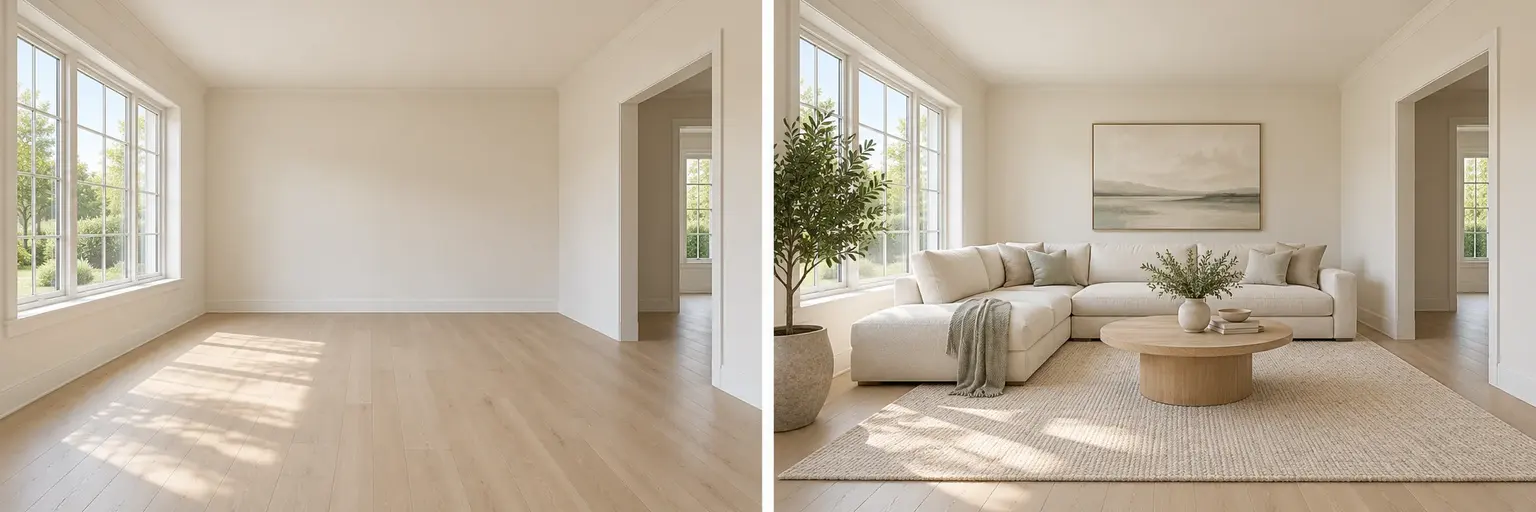
Illustrative empty living room beside a furnished version with an ivory sofa and oak table
AI-generated concept illustration. This comparison explains the editing goal; it is not a verified output from this tool.

AI virtual staging starts with the room you already have

An empty room can make scale and purpose difficult to judge. AI virtual staging adds a proposed furniture arrangement to a photograph so viewers can picture a place to sit, sleep or work. Begin with an unobstructed view of the floor and major walls. Identify windows, doorways, built-in storage and heating fixtures that should remain visible. Describe the furniture you want to add, rather than asking for an entirely new interior. Compare the edited room with the original before choosing a result.
Choose furniture that fits the space

A small bedroom needs a different brief from an open living area. Name the defining pieces first: a double bed with two compact bedside tables, or a sofa with a modest coffee table. Leave room for doors to open and for people to walk between furnishings. AI virtual staging interprets visible perspective rather than measuring the room. If a bed looks too large or a chair blocks access, ask for fewer pieces and more open floor space instead of adding decorative detail.

AI Virtual Staging prompt ideas

Copy a prompt or load it into the editor, then adjust it for your photo. Loading a preset keeps your uploaded images and does not start generation.

Neutral living room

A practical starting point for an unfurnished sitting room.

Prompt

Use the uploaded empty living room photo as the base. Add a compact ivory sofa, an oak coffee table, a pale woven rug and one floor lamp. Keep the walls, ceiling, floor material, windows, doors and camera viewpoint unchanged. Arrange furniture at believable scale, with open walking routes and no blocked radiators. Match the existing daylight and add natural contact shadows. Do not add text or people.

Calm bedroom

Add essential bedroom furniture without crowding the floor.

Prompt

Furnish the uploaded empty bedroom with a simple oak double bed, cream bedding, two small bedside tables and restrained reading lamps. Keep the room dimensions, window positions, doors, flooring and camera angle unchanged. Leave clear access around the bed and to every doorway. Match the light direction in the original photograph. Avoid wall alterations, extra windows, oversized furniture and decorative lettering.

Spare room to office

Show a useful workspace with a clear circulation route.

Prompt

Stage this empty spare room as a modest home office. Add a simple desk, a task chair, a small freestanding bookcase and one plant. Preserve the original floor, walls, ceiling, window and door openings. Place the desk where daylight is useful without blocking access. Keep the photograph viewpoint and realistic furniture proportions. Use soft natural shadows and leave enough empty floor to understand the room.

Read the virtual staging prompt guide for furnishing briefs, reference instructions and troubleshooting.

How to use AI virtual staging

  1. Step 1

    Upload a clear empty-room photo

    Choose a level, well-lit photograph that includes the floor and two walls. Remove unrelated reference images so the editor can identify the room to furnish.

  2. Step 2

    Choose and edit a furnishing brief

    Pick the closest preset, then name the essential pieces and the style. For AI virtual staging, keep fixed architecture explicit and avoid contradictory instructions.

  3. Step 3

    Generate, compare and refine

    Review furniture scale, access routes, windows and shadows beside your original. Save an acceptable version before trying another style. Each new generation uses the displayed credits.

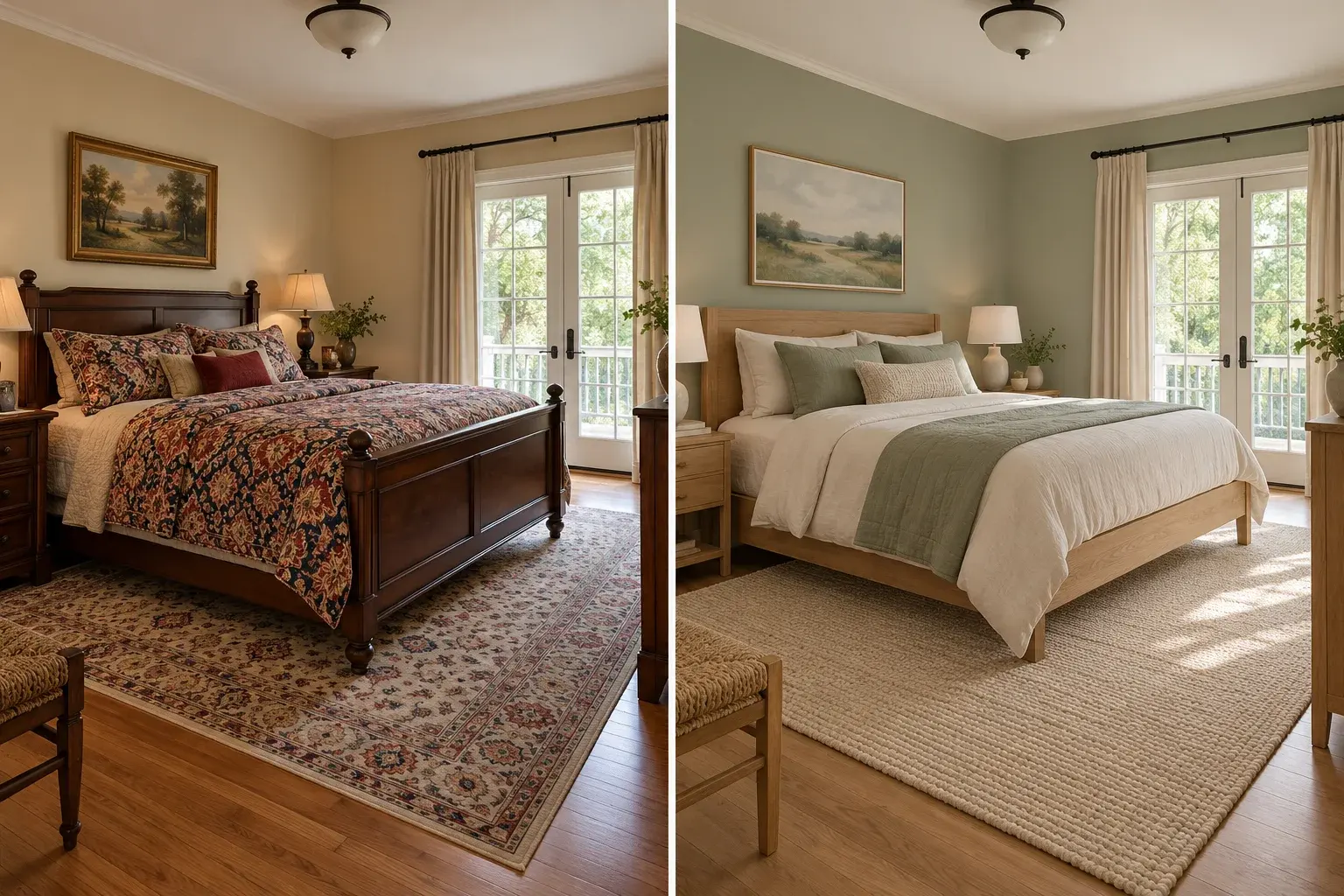
Illustrative bedroom furnishing styles in the same room
Illustrative design comparison, generated with AI. Use it to understand the workflow rather than predict an exact result.

Separate furnishing from renovation

Use AI virtual staging when your goal is to show furniture inside the existing room. Changing windows, moving a wall or replacing a kitchen is a different design exercise. Keep the original materials and fixed features in the instruction, particularly when preparing property photographs. For a personal redesign concept, specify the finish changes separately. The bedroom illustration shows how styling choices affect the mood; it is a concept image, not a verified result from this editor.

Prepare a useful AI virtual staging reference

A bright wide view usually gives more useful context than a tightly cropped corner. Avoid fisheye distortion, stitched panoramas and screenshots with large overlays. Keep the original image available for comparison. AI virtual staging can suggest an arrangement, but furniture dimensions are not measured or checked against a catalogue. If an item must fit exactly, measure the room and verify the dimensions separately. Use the furniture removal tool first when existing large objects hide most of the floor.

AI Virtual Staging: practical questions

Can AI virtual staging work with a furnished room?

Yes, but existing furniture may influence the result. Ask to replace specific movable pieces, or clear the room with the furniture removal tool first. A separate clearing step uses another generation and may reconstruct hidden surfaces, so inspect it before staging.

Will the room structure remain exactly the same?

Preservation instructions help, but generated edits can still move an opening or change a floor pattern. Compare window counts, wall corners, built-in cabinets and the original viewpoint. Reject an image that changes important fixed features instead of relying on the prompt alone.

Which style should I choose for a small room?

Start with a simple neutral style and fewer pieces. Name compact furniture, visible floor space and clear walking paths. A detailed luxury brief can introduce bulky items that make a modest room feel smaller or create an implausible arrangement.

Does AI virtual staging show furniture I can actually buy?

No. The generated pieces are visual suggestions rather than a verified shopping list. You can describe a preferred shape or material, but exact products, dimensions and availability must be checked separately before making a purchase.

Can I use the image in a property listing?

Review every edit, retain the original and identify the image as virtually staged wherever you publish it. Follow the requirements of your listing service. Do not use a generated image to conceal damage or imply that fixtures or furnishings are included.

What if the furniture blocks a window or doorway?

Rewrite the brief around that problem: name the opening that must stay clear, reduce the furniture count and request a smaller arrangement. Keep the same original photo so the next attempt has the room geometry available again.

Each generation uses the credits shown in the editor. View credit packages when you need more.

Try AI virtual staging with your room photo

Start with your own photograph, choose a focused brief and review the result against the original.

Start editing