Clear the room. See the possibilities.

AI Furniture Removal

See your room without the furniture. AI furniture removal helps you clear a sofa, bed, table or a whole collection of movable objects from a photo. Upload an interior image, describe what should go, and keep the fixed features you want to retain.

Upload your property or room photo

JPG, PNG or WebP. Use a clear photo with visible architectural details.

Open, create, download.

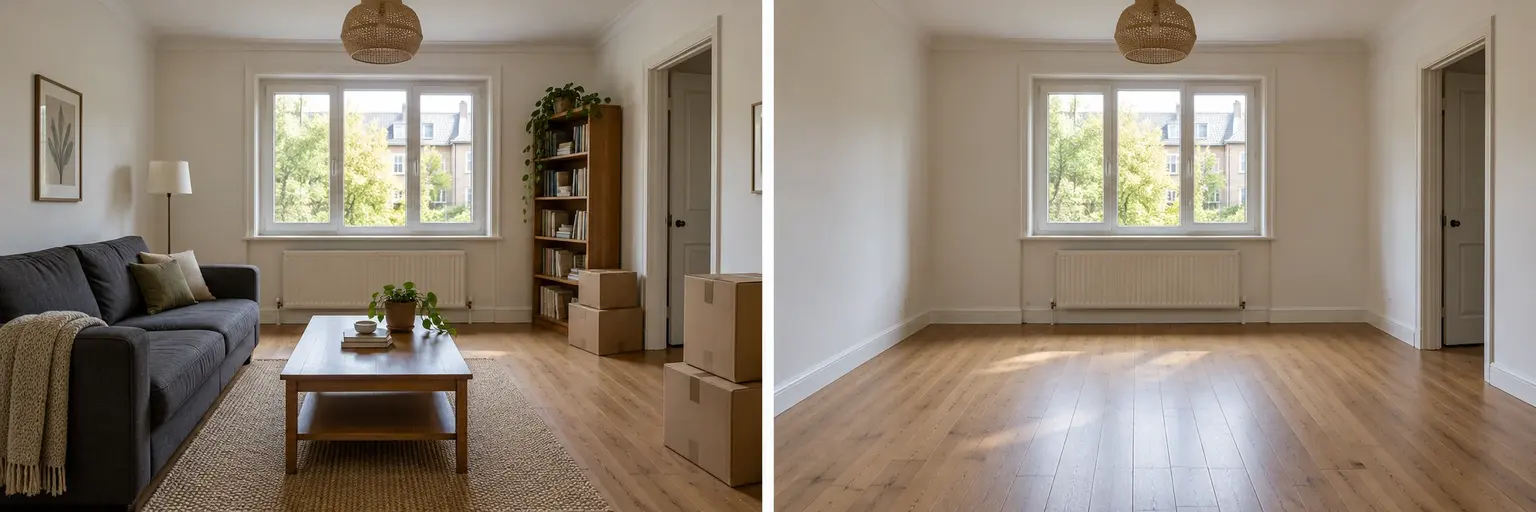
Illustrative furnished living room beside the same room cleared of movable furniture
AI-generated concept illustration. This comparison explains the editing goal; it is not a verified output from this tool.

Use AI furniture removal to create a clean starting point

A crowded room can be difficult to imagine differently. AI furniture removal produces a proposed empty view so you can consider a new layout without physically moving the sofa or packing away every object. Start by deciding whether to remove all movable furniture or only a named item. Include objects on top of the furniture if those should disappear too. Keep doors, windows, fitted cupboards and radiators in the instruction so the editor understands which parts belong to the building.
Remove furniture from a photo without requesting a new room

A precise removal instruction is more useful than asking for a beautiful empty interior. Name the brown sofa on the right, the dining table in the center or all freestanding furnishings. AI furniture removal must invent the wall and floor areas hidden behind those objects. The generated continuation can look plausible without matching what is actually there. Treat the cleared image as a visual planning aid and compare the remaining visible features against your original photograph.

AI Furniture Removal prompt ideas

Copy a prompt or load it into the editor, then adjust it for your photo. Loading a preset keeps your uploaded images and does not start generation.

Clear all movable furniture

Create an empty-room concept from a furnished photo.

Prompt

Remove all freestanding furniture and loose decorative objects from the uploaded room photo, including chairs, sofas, tables, rugs and items resting on them. Keep the room walls, windows, doors, ceiling, radiators and built-in cabinets in place. Reconstruct the newly exposed wall and floor areas with a plausible continuation of the visible materials. Keep the same viewpoint, lighting and proportions. Do not remodel the room.

Remove a sofa

Clear one large object while retaining surrounding furnishings.

Prompt

Remove the main sofa and its loose cushions from this room photo. Keep the other furniture, rug, wall art, windows and doors unchanged. Continue the visible floor and wall behind the removed sofa with a natural-looking texture and perspective. Keep existing lighting and shadows on objects that remain. Do not add replacement furniture or change the layout. Preserve the original photograph framing.

Clear clutter, keep furniture

Remove small distractions rather than emptying the room.

Prompt

Clear loose clutter from the uploaded interior photo: remove moving boxes, scattered clothing and small objects on the floor. Keep the main furniture, fixed fixtures, windows, doors and room finishes unchanged. Preserve belongings that are neatly arranged on shelves. Reconstruct only the surfaces revealed by the removed clutter, matching their texture and light. Keep the same camera angle and avoid redesigning the room.

Read the virtual staging prompt guide for furnishing briefs, reference instructions and troubleshooting.

How to use AI furniture removal

  1. Step 1

    Choose the room photo

    Upload a sharp image with visible wall and floor texture around the objects. AI furniture removal has less context when furniture covers almost every surface.

  2. Step 2

    Name what to remove and keep

    Choose full clearing or specify a recognizable object and location. List built-in fixtures and valuable details that should stay, especially in a busy room.

  3. Step 3

    Inspect the cleared surfaces

    Check floorboard direction, wall edges and reflections before downloading. For a new furniture arrangement, use the accepted result as a separate virtual staging reference.

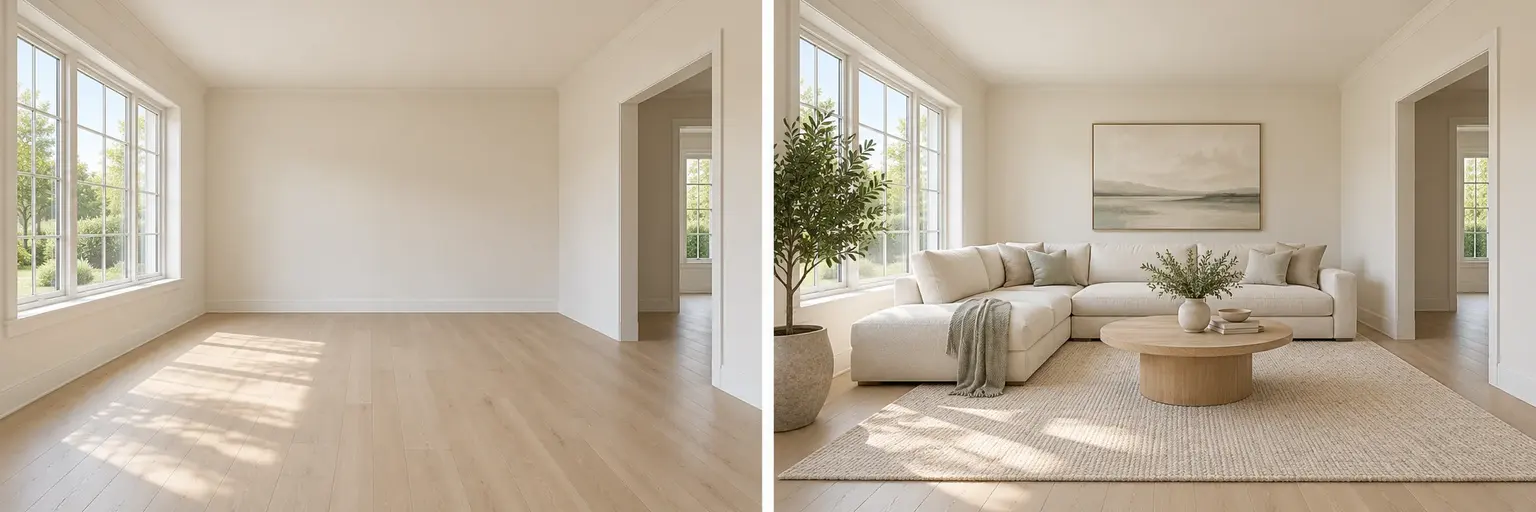
Illustrative empty living room and a proposed furnishing arrangement
Illustrative design comparison, generated with AI. Use it to understand the workflow rather than predict an exact result.

Clear everything, or keep the pieces that matter

Full clearing suits a room you want to furnish from scratch. Selective AI furniture removal is better when you want to keep a bed and experiment with the surrounding space. State both lists: remove the armchair and floor lamp; keep the sofa, rug and wall art. After clearing, you can use the accepted image in the virtual staging tool. The illustrated furnishing comparison shows that next step, while the original photo remains your reference for the room itself.

Get cleaner AI furniture removal results

Start with one clear task. If a sofa overlaps a table and rug, decide whether the whole group should disappear. Removing only the sofa can leave a confusing shadow or half-hidden object behind. Describe materials that are already visible, such as oak floorboards or a plain white wall, without claiming to know hidden details. AI furniture removal is most useful when you can compare the result with the source and identify any reconstructed area that needs another attempt.

AI Furniture Removal: practical questions

Can AI furniture removal clear an entire room?

You can request all movable furniture and decor to be removed. Fixed items such as kitchen cabinets need an explicit keep instruction. Large overlapping objects may leave artifacts, so inspect edges and reconstructed surfaces rather than assuming the first image is finished.

Can it recover the exact floor under a bed?

No. A photo cannot reveal a surface hidden behind an object. The editor generates a plausible continuation using nearby material, light and perspective. It cannot establish the actual floor condition or prove that hidden areas are undamaged.

How do I keep built-in wardrobes and radiators?

Name them in a keep list and describe their positions. Avoid broad phrases such as remove everything, which can be interpreted too widely. Check these fixtures after generation, particularly where they overlap the furniture being removed.

Is AI furniture removal useful if I am not selling a home?

Yes. A cleared image can help you think about a home office, new furniture or a different room purpose. Treat the result as a visual concept and measure the real space before deciding what to buy or move.

What should I do about ghost shadows or repeated floor patterns?

Return to the original and request the removal of the object and its cast shadow together. Ask for the visible floor pattern to continue in the same direction. Use a simpler removal task if the photo contains several overlapping objects.

Can I add new furniture after removing the old pieces?

Yes. Download the cleared image and upload it to the virtual staging tool. Review the empty version first: an incorrect doorway or floor edge can be carried into the next image. The staging step is a separate generation.

Each generation uses the credits shown in the editor. View credit packages when you need more.

Try AI furniture removal on your photo

Start with your own photograph, choose a focused brief and review the result against the original.

Start editing