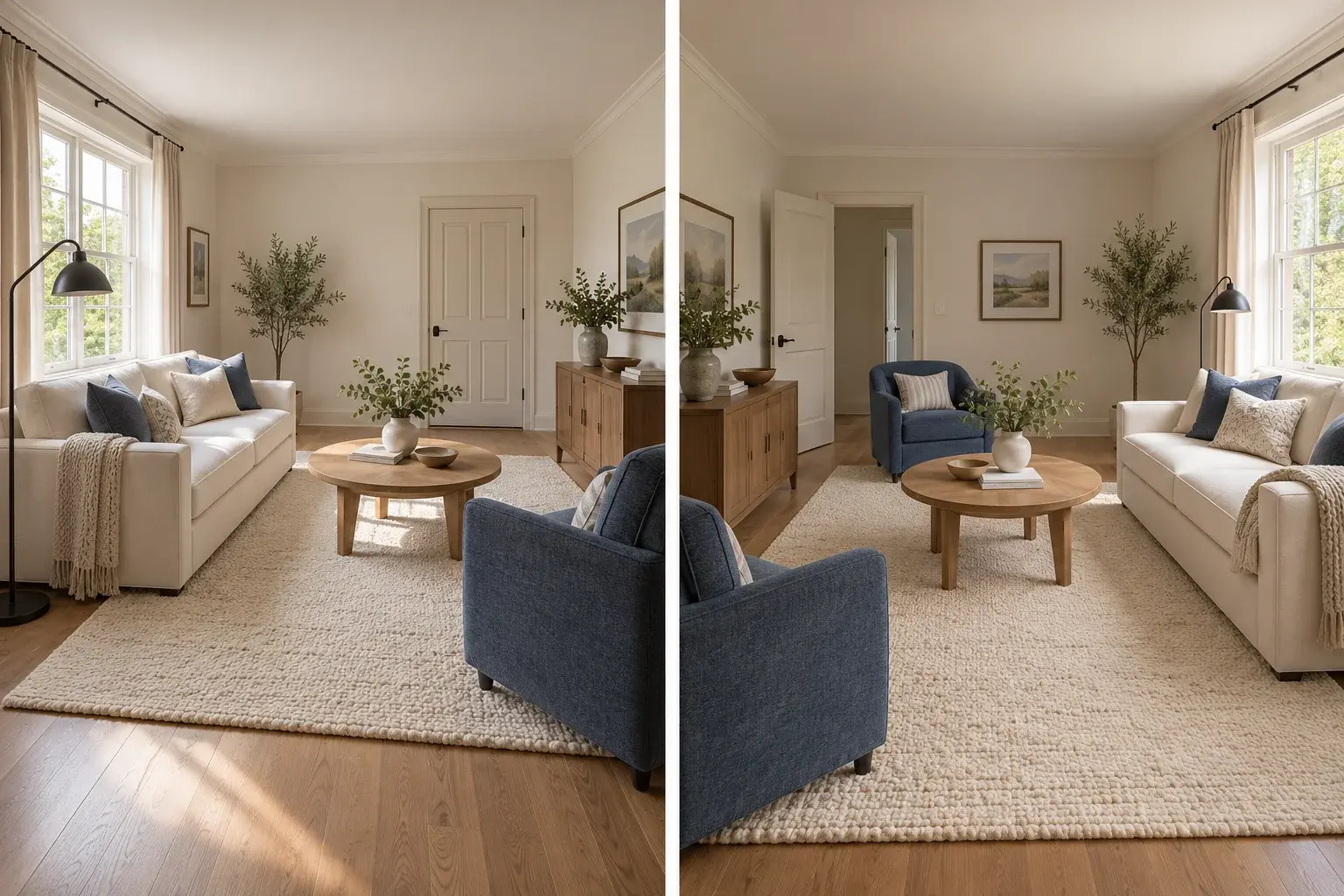
One furnishing brief. Another room view.

Multi Angle Virtual Staging

Explore multi angle virtual staging using a staged reference and another photo of the same room. Upload the target view first, add the furnishing reference second, and describe the pieces to carry across. This is a reference-guided workflow; matching furniture across views still needs careful review.

Target photo + staged reference

Add the target view first, then the staged reference. Use a model supporting two or more images.

Open, create, download.

Concept illustration of one furnished living room viewed from two corners
AI-generated concept illustration. This comparison explains the editing goal; it is not a verified output from this tool.

Multi angle virtual staging needs a shared reference

Two independent prompts can produce two attractive rooms with different furniture. Multi angle virtual staging instead starts from a furnishing decision you have already accepted. Use one staged image to communicate the sofa, table, rug and lighting style, then supply a real photograph of the target angle to define its architecture. The editor generates one target image per attempt. It does not construct a measured three-dimensional room or automatically synchronize a whole set of photographs.
Identify objects by their relationship to fixed features

A phrase such as sofa on the left changes meaning when the camera moves. For multi angle virtual staging, describe the sofa beneath the long window or the chair beside the fireplace instead. Use visible architectural anchors shared between the source and target views. Name only the furniture that should be visible from the target angle. Asking to show every item in both photographs can force an impossible layout or introduce objects into areas the camera cannot actually see.

Multi Angle Virtual Staging prompt ideas

Copy a prompt or load it into the editor, then adjust it for your photo. Loading a preset keeps your uploaded images and does not start generation.

Carry a furnishing reference

Image 1 is the target room view; image 2 is the accepted staged reference.

Prompt

Edit image 1, the target photo of the room. Use image 2 only as the reference for the furniture design and arrangement. Preserve the architecture, floor, windows, doors and camera viewpoint of image 1. Carry over recognizable sofa, table, rug and chair designs where they should be visible from this angle. Place them relative to shared windows and walls, not the left or right edge of the image. Output one image of the target view.

Match a bedroom reference

Repeat the bed and bedside furniture in another real bedroom view.

Prompt

Use image 1 as the target bedroom photograph and image 2 as the staged furnishing reference for the same room. Keep the target camera angle, walls, windows, doors and flooring. Reuse the bed design, bedding palette and bedside furniture visible in the reference. Position furniture using the same walls and openings as anchors. Do not force hidden items into view. Return one edited target photograph, not a collage.

Simplify a difficult second view

Focus on the main sofa and table before matching small accessories.

Prompt

Edit the target room in image 1 using the main sofa and coffee table from the staged reference in image 2. Keep the target architecture, windows, doors and camera angle unchanged. Match those two furniture designs and their placement relative to fixed room features. Leave small accessories minimal and avoid inventing extra chairs. Respect visibility and occlusion from this viewpoint. Produce a single target-view image.

Read the virtual staging prompt guide for furnishing briefs, reference instructions and troubleshooting.

How to use multi angle virtual staging

  1. Step 1

    Prepare two views with clear roles

    Upload the real target angle first and an accepted staged reference second. Multi angle virtual staging is easier to assess when both images show overlapping windows, walls or other fixed features.

  2. Step 2

    Describe shared furniture and anchors

    Choose a reference prompt and name the main pieces. Explain their position relative to windows or a fireplace. Do not request a different arrangement for the target view.

  3. Step 3

    Generate one view and compare

    Inspect furniture design, count and location against the staged reference. Download an acceptable result before working on another angle. Retry or simplify if the arrangement does not make spatial sense.

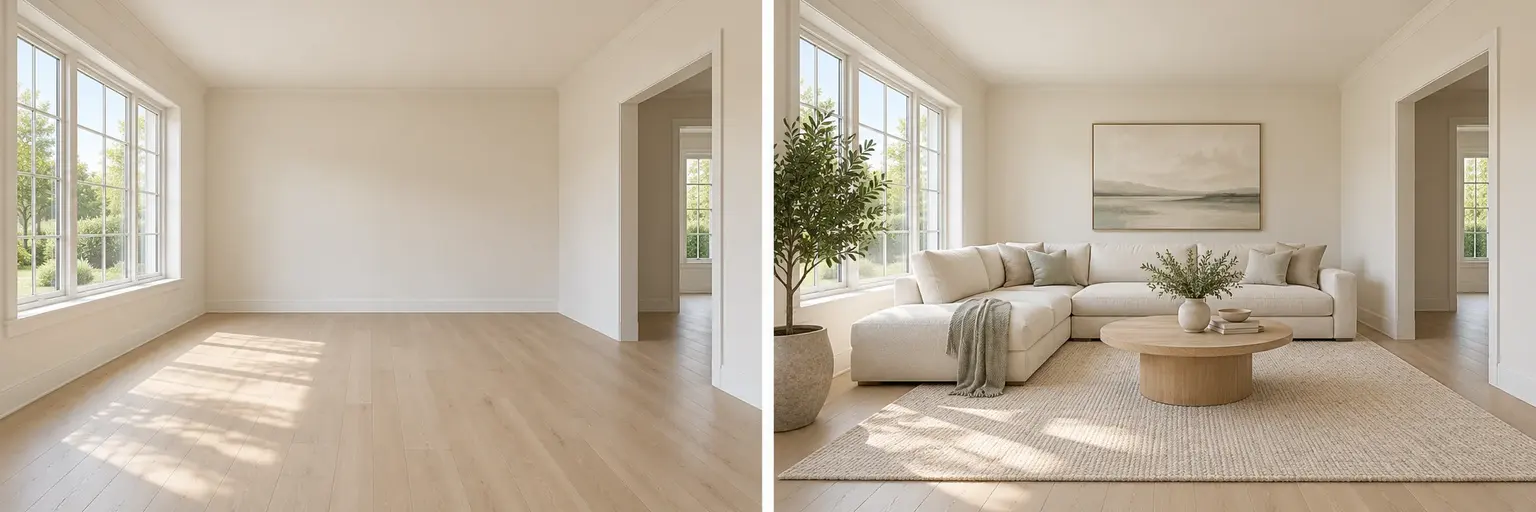
Illustrative empty room and a proposed furnishing reference
Illustrative design comparison, generated with AI. Use it to understand the workflow rather than predict an exact result.

Review continuity before adding more angles

Compare the generated target with the accepted reference: count chairs, inspect upholstery, check table shape and consider whether the arrangement could occupy one real room. Multi angle virtual staging can drift when furniture is hidden or the camera viewpoints share little information. Keep the first accepted furnishing view as your reference rather than repeatedly using a newly altered output. The illustrations on this page explain the workflow and do not establish a tested consistency guarantee for the available models.

Choose references for multi angle virtual staging

Use two photographs of the actual same room with similar lighting and enough overlapping architecture to orient the view. A close-up of a sofa provides texture information but little evidence about room placement. Multi angle virtual staging also becomes harder when a wall or object hides most of the furnishing arrangement. Begin with one or two major pieces, keep the reference stable and add more complexity only after the target view is credible. Measure the real room separately if exact furniture fit matters.

Multi Angle Virtual Staging: practical questions

Does multi angle virtual staging guarantee identical furniture?

No. This page uses the existing reference-image editor, and results can change furniture shape, fabric or placement. It does not provide a geometric consistency engine. Review each output and use a dedicated spatial workflow if exact matching is required.

Which photograph should I upload first?

Upload the real room angle you want to edit first. Upload the accepted furnished reference second. The supplied prompts name those roles explicitly. Use a model that accepts at least two images and avoid unrelated references that make the roles ambiguous.

Can multi angle virtual staging generate all views at once?

This workflow generates one target image per attempt. Additional uploaded images are references, not a batch of output requests. To work on another angle, prepare that real photo as the new target and reuse the same accepted furnishing reference.

Why is the sofa on the wrong side in the second view?

Camera-relative directions can be misleading. Replace left or right with a fixed anchor, such as beneath the long window. Check that the reference and target depict the same room and have enough shared architecture to make the intended position clear.

Can I invent a reverse view from one staged photo?

You can request an imagined view, but unseen walls, openings and furniture will be invented. That is not a verified view of the actual property. For this workflow, provide a real target-angle photo so the editor has the room features to preserve.

What should I do if small accessories keep changing?

First match the essential sofa, bed or table and reduce decorative objects. Small items and partially hidden pieces are harder to carry across. If a precise repeated arrangement is necessary, a controlled three-dimensional scene may be a better fit.

Each generation uses the credits shown in the editor. View credit packages when you need more.

Try multi angle virtual staging with two reference photos

Start with your own photograph, choose a focused brief and review the result against the original.

Start editing