
Photoroom and Pixelcut both offer tools for cleaning up product photos and creating new visuals. That overlap makes a simple feature checklist less helpful than it first appears: background removal, AI scenes and batch editing can mean different things once you start working with your own images.
The practical starting point: shortlist Photoroom when consistent catalog production is your main task. Shortlist Pixelcut when you want to explore product scenes alongside a broader set of image and video tools. Both deserve consideration for product work; neither should be declared the image-quality winner without a matched test.
Review scope: This comparison is based on official feature and pricing information reviewed on October 25, 2026. We have not run a controlled side-by-side generation benchmark. Recommendations describe workflow fit, not measured superiority. We operate AI Photo Editor, which is mentioned separately as an option for occasional edits. The photographic illustration below is not an output from Photoroom or Pixelcut.

Photoroom vs Pixelcut at a glance
| Question | Photoroom | Pixelcut |
|---|---|---|
| What should put it on your shortlist? | Its dedicated product and catalog workflows | Its product tools combined with broader creative workflows |
| Does it remove backgrounds? | Yes | Yes |
| Can it create product scenes? | Product staging and AI product-photography tools | Product imagery and AI background tools |
| Does it offer batch editing? | Yes; check your plan’s allowance and supported operations | Yes; check your plan’s allowance and supported operations |
| What needs attention when comparing plans? | AI credits and batch exports | AI credits, operation limits and batch exports |
| What remains unproven by a feature list? | Accuracy on your products and time to an accepted export | Accuracy on your products and time to an accepted export |
A useful comparison should answer what you can finish with each tool, not merely count the buttons. For example, the ability to create a lifestyle scene is different from consistently preserving a label across ten lifestyle scenes.
Start with your workload: catalog, campaign or occasional edit?
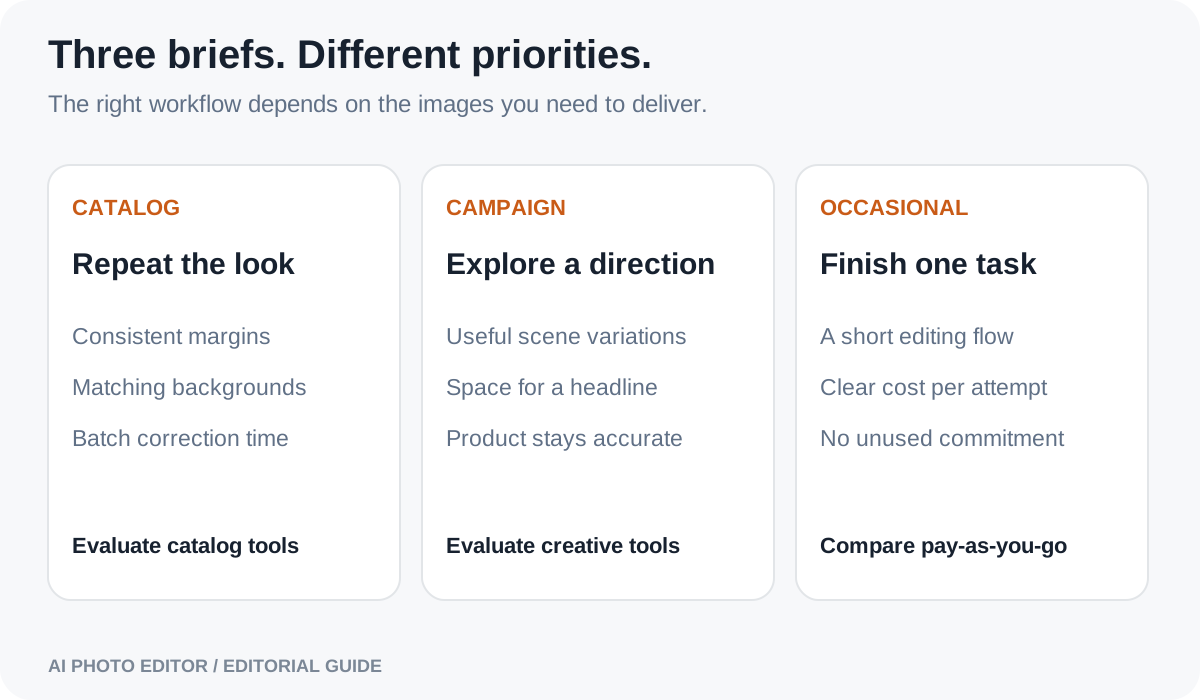
Catalog work rewards consistency. You may need the same background, similar product scale and matching margins across items that have different shapes. The important question is how much manual work remains after a batch runs.
Campaign work rewards useful variation. You might want several compositions, a seasonal setting or an image with room for a headline. The product must remain faithful even when the surrounding scene changes.
Occasional editing rewards a short path to one good result. A subscription with generous allowances may still be poor value if you use only a small fraction of them. Evaluate the commitment as well as the advertised per-image economics.
If you do all three, do not assume one editor must handle every stage. It can be sensible to approve a clean product image first and then use it as the starting point for creative layouts.
Background removal: examine difficult edges
Both services offer background removal. The meaningful question is how their outputs behave on your material: hair-like fibers, narrow straps, translucent glass, reflective metal and low-contrast edges can reveal problems that a simple solid object does not.
Use an image with a handle or an opening. Check both the outside silhouette and the spaces inside the product. A cutout can look acceptable at thumbnail size while leaving an unwanted patch of the old background inside a bag handle.
Try the exported cutout against both a light and a dark background. That can make pale fringes, dark halos and incomplete transparency easier to spot. Then inspect it at its intended listing size; a defect visible only under extreme magnification may matter less than a missing strap that customers can clearly see.
Do not confuse a generated white background with a transparent cutout. If your next step needs transparency, confirm the actual exported file contains it. If your goal is simply to isolate an item, start with a dedicated background-removal workflow before asking a generator to rebuild the scene.
Product scenes: compare fidelity as well as creativity
Photoroom presents dedicated product staging and product-photography workflows. Pixelcut presents product imagery alongside model-based creative tools. These are both relevant ways to explore scenes; the product pages alone do not establish which one preserves your item more reliably.
Use the same source image and a specific brief. For example: keep the original camera angle, preserve all packaging text, place the item on a neutral surface and add a subtle contact shadow. Do not give one tool a simple background change and the other a complex reconstruction, then treat the outputs as a fair comparison.
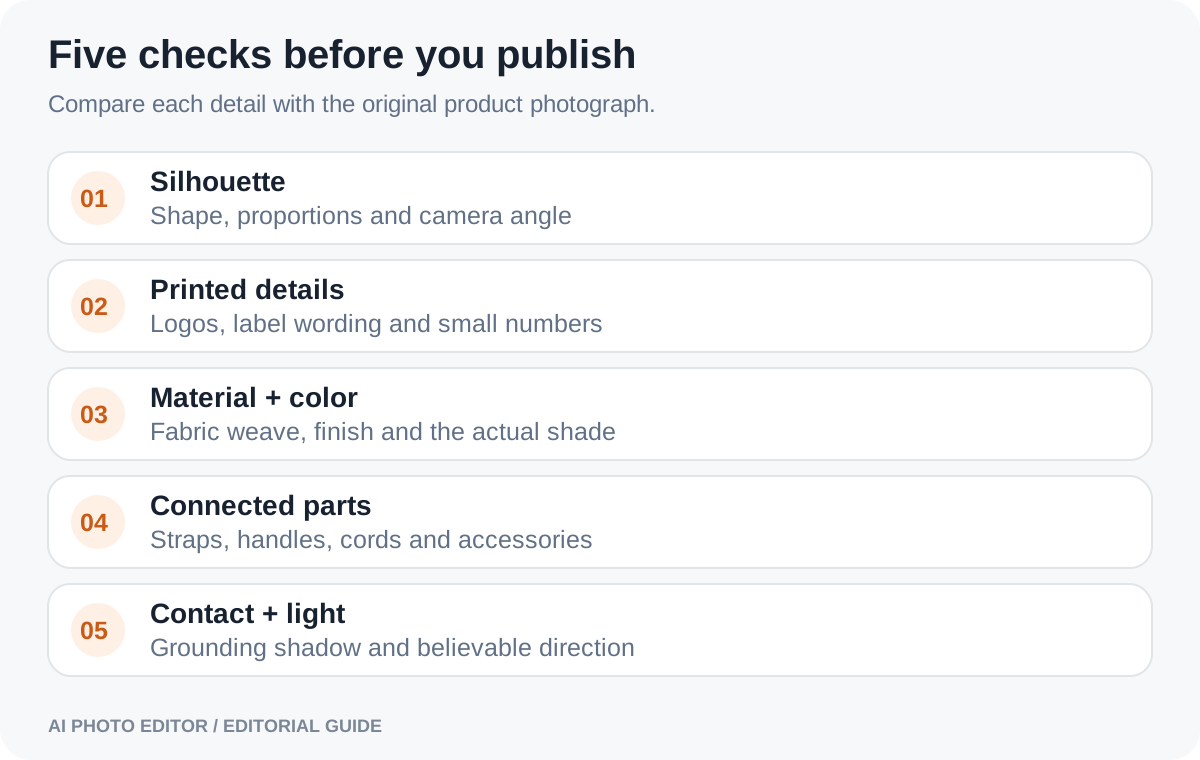
Inspect the product before judging the scene. Check cap shape, logos, stitching and the number of visible components. Then check perspective and lighting. A beautiful tabletop scene is not successful if the bottle appears to float or a shoulder strap disappears.
For a campaign, look for usable negative space as well. If the final design needs a headline on the left, an otherwise attractive composition may fail the brief if every version places the product there.
Batch editing: measure the work that remains
Both Photoroom and Pixelcut advertise batch editing. It would be misleading to describe Pixelcut as an individual-image-only editor. What you need to establish is which tasks can be applied together, what the current export allowance is, and how much correction your particular set needs.
Prepare a small batch containing varied product shapes. Use the same desired background, margins and framing. After processing, record three things: how many images are ready to use, how many require individual adjustments, and how long it takes to save and organize the results.
A batch of twenty images with six exceptions is a different workload from a batch with one exception, even if both finish their automated step at a similar speed. This article does not supply those numbers for either service; you can measure them with your own products before committing.
If coworkers will use the results, include handoff in the evaluation. Decide where approved files live, how versions are named and who checks the final images. Extra creative features are not a substitute for a repeatable approval process.
Pricing: separate subscriptions, credits and exports
At the review date, both products publish free and paid options. Photoroom’s paid plan information separates AI credits from batch exports. Pixelcut’s pricing information also distinguishes AI credits, batch exports and limits on particular operations. A large allowance in one category does not automatically make every feature unlimited.
This guide avoids treating a monthly-equivalent annual price as a month-to-month purchase. Before paying, check the billing interval, amount charged upfront, included operations and what happens when you reach a limit. Plan details can change and may differ across purchasing channels.
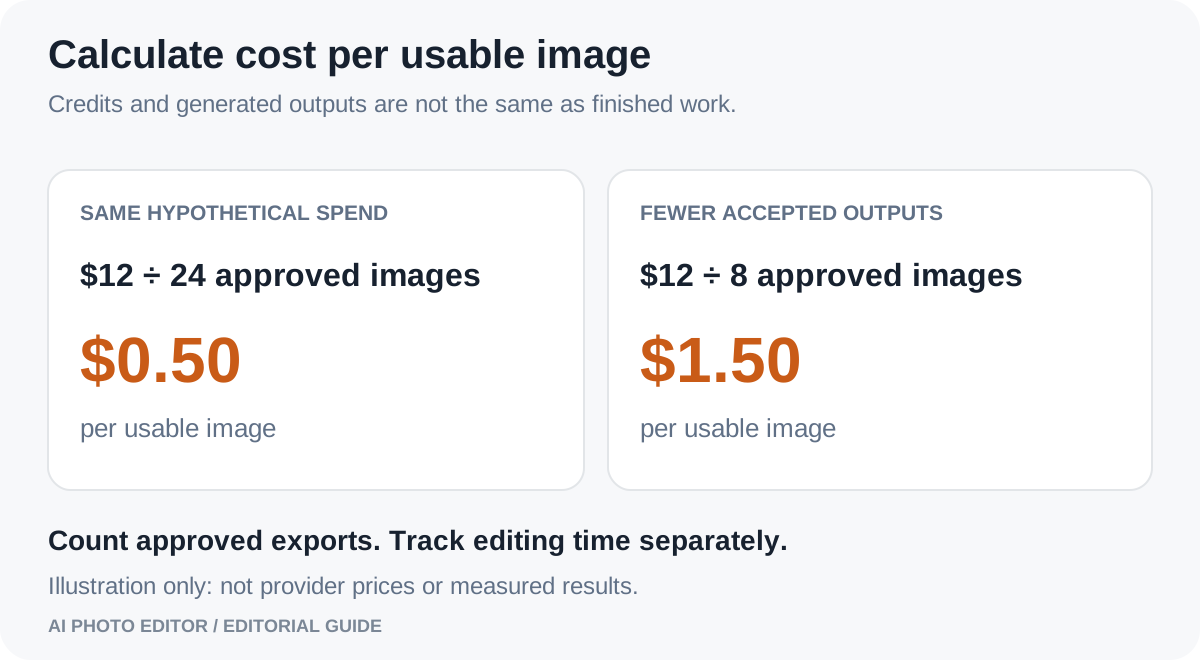
For your comparison, write down the cash commitment and the cost of the workload separately. Then count usable outputs rather than generations. A failed attempt can consume time even when it does not consume credits; a visually good output can still be unusable because a label changed.
Be equally careful with free access. Confirm whether it covers the specific tool, output resolution and final download you need. A preview that helps you evaluate a service is valuable, but it should not be counted as a production-ready export unless it meets your requirements.
A fair five-photo comparison you can run yourself
You do not need a large benchmark to find out whether a tool fits your own work. A small, deliberate test is more useful than a collection of unrelated promotional examples.
- Choose five authorized originals. Include a simple item, small printed text, fabric, a reflective surface and a product with attached parts.
- Define the deliverable. Specify background, crop, product position, output size and whether transparency is needed.
- Use the appropriate tool in each service. Give both the same goal while allowing their intended controls.
- Set a retry budget. For example, allow up to three attempts per task in both tools. Keep all outcomes rather than selecting only a flattering example.
- Review the exports. Compare the full-resolution result with the original and record corrections, elapsed working time and usage charges.
Use simple acceptance labels: ready to publish, needs a small manual fix, or rejected. A numerical score such as 9.7 out of 10 is not useful unless you can explain what it measures. For product work, a changed size label may be a rejection even when the rest of the image is excellent.
| Record | Why it matters |
|---|---|
| Tool, plan and selected model | Keeps the comparison reproducible |
| Original and final export | Lets you check preserved details |
| Prompt or operation settings | Explains what each service was asked to do |
| Attempts and corrections | Shows the effort behind the result |
| Actual usage and time | Supports a workload-based value decision |
Which should you choose?
Start by evaluating Photoroom if you regularly prepare a catalog and its dedicated product workflow matches your process. Pay particular attention to consistency and the steps needed to correct exceptions.
Start by evaluating Pixelcut if you want product editing within a wider creative toolkit. Check the exact models and operations you will use, and whether their limits suit the volume of variations you expect.
If you only need occasional edits, compare a pay-as-you-go option too. Our AI Photo Editor offers prompt-based product edits with one-time credit packages. It is a different purchasing model, not a claim that it outperforms either service on every task. See current packages and generation costs before deciding.
Your answer may change as your workload grows. Choose the editor that completes your current work reliably, then reevaluate when your volume, team or deliverables change.
Frequently asked questions
Is Photoroom better than Pixelcut for product photos?
There is no universal result supported by this comparison. Photoroom’s product workflow is a reason to shortlist it for catalog work; Pixelcut also offers product and batch tools. Test both on your actual images if final image quality is the deciding factor.
Does Pixelcut support batch editing?
Yes. Its official product and pricing pages describe batch editing and batch export allowances. Check the current plan and operation instead of assuming every feature is available in a batch.
Can either tool guarantee unchanged logos and packaging text?
Do not assume a guarantee from a generative feature. Check the exported image against the original. If exact preservation fails, use a more controlled workflow that keeps the original product and limits changes to its surroundings.
Which one is cheaper?
It depends on the plan, billing interval, operations, volume and number of usable outputs. Comparing headline prices or credit counts alone leaves out important differences. Use the same workload for both estimates.
Do I need an AI scene generator for a white background?
Not necessarily. A background-removal tool followed by a solid background may meet the brief with fewer changes to the item. Save generative edits for tasks that actually require a new setting or content.
Should I upscale before comparing the results?
Compare the editor’s native export first so you know which stage introduced a defect. If enlargement is needed, apply an upscaling step afterward and inspect text, texture and edges again.