
A product photo has a stricter job than an attractive social post: it must help someone understand what they are buying. A cleaner background is useful. A cleaner background that also changes the bottle shape, shoe stitching, or printed label is a problem.
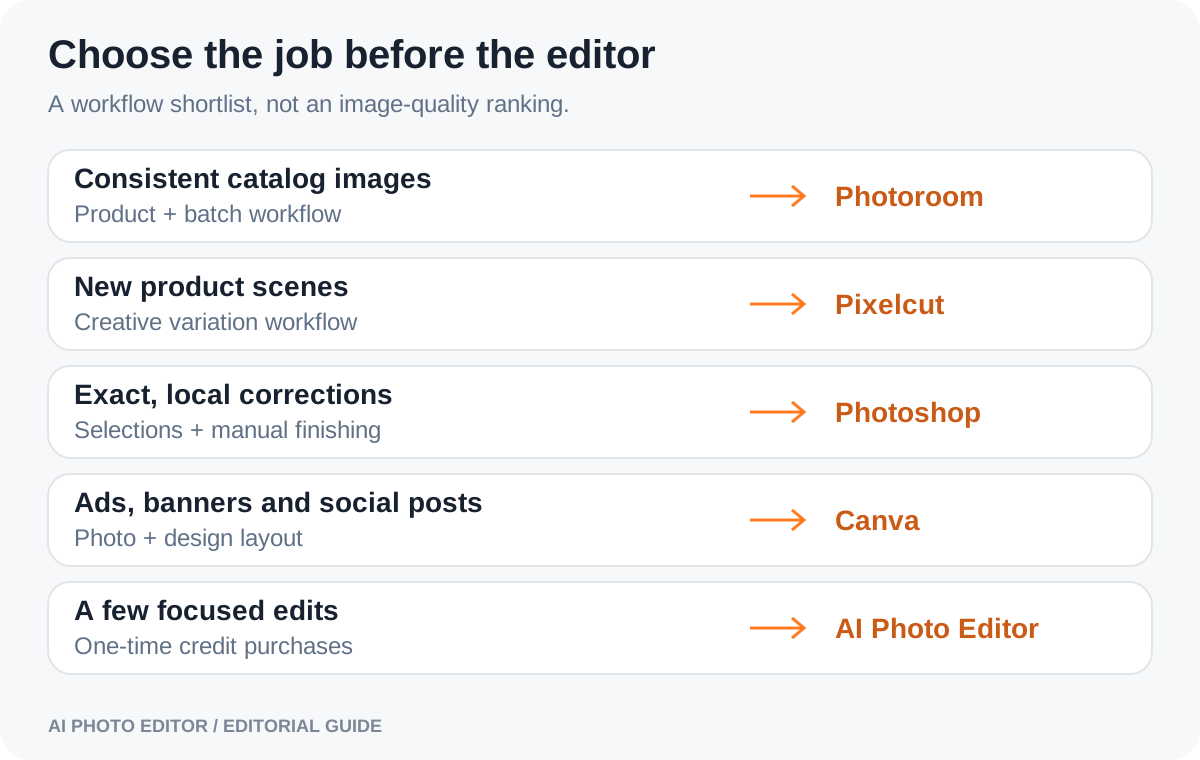
The best AI photo editor for product photos therefore depends on your workflow. Photoroom is worth shortlisting for repeatable catalog work; Pixelcut for exploring product scenes and creative variations; Photoshop for precise corrections; Canva for turning an approved photo into a finished design; and AI Photo Editor for occasional edits with one-time credit purchases.
About this guide: This is a feature-based editorial comparison, reviewed on October 25, 2026, using the products’ official pages and our own product configuration. We publish AI Photo Editor and include it below. These are recommendations by use case, not results from a controlled image-quality benchmark. The photographs are AI-generated editorial illustrations, not outputs from the compared services.

Quick comparison: choose by the job you need to finish
Start with the output you need. A seller preparing a consistent set of listings has different requirements from someone making one seasonal advertisement.
| Editor | Best reason to shortlist it | Main consideration |
|---|---|---|
| Photoroom | Repeatable product backgrounds and catalog workflows | Check both AI usage and batch export allowances |
| Pixelcut | Product scenes, creative variations and related media tools | Check the model, operation and export limits you will actually use |
| Adobe Photoshop | Precise selections, compositing and manual finishing | More editing decisions and a deeper learning curve |
| Canva | Advertisements, banners and social designs built around a product photo | Separate photo editing requirements from layout requirements |
| AI Photo Editor | Occasional prompt-based changes without a subscription | Generation cost varies; inspect product details after each edit |
There is no meaningful universal winner here. A tool that handles a difficult bottle label well may still be the wrong choice for processing a whole catalog.
What matters most in an AI product photo editor?
Use five practical criteria: product fidelity, selection control, consistency across images, time to an acceptable export, and the total cost of your workload. A long model list does not answer any of those questions on its own.
Product fidelity comes first. Check color, shape, seams, logos, label wording and the number of included parts. An edited image should not suggest that a product includes accessories, a different finish or a feature it does not have.
Control determines how you fix mistakes. Some jobs need only a background cutout. Others need a carefully limited selection or a manual correction. Find out whether a failed area can be repaired without regenerating the entire picture.
Consistency matters when images sit together. Compare product size within the frame, margins, camera angle and shadow direction across a set. A gallery of individually attractive images can still look disorganized.
1. Photoroom: a shortlist choice for repeatable catalog work
Photoroom’s product offering includes background removal, product staging, batch editing and team workflows. That makes it relevant when the recurring job is preparing many items in a consistent style, rather than making one unusual creative edit.
Choose it for: a workflow where repeated positioning, background treatment and exports are important. Check first: which features and allowances belong to the plan you intend to buy; generation and batch exports should not be assumed to be the same quota.
For your evaluation, use several differently shaped products. A narrow bottle, a wide handbag and a pair of shoes should all look deliberately placed in the same catalog. Watch for images that technically export correctly but still need individual resizing or shadow adjustments.
2. Pixelcut: a shortlist choice for creative product variations
Pixelcut offers product imagery tools alongside background removal, upscaling, retouching, shadows and batch editing. Its broader image and video offering makes it worth considering when you need both everyday cleanup and different creative directions from the same source material.
Choose it for: comparing several scene concepts or combining product edits with other creative work. Check first: the limits for your selected models and operations, plus the export allowance. Do not assume that every feature uses credits in the same way.
Creative range is useful only if the item stays recognizable and accurate. Try a modest background change before asking for a dramatically different angle or environment. The more of the original scene you ask a generator to reinterpret, the more carefully you should inspect the product.
3. Adobe Photoshop: a shortlist choice for precise finishing
Photoshop combines selection-based generative editing with layers, masks and manual compositing. Its appeal is the ability to isolate a change and then correct it, rather than relying entirely on a whole-image result.
Choose it for: difficult edges, controlled composites and edits that need hands-on finishing. Check first: whether you have the time and skills for that workflow, and which subscription and generative features you need.
A sensible task might be preserving the real foreground product while replacing only its surroundings, then adjusting the contact shadow separately. This is more deliberate than a single prompt, but it can be preferable when small details must survive. It still requires inspection; using a professional editor does not automatically make an AI-generated region accurate.
4. Canva: a shortlist choice for turning a photo into a design
Canva combines AI photo-editing features with templates, text and design layouts. It is particularly relevant when the final deliverable is a promotion, social post or banner rather than an isolated product photograph.
Choose it for: placing an approved product image into a finished marketing asset. Check first: access to the specific AI features and design assets you need.
Separate the two decisions: first approve the product photo, then design around it. Adding a headline and discount badge cannot fix an altered logo or an implausible product shape. Likewise, a clean catalog photo may need extra composition work before it functions well as an advertisement.
5. AI Photo Editor: a shortlist choice for occasional edits
Our product photo editor lets you describe a change in a prompt and use one-time credit purchases instead of a subscription. At the review date, the smallest paid package is $2.90 for 100 credits. Credits are not a fixed number of pictures: the model, resolution and reference images affect the cost shown before generation.
Choose it for: occasional edits and trying a focused change without committing to a recurring plan. Check first: whether the result preserves your product and whether the quoted generation cost fits your task. This guide does not position it as a substitute for an established high-volume catalog system.
Eligible visitors receive a one-time grant of 10 free credits, limited by account and IP. Images generated with free credits carry a watermark; paid-credit images do not. Free and paid balances are separate and are not combined for one task. The pricing page explains packages and current generation costs.
A better comparison: use your own five-image test set
Instead of choosing from attractive demonstration images, collect five photographs you are authorized to use. Include an easy case and several that expose weaknesses:
- A simple solid object: checks basic edges, framing and contact shadow.
- A product with small printed text: checks whether letters and logos remain unchanged.
- A fabric item: checks seams, weave, folds and natural texture.
- A transparent or reflective object: checks retained reflections and background contamination.
- A multi-part product: checks that handles, straps, cables and included pieces are not removed or invented.
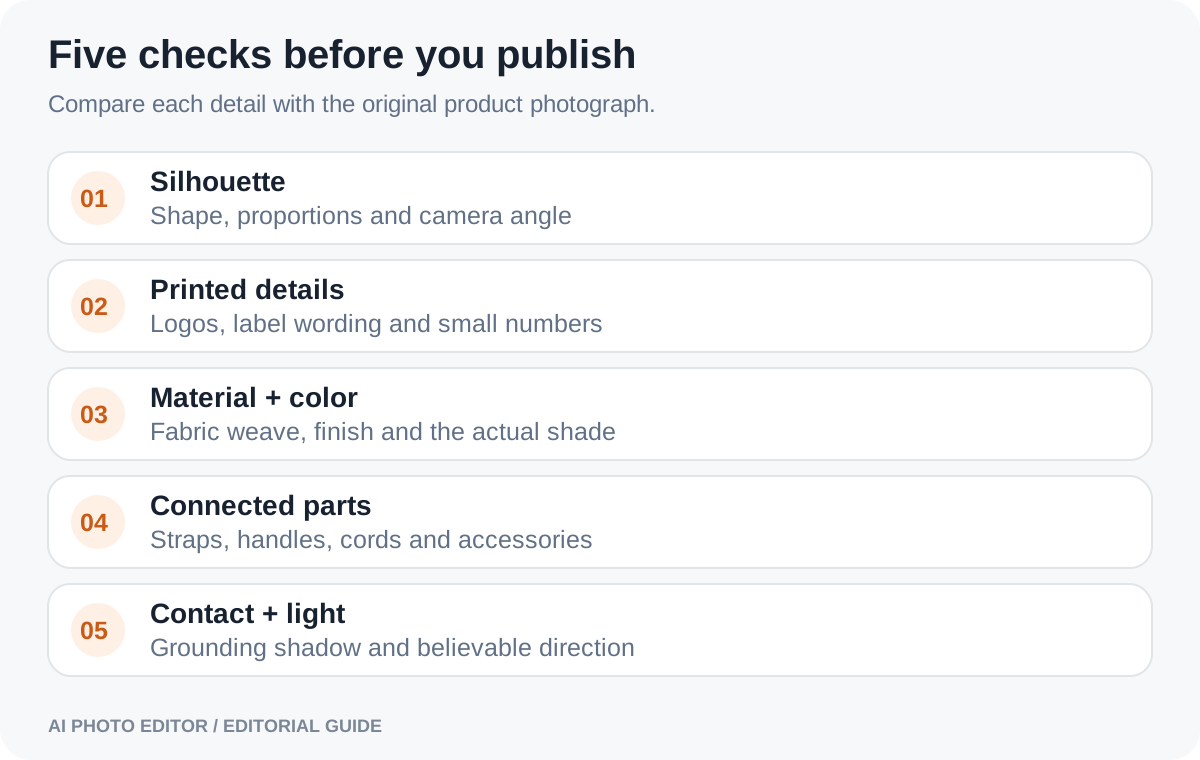
Give each tool the same job, while using its intended controls. If one has a dedicated background-removal tool, use that for a cutout instead of forcing every product through a generative prompt.
Replace the background with a clean, light neutral studio setting. Preserve the product’s exact shape, proportions, color, label text, logo, material and all attached parts. Keep the original camera angle. Add only a subtle contact shadow. Do not add accessories or extra products.
This prompt is a starting point, not a guarantee. Save the original file, record the settings and count every attempt. Judge the full-resolution export, including a close inspection of the label and edges, before deciding whether it is usable.
Compare cost per usable image, not credits per dollar
Credits are different units in different services. A low price per credit says little if your chosen operation consumes many credits or regularly needs another attempt.
A useful calculation is: money allocated to the task ÷ approved final images. Track your editing time separately. For example, an illustrative $12 workflow that produces 24 approved images costs $0.50 per approved image. If only eight outputs pass inspection, that becomes $1.50. These are hypothetical numbers, not prices or performance measurements for any editor in this guide.
For a subscription, account for the bill you actually need to pay and the allowance you expect to use. An annual plan’s monthly equivalent is not the same as paying for one month. For credit packs, distinguish the upfront purchase from credits consumed and consider whether you will use the remainder.
A practical workflow for cleaner product photos
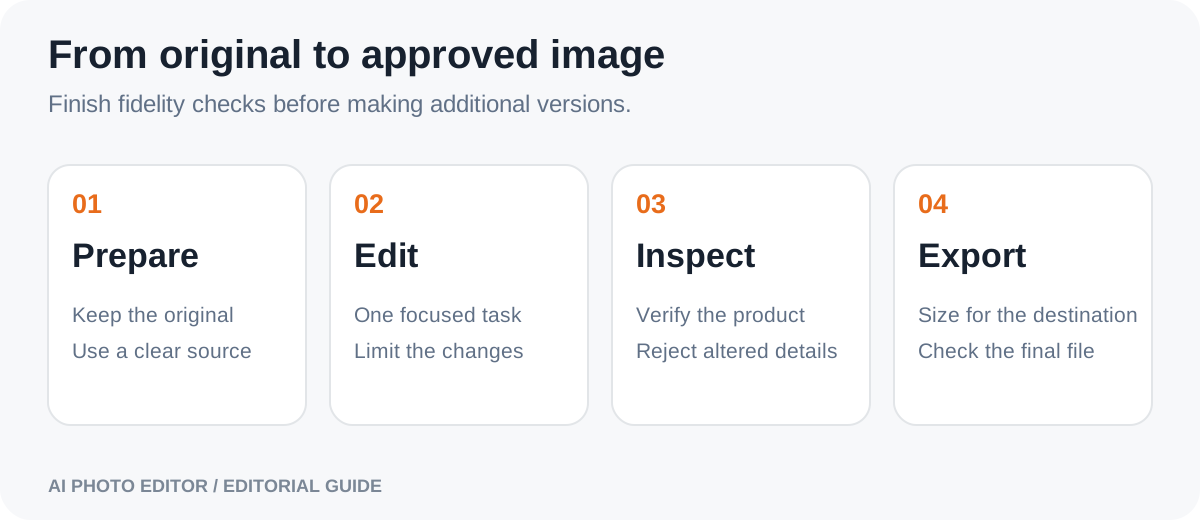
Begin with a clear original photograph and retain an untouched copy. For a straightforward cutout, try a dedicated background remover. For a change in setting, use a focused editing request. Avoid asking for a new angle, new lighting, a new material and a new background in one step.
After inspecting the edit, size it for its destination. An image upscaler can help when more pixels are needed, but it is not a remedy for incorrect text or a changed product. Check the result again after enlargement.
Keep listing photographs and creative advertisements as separate deliverables. A decorative setting may be useful in a campaign while a particular listing slot needs a simpler image. Confirm the requirements for the destination before exporting.
Frequently asked questions
What is the best AI photo editor for ecommerce?
Choose by workload. Catalog repetition, creative scenes, precise corrections, finished designs and occasional edits are different jobs. The comparison above gives a shortlist for each; your own product images should determine the final choice.
Can an AI editor keep my logo and label exactly the same?
A preservation instruction can help, but it is not a guarantee. Compare the exported label with the original at full size. If exact details repeatedly change, use a workflow that retains the original product pixels and limits editing to the surrounding area.
Do I need a subscription to edit a few product photos?
No. AI Photo Editor offers one-time credit purchases. Other products have different free and paid arrangements. Compare the full cost of your task and the export you receive, rather than assuming every free preview includes a usable download.
Should I generate a product image from scratch or edit a real photo?
For an existing item, a real reference photograph provides the details you need to preserve. Generating from text alone can create a plausible-looking object that differs from what you sell. Even reference-based edits need inspection.
For your next image, start with one specific improvement and one clear original. You can try a product photo edit before deciding whether you need a larger workflow.