Remove Flyaway Hair from Photos

Upload a portrait to remove flyaway hair with a focused instruction that asks to keep your hairstyle, natural texture and face.

Upload your portrait

JPG, PNG or WebP. Choose a clear portrait with visible hair detail.

Choose a starting instruction

Start here to remove flyaway hair around the silhouette without requesting a new hairstyle.

Six portraits, six ways to keep hair natural

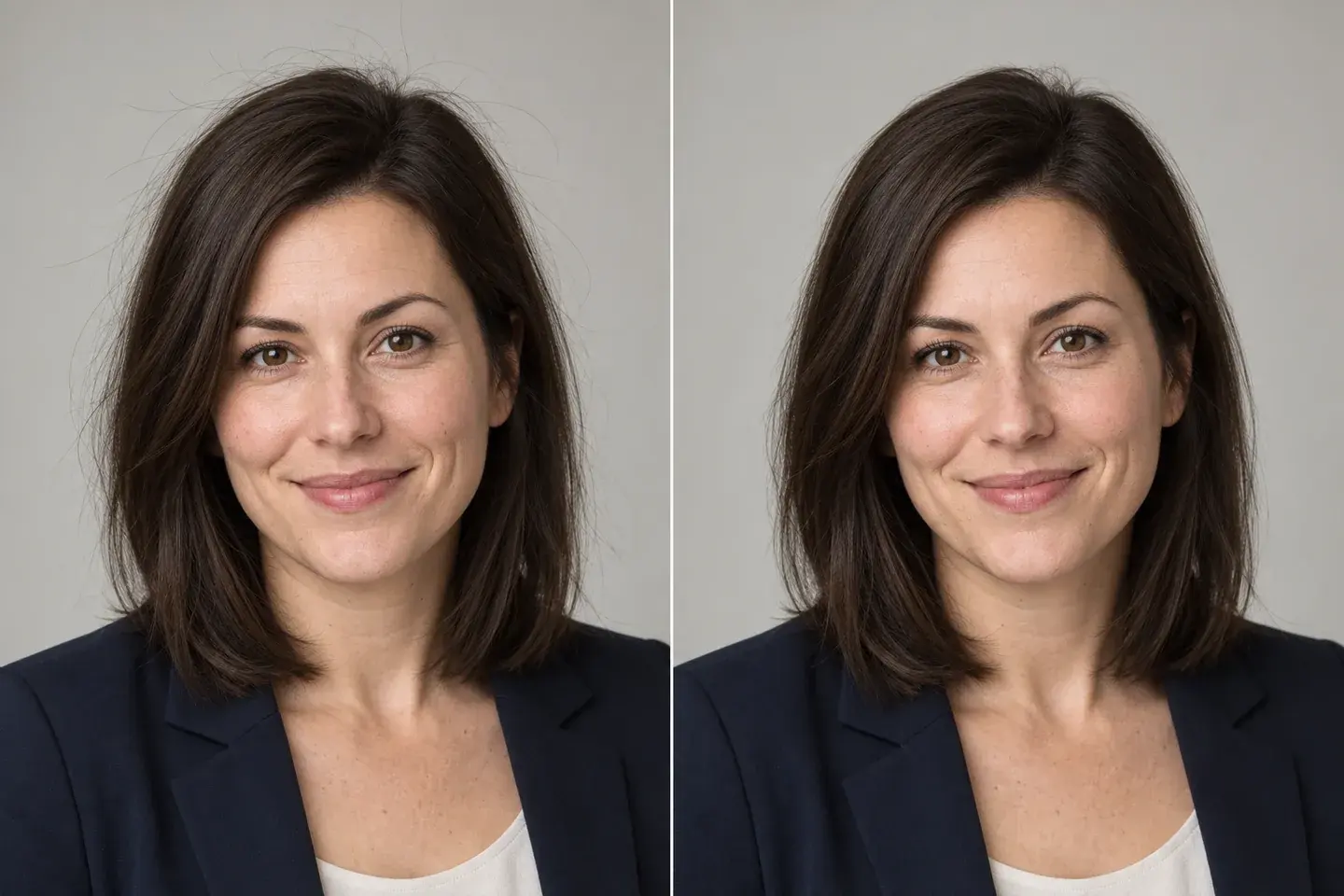
Generated headshot comparison showing isolated outer flyaways and a more restrained hair outline on the same woman.
FlyawaysCleanup example

A headshot with a softer, tidier outline

Remove flyaway hair around the crown without requesting a new face or a different hairstyle. For a professional headshot, a handful of isolated strands may be all that needs attention. Keep natural skin texture, the part and hair volume in the instruction. Judge the final portrait at the small size it will appear on a profile.
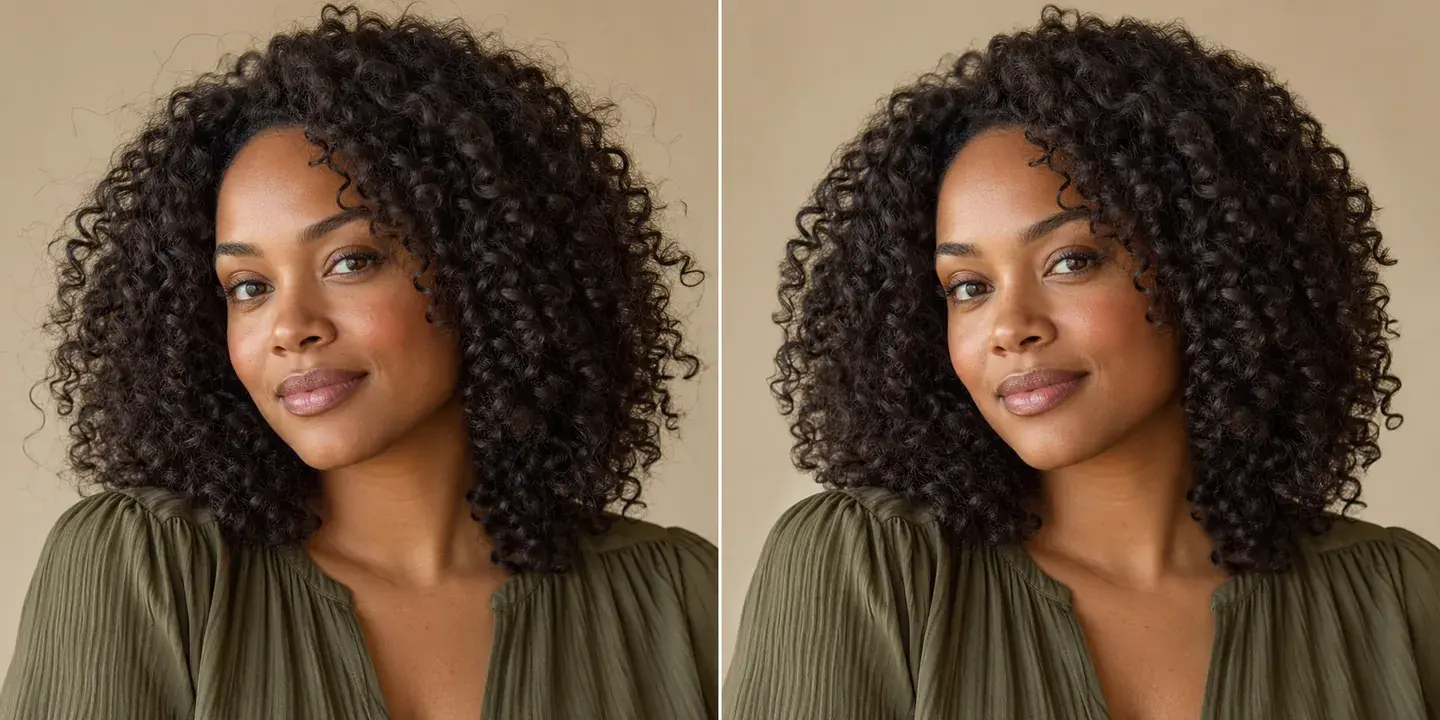
Generated portrait of a woman with natural curls, comparing outer flyaways with a curl-preserving cleanup concept.
FlyawaysCleanup example

Keep the curls that make the hairstyle yours

Natural curls and coils belong in the picture. To remove flyaway hair selectively, identify the isolated strands outside the main silhouette and ask to preserve the curl pattern, density and baby hairs. Compare the overall volume afterward. A uniformly smooth edge can look less natural than leaving a few soft wisps in place.

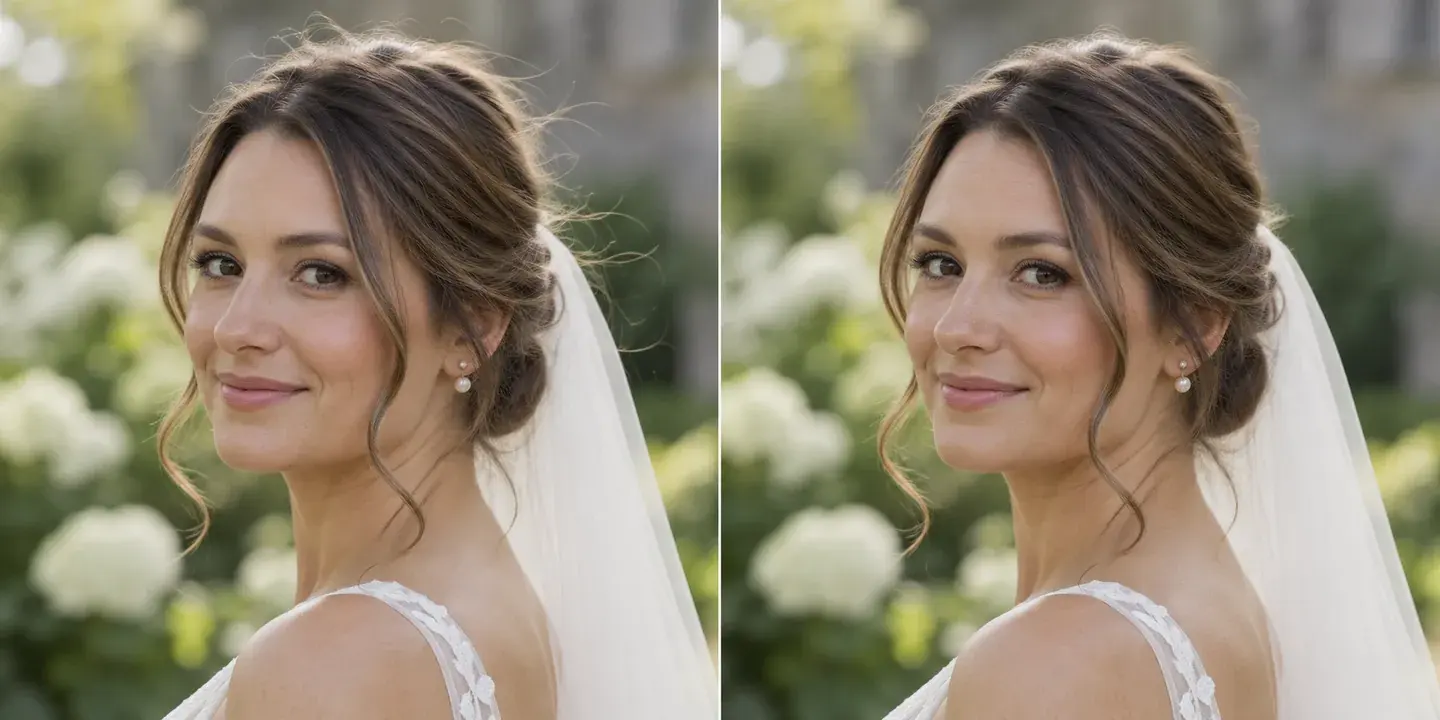
Generated bridal portrait comparison with isolated flyaways reduced while illustrating an intact veil and intentional face-framing curl.
FlyawaysCleanup example

A wedding portrait that keeps the veil and updo

Fine veil edges, pearls and deliberate face-framing curls can resemble stray hairs. Name those details as things to keep when you remove flyaway hair above the crown. Start away from the accessories and inspect the full veil edge afterward. This example shows the intended separation; actual preservation depends on the source photo and generated result.

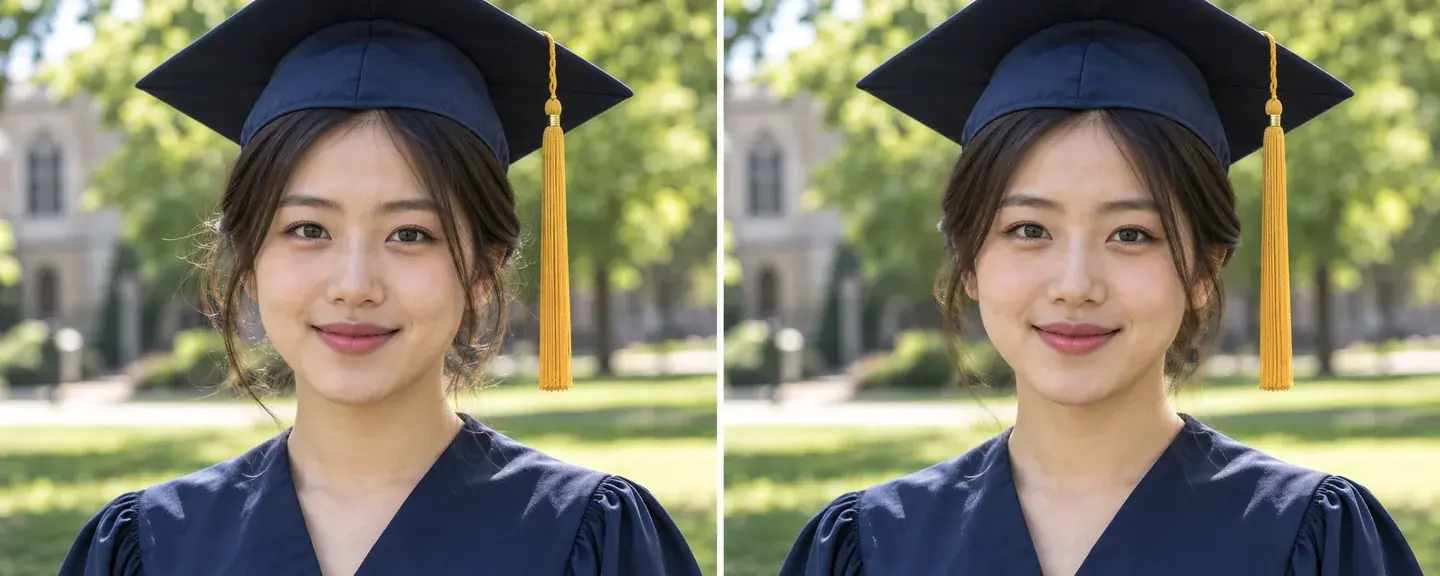
Generated graduation portrait illustrating stray-hair cleanup with the mortarboard and golden tassel retained.
FlyawaysCleanup example

Tidy the portrait without losing the tassel

A mortarboard and tassel create several fine lines near the hair. Describe stray strands beside the ears or shoulders instead of asking for every loose line to disappear. Retain the complete cap, tassel and gown in the request. When you remove flyaway hair from a graduation photo, check these recognizable details as carefully as the hair itself.

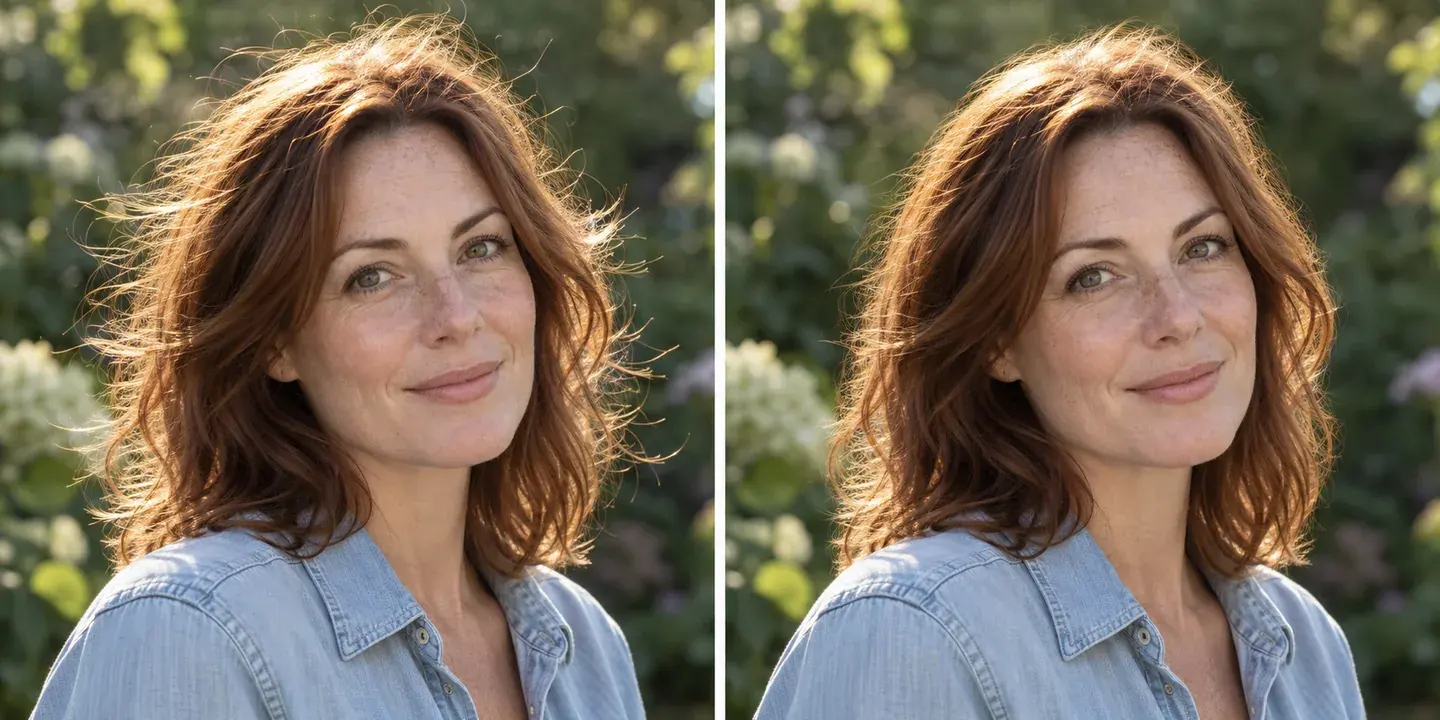
Generated outdoor portrait of an auburn-haired woman, showing backlit flyaways and a lighter cleanup example.
FlyawaysCleanup example

A lighter touch for windblown outdoor hair

Backlighting can make loose hairs much more visible against a garden or park. Remove flyaway hair conservatively so the portrait keeps its movement and soft outdoor feel. Ask to retain the lighting and foliage, and inspect the background near the edited strands. Cleaning every bright hair can create an artificial edge or change the apparent hairstyle.

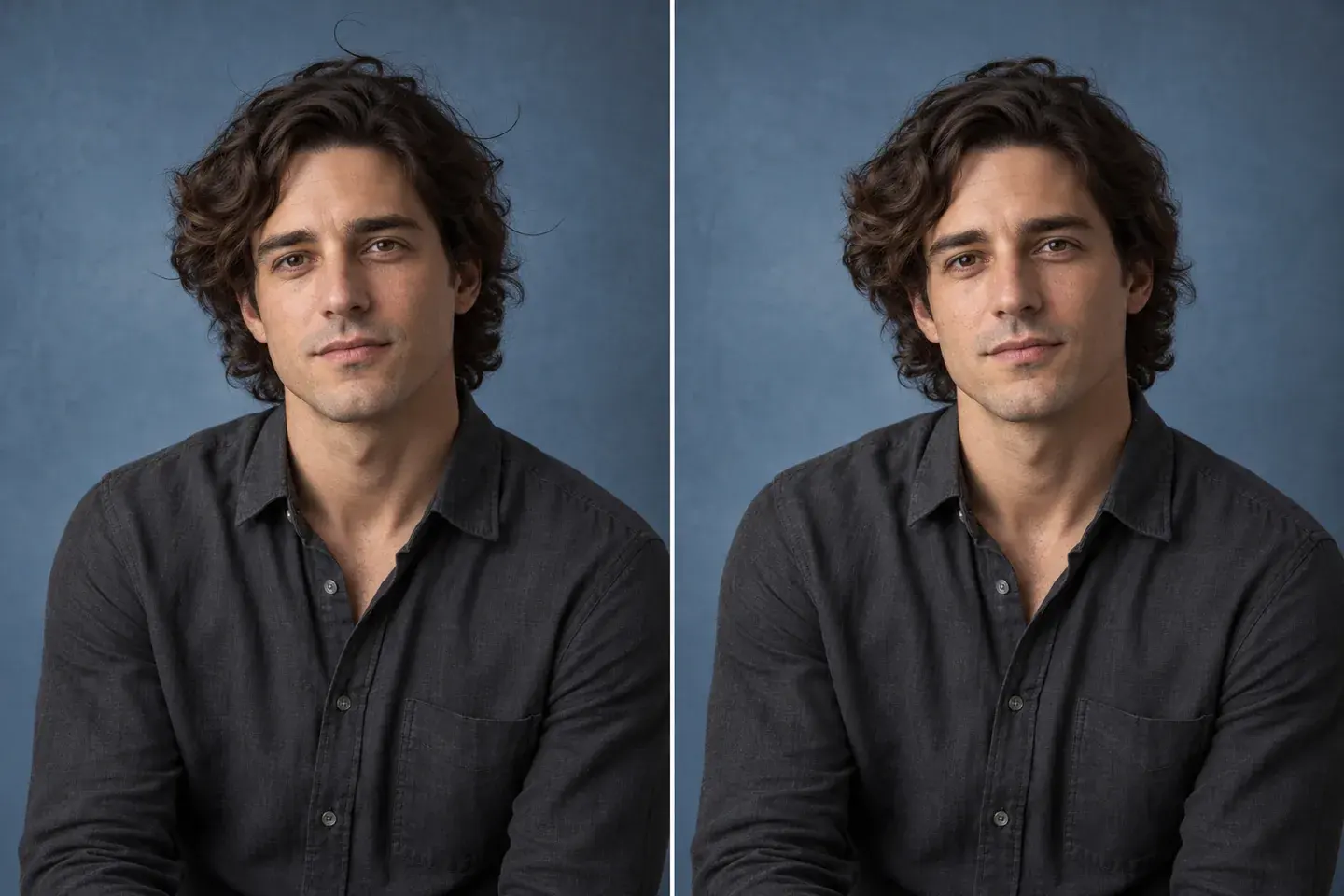
Generated male portrait comparison illustrating isolated flyaway cleanup without an intended change to waves or hair volume.
FlyawaysCleanup example

Keep the waves and shape in a casual portrait

Short and medium-length styles can also have a few strands that catch the light. Ask to remove flyaway hair outside the silhouette while retaining the main waves and hairline. Keep the request separate from skin retouching or a haircut preview. Compare both sides of the head so the result does not flatten one side more than the other.

Clean up loose strands with a lighter touch

Remove flyaway hair from photos while keeping your face, hairstyle and natural texture. Upload a portrait and choose a light cleanup or describe the stray strands you want tidied. The editor focuses on distracting hairs around the crown, parting or shoulders while preserving the main shape of the hairstyle. Use it for professional headshots, wedding portraits, selfies and other photos where a cleaner hair outline helps the subject stand out.

A tidier portrait with your natural look

Target isolated distractions

A few long strands above the crown or beside the shoulder may be the only changes needed. Judge the picture at its intended viewing size before requesting more cleanup. Fine hairs visible only at extreme magnification may not distract in the finished portrait.

Keep the natural outline

Look at the temples, part and curls rather than accepting a uniformly smooth edge. Natural baby hairs and soft wisps help define the hairstyle. Compare the volume on both sides of the head so cleanup does not become an unintended haircut.

Compare the face and details

Keep your face and expression at the center of the portrait. The cleanup instructions retain facial features, skin texture, earrings and clothing while targeting distracting strands. Mention any distinctive detail you want kept, then choose the version that best reflects your original look.

The hair looks flat or cut out

Return to the original and request fewer changes. Specify a small area above the crown or one side of the head, and ask to retain soft wisps. The aim when you remove flyaway hair is a believable portrait, not a perfectly smooth contour. Leave a strand alone if the cleanup looks more distracting.

A strand crosses the eye or cheek

Hair over a face hides skin or facial details that the model must estimate. Name the strand and the nearby facial features to keep the cleanup focused. For a close-up, describe the strand’s path and ask to retain the eye, eyebrow and skin texture around it.

The background or accessories shift

Include nearby details such as patterned wallpaper, fence lines, lettering or jewelry in your keep list. Describe only the stray hairs you want removed so the model can work to preserve the surrounding texture. You can refine the request before creating another version.

How to remove flyaway hair online

  1. Upload a clear portrait

    Use a JPG, PNG or WebP in which the unwanted strands are visible. A camera export is preferable to a compressed screenshot. Keep the original composition, and avoid adding unrelated reference photos that could make the intended edit harder to describe.

  2. Choose a restrained instruction

    Start with light outer-strand cleanup or select the curl-preserving preset. Name the location, such as above the crown or beside the left shoulder. You can edit the instruction before generating. Check the displayed credit cost for your chosen output size.

  3. Review at two viewing sizes

    Review the full portrait alongside your original photo. Download the image and zoom into the edited edges in your photo viewer. Check facial features and natural hair texture. Return to the original with a narrower instruction if too much hair changed.

Choose the hair cleanup for your portrait

MethodBest fitControlWhat to review
Light flyaway cleanupStray strands around the outer hairstyleKeep volume and soft intentional wispsA tidy, natural silhouette
Focused strand removalA hair crossing the forehead or cheekName the strand and nearby featuresRetained face and skin texture
Gentle frizz reductionA broader smoothing directionKeep the curl pattern and textureNatural-looking hair with less distraction

Use a light cleanup for a subtle finish around the hairstyle, or describe a particular strand across the face for a focused edit. Keep intentional wisps, curls and accessories in the brief. If you want broader frizz reduction, say how much texture and volume you would like retained.

For portraits that should still look like you

Profile and team photos

Remove flyaway hair with a restrained instruction before preparing a headshot crop. Keep facial features familiar and follow the organization’s image requirements.

Wedding and graduation memories

Keep meaningful accessories, deliberate loose curls and clothing details in view. Inspect the downloaded file at the size you intend to share or print.

Photographers reviewing one portrait

Use a single-image request to explore a cleanup, then compare it with the original. This page does not offer a batch gallery retouching workflow.

Frequently asked questions

Can I remove flyaway hair without changing my face?

Yes. The presets focus on stray hair while preserving facial features, expression and skin texture. Use a clear portrait and keep the instruction focused on the hairs you want tidied.

Will my hair still look natural?

Yes. Light cleanup retains the hairstyle’s shape, volume and texture while removing distracting strands. Mention soft wisps, curls or baby hairs you want to keep for a natural finish.

Does it work on curly or textured hair?

Yes. Ask to retain the curl pattern and volume while removing only isolated hairs outside the main shape. This keeps the cleanup focused on distractions rather than changing the hairstyle.

Can I remove a strand crossing my face?

Yes. Describe the strand’s position, such as across the forehead or cheek, and ask to preserve the surrounding facial features. A clear source helps the editor blend the area with the portrait.

Can I reduce frizz as well as isolated flyaways?

You can adapt the prompt to request gentle frizz reduction while retaining the hair’s natural texture. Start with isolated flyaways for a subtle edit, or describe a broader smoothing direction if that is the look you want.

Can I use this for headshots and wedding portraits?

Yes. It is useful for tidying a hair outline while keeping the portrait’s expression and styling. Specify important details such as a veil, hair accessory, loose curl or soft hairline that should remain.

Do I need retouching skills or a selection brush?

No. Upload your photo, choose a preset and describe any specific strands in plain language. You can adjust the instruction before generating, without selecting each hair manually.

Which files can I use, and what does it cost?

Upload JPG, PNG or WebP; convert HEIC or RAW first. Choose an available output size and review the credit cost shown in the editor before generation.

View current pricing · Privacy policy

A tidier portrait, still your hairstyle

Start with a light cleanup and compare the result with the portrait you already like.

Upload your photo